Participant
February 27, 2017
Frage

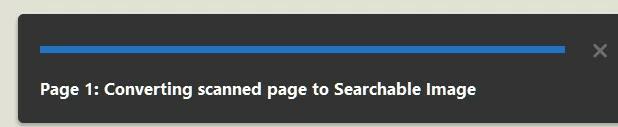
the message "converting scanned page to searchable image" shows when i am paging

  • February 27, 2017
  • 6 Antworten
  • 23535 Ansichten

the message "converting scanned page to searchable image" shows when i scroll down every page and it slows the paging speed intolerably.

Someone please help me.
windows 10

6 Antworten

Participant
May 10, 2021

Hi, I found the solution from an old thread which solved my problem.

https://acrobatusers.com/forum/general-acrobat-topics/switching-automatic-ocr/index.php#comment-61718 


* Edit > Preferences... > Reading
* Reading Order: "Use reading order in raw print stream".
* Page vs Document: "Only read the currently visible pages".

Participant
February 21, 2022

Can confirm this worked for me. Thank you!

Participant
February 28, 2021

Hi, I have the same issue, this is really annoying when I'm trying to read PDF documents. Can someone look into this more deeply?

Participant
February 28, 2021

(None of the suggestions above helped)

Panchasuska
Participant
October 30, 2020

I still have the same issue as you even in the latest version of Adobe Pro DC. Doesn't happen with every document though. No clue yet how to fix that. 

Participant
August 28, 2020

I want to support this OP. I am working with Adobe Acrobat Pro DC version 20.12.20043.396433 and this problem is still happening. The program is attempting to convert every pdf file into a searchable image, even when the pdf was not scanned nor was I using edit mode. Even in reading mode the program attempts to scan every page. Please resolve this bug because it is making the program very unpleasant to use.

Participant
June 25, 2020

I have the same problem as the OP. I am running the latest continuous release version of Acrobat Pro DC (2020.009.20067) on a Mac (Mojave v 10.146). 

When I scroll through an ordinary pdf document (not a scanned document) in ordinary read mode (not edit) the above message often shows up. Usually it appears rather briefly (too briefly to read or screen shot) but it still slows down scrolling and sometimes it appears for longer. If I open View->Tools ->Edit PDF, I see the Recognize Text box is not selected, and in fact is greyed out (cannot be selected).

Lovekesh Garg
Adobe Employee
Adobe Employee
February 27, 2017

If I am not wrong you are in Edit PDF tool. This is happening due to a default Acrobat preference which most of the users wants. But you can change this preference following these steps:

1. Open-File in Acrobat
2. Go to Tools> "Edit PDF"
3. If it runs OCR by default, Go to RHP (window on right side of PDF)
4. There will be a link "Revert to Image" under "Scanned Document" section
5. Click on this link. It will undo OCR. And now this preference remains sticky. You need not to do these steps again and again. You can also change this preference again whenever you want, by clicking the new link available there "Convert to text".

Hope it will resolve your issue.

Thanks.

benm51195693
Participant
January 6, 2019

Hi, This didn't help. I have the precise same problem. The instructions seem not to reflect the actual Acrobat Interface. Specifically, point 4

"4. There will be a link "Revert to Image" under "Scanned Document" section".

This link does appear on the right hand pane; however it CANNOT be clicked at all. It is grayed out. See below.

I believe this is a bug in Acrobat. I have the same version as the OP.

AkanchhaS8194121
Legend
January 7, 2019

Hi Benm, 

Are you experiencing the exact same problem while editing the document? The settings suggested in the previous response applies to the Acrobat DC version 2015. Is it the same version you are working too?

benm51195693

"4. There will be a link "Revert to Image" under "Scanned Document" section".

This link does appear on the right hand pane; however it CANNOT be clicked at all. It is grayed out. See below.

Revert to Image only appears, if the document actually contains images in it. If its a PDF file which contains real text, the option would not be highlighted.

Similarly, for the latest version of Acrobat DC you will see the option "Recognize Text" while working with Edit tool for a scanned document.

Hope this answers your query.

Regards,

Akanchha