


Participant
November 16, 2023
Question

Thick/inconsistent border lines when converting excel into pdf.

  • November 16, 2023
  • 3 replies
  • 14375 views

Hello, I've had this issue inconsistently occur before. Basically, when I convert an excel sheet into an adobe pdf, my borders get screwed up (typically thickened). I've tried troubleshooting and changing my border options to the smallest dotted line based on previous post suggestions, or going to "Print" before converting, but it still occurs. See pics below for example. 

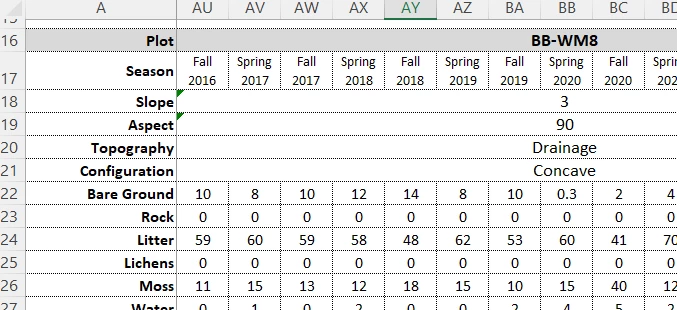
1) Borders appear normal in excel (thin lines, consistent). 
2) Once converted to PDF, random borders appear thickened...not consistently unfortunately.
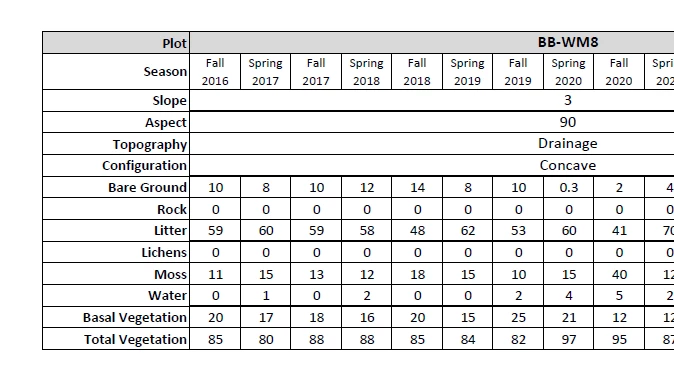
Does anyone know of a way to prevent this issue from occurring? Since excel and adobe are both microsoft products I'm disappointed that this issue has not been fixed yet. It makes PDF documents look messy and unprofessional. 


Note: I am using Adobe Pro (lifetime license) and Excel version 2310. Note that in Adobe Pro the option to "enhance thin lines" does not solve the issue. 

3 replies

Participant
December 4, 2024

Just change page scaling to 98% under the page setup. This works for me every time.

Participant
April 14, 2025

@stella_2135 Could you provide more detailed steps to convert Excel to PDF to get the thin grey lines in PDF as they appear in Excel? Currently, those thin grey lines in Excel converted to thick ones in PDF. Thank you in advance for sharing.

Participating Frequently
April 22, 2025

This trick did nothing to me. I believe there is, as of writing, no solution for this problem until MS fixes it, which is unlikely, MS is famous for not fixing bugs.

Known Participant
July 26, 2024

I have had the same issue for a while, does not matter how I pdf it, I have ran updates, repaird installation, repaird word doc, tried different docs, etc., out Clients are rejecting our deliverables because of this issue. Bluebeam does not have the issue unfortunately I need to use the tagging feature in Adobe.

Participant
September 26, 2024

I found a simple solution to the random thick lines using adobe. Instead within Excel I selected "save as Pdf." Voila no thick lines. Microsoft can do it why not adobe?

Participating Frequently
October 11, 2024

That does not work for me. I've tried Save as PDF, Print as PDF and even copy/paste with the same result.

try67
Community Expert
Community Expert
November 17, 2023

- How exactly are you converting the Excel file to PDF? What command are you using?

- Do the lines still appear this way if you zoom in? This can sometimes appear to happen when you zoom out of a page and the rendering of the lines is not perfect, but in fact they are identical.

- Adobe is not a Microsoft product... Adobe is its own company that develops various applications for Microsoft Windows (and other platforms).

Participant
November 17, 2023

Hi Try, thanks for responding. 

  • When I convert the excel file to PDF, I go to File --> Save as Adobe PDF. Is there another method you'd recommend?
  • Good question about zooming in - the line thickness continues to vary/change (inconsistently), but I'd say overall it looks less bad zoomed in so perhaps it is a rendering issue. I've included some screenshots below. Do you know why this occurs?
    • The spreadsheet in question here is a data summary. In reality, this is something that our client doesn't look at in-depth (i.e. they'll just skim over it) - which means that the first glance may leave a sloppy impression (I'm a bit of a formatting snob, so it does for me anyways) . It may not seem like a big deal but I'd advocate that the devil is in the details...
  • Thanks for letting me know, I definitely thought Adobe was Microsoft software (I think because it was included in our 365 package at work...?). 

Here are examples of line border thickness changes at different zooms:

Zoom at 75%:

Zoom at 125%:

Zoom at 200%:

Thanks for your help and time on this!

try67
Community Expert
Community Expert
November 17, 2023

Try converting it via the Create PDF command in the Acrobat ribbon, instead.