Inspiring
December 31, 2025
Answered

Trouble converting Process black text to 100% black

  • December 31, 2025
  • 1 reply
  • 479 views

I've created a PDF that that has registarion/process black text and I would like to convert it to 100% black. I have seen an example or two, but I cannot repeat their success. I create a Fixup action that  uses the map colors option. I use the CYMK % and using numbers from one of the examples I have 75, 66, 68, 97 and tolerance of 36. For the alt color mode I have CYMK% and 0,0,0,100. I having it apply to just text. When I run it nothing changes. I get no results of any changes in acrobat window.

I tested the just identifiing text, and that worked. It sees the text and shows me the results in the window, So it seems to be in the color value setting? the blacks that are being generated are 75, 68, 67, 90. I'm trying to figure this out, I've tried some number changes, but still getting no change in results.

Am I actually choosing the wrong fixup, and thats why Im getting no results. The source color numbers are way off (and/or the tolerance). Any help guidance would be appreciated in learning to figure this out

           Thanks
Correct answer Luke Jennings3

First use the Output Preview tool to confirm your pdf is not RGB. Change- Show: All to Show: RGB. Your pdf will appear blank if there is no rgb, do the same with Show: CMYK. (change the simulation profile at the top of the window to Adobe RGB to see the RGB values).

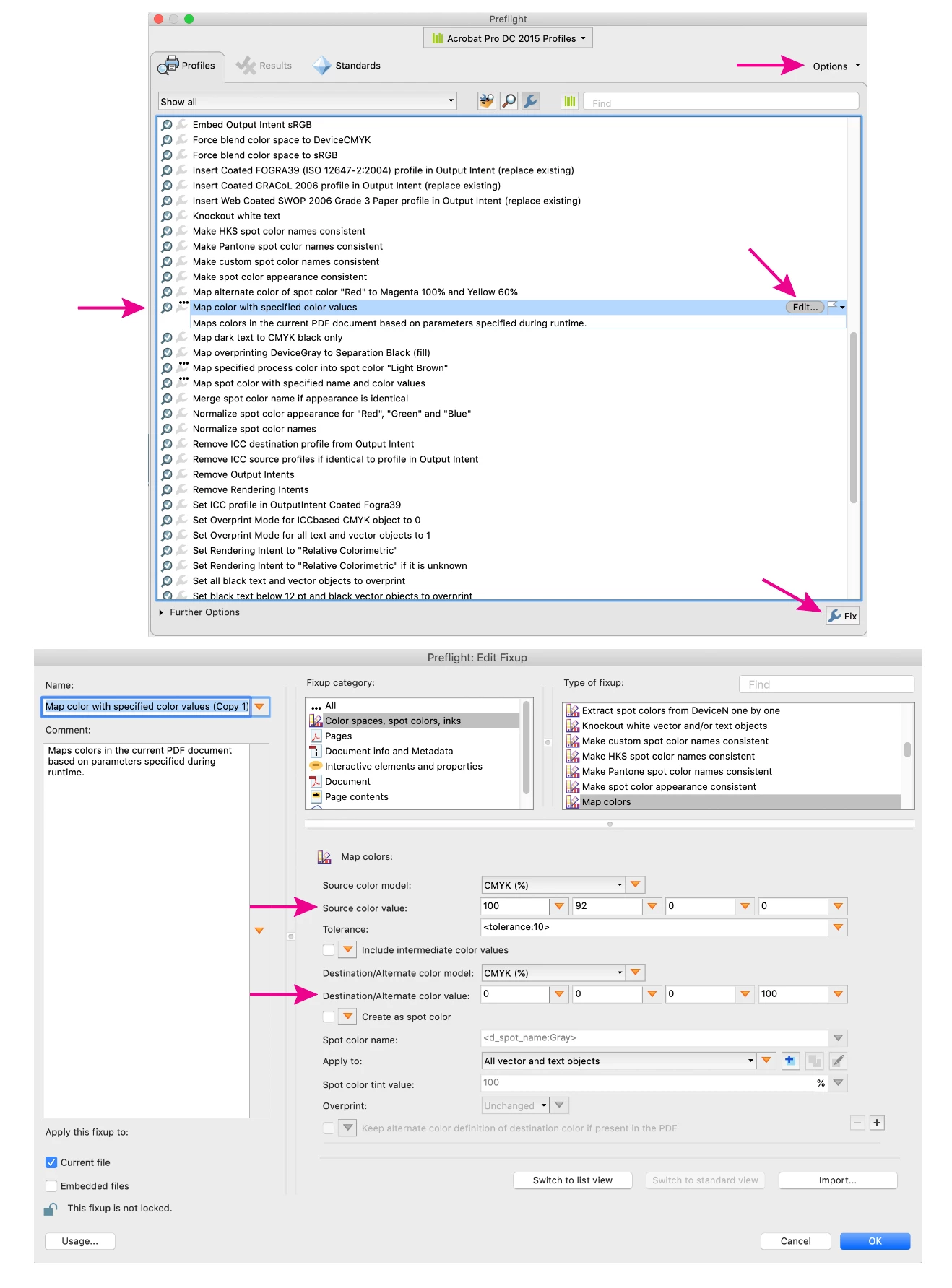
Use the Map Specific Color preflight fixup to map the existing color (either rgb or cmyk) to 100% black. In order to edit the preflight as shown on the screen shot, you will first need to duplicate it from the fly-out menu, give it a new name.

map specific color.png

1 reply

Jeffrey_A_Wright
Legend
December 31, 2025

Thanks for posting to our Community, JonnyDL. What are the contents of the PDF you are converting? Are there images and text? What resolution are the images? How was the PDF created? Is the current text in the PDF an image or is it actual text?


I recommend using the PDF Optimizer to achieve your desired results. I'm not sure if you will be able to achieve a 100% black value, as I am unsure of the contents of the PDF; however, you can adjust the settings for images and text within the PDF optimizer. You can find more information on using this feature at https://adobe.ly/49j6SkU.


You may also want to revisit the application or service used to create the PDF to see if it can provide a PDF with the specified color value. This may be more important if you are expecting to need to convert more PDFs. It would be better to make sure the PDFs being produced meet your needs, instead of converting an already-created PDF. ^JW


Luke Jennings3
Community Expert
Luke Jennings3Community ExpertCorrect answer
Community Expert
December 31, 2025

First use the Output Preview tool to confirm your pdf is not RGB. Change- Show: All to Show: RGB. Your pdf will appear blank if there is no rgb, do the same with Show: CMYK. (change the simulation profile at the top of the window to Adobe RGB to see the RGB values).

Use the Map Specific Color preflight fixup to map the existing color (either rgb or cmyk) to 100% black. In order to edit the preflight as shown on the screen shot, you will first need to duplicate it from the fly-out menu, give it a new name.

map specific color.png

JonnyDLAuthor
Inspiring
January 1, 2026

Thanks!!!! I assumed the test I created would output a CYMK PDF, but it was all RGB. Which is a better starting point. I used Acrobat conversion to convert the RGB into CYMK and then ran the fixup and it worked. I'm still testing it and I'm interested in taking it further. Try to find a fixup, or make one to change all RGB objects to cymk, and see if you are able to run multiple fixups automatically.