
joshua9236
Participant
December 13, 2017
Answered

Trouble Converting Word with Tracked Changes to PDF

  • December 13, 2017
  • 2 replies
  • 10871 views

I have attempted to convert a large Word document (248 pages) to PDF by "Save As" pdf; by "printing as" pdf; and by pulling the Word doc from Acrobat Pro DC to be converted as to a PDF. 

Every time I either get a general error message, or the conversion just stops and I am still left with the unconverted Word document.

I've even tried just converting a few pages at a time, but the same problem described above reoccurs. 

Please help.
This topic has been closed for replies.
Correct answer Cari Jansen

Are you able to provide more information?

  • What version of Word are you using?
  • What Operating System are you running on? Do you have enough empty disk space / memory available?
  • Can you expand on the reasons for using Save As or Print to create the PDF? (It sounds like you might be on Mac OS?)

With Acrobat DC, you should see an Acrobat Ribbon in Word.

  1. Click the Ribbon and click Create PDF.

Something else you can try the following (this assumes you are on Mac OS):

  1. File > Print
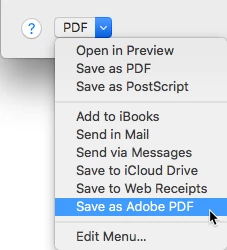
  2. Then in the Print dialog box choose Save As Adobe PDF from the PDF menu.

Also:

  • Have you tried not using Adobe PDF (just out of interest), and doing a Save As from Word and selecting 'PDF' as the save format?  Does that work?

2 replies

Participant
July 15, 2020

I used to be able to "Save as Adobe PDF" and/or "Save As" then choose PDF from the list from within a Word document and the tracked changes (also in the Word document) would show up in the PDF as they appear in the Word document.

Now I cannot use "Save as Adobe PDF" because the tracked changes will not show up.  I can still use "Save As" then choose PDF from the list so I'm not really stuck right now.  I was just wondering if there is a setting that I need to change somewhere in Adobe DC so that I can use "Save as Adobe PDF" and have the tracked changes showing. 

Participant
July 15, 2020

I should mention I have Adobe Acrobat Pro DC (cloud?) and a PC laptop and am working remotely. 


Participant
January 28, 2022

Same problem, and it is EXTREMELY ANNOYING that Adobe simply ignores you. Lack of support will be the death of Acrobat.

Cari JansenCorrect answer
Legend
December 15, 2017

Are you able to provide more information?

  • What version of Word are you using?
  • What Operating System are you running on? Do you have enough empty disk space / memory available?
  • Can you expand on the reasons for using Save As or Print to create the PDF? (It sounds like you might be on Mac OS?)

With Acrobat DC, you should see an Acrobat Ribbon in Word.

  1. Click the Ribbon and click Create PDF.

Something else you can try the following (this assumes you are on Mac OS):

  1. File > Print
  2. Then in the Print dialog box choose Save As Adobe PDF from the PDF menu.

Also:

  • Have you tried not using Adobe PDF (just out of interest), and doing a Save As from Word and selecting 'PDF' as the save format?  Does that work?