Hi Richc,
Sorry to hear about the frustrating experience.
As you have mentioned above, that Acrobat DC isn't working on Windows-10 so is it giving any error message while installing or just the installation is freezing?
Not sure what all troubleshooting steps has been tried. Just to cross check, you may perform the steps suggested below and let us know if it still doesn't makes any difference.
1- Have you had any older version of Acrobat installed earlier? If yes, and the installation of current version get stuck at the end then run the cleaner tool to remove the old file traces completely- Download Adobe Reader and Acrobat Cleaner Tool - Adobe Labs
and then install it again through Download Pro or Standard versions of Acrobat DC | Non-subscription
2- As installation isn't going through in this account, so you may create a hidden admin account and check in that.
Enable Built-in Administrator Account in Windows.
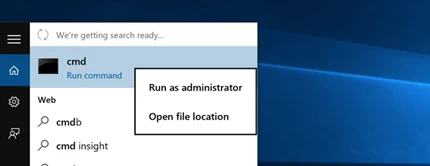
1- First you’ll need to open a command prompt in administrator mode by right-clicking and choosing “Run as administrator” (or use the Ctrl+Shift+Enter shortcut from the search box).
Note that this works the same in all versions of Windows. Just search for cmd and then right-click on the command prompt icon in the Start menu or Start screen.
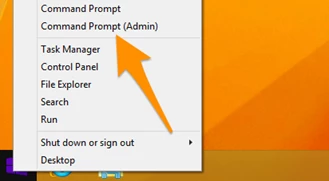
If you are in Windows 8.x or 10 you can right-click on the Start button and choose to open a command prompt that way.
2- Now type the following command: -
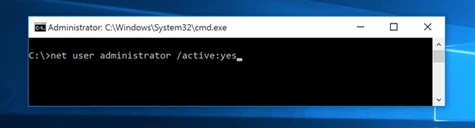
3- You should see a message that the command completed successfully. Log out, and you’ll now see the Administrator account as a choice. (Note that this screenshot is from Vista, but this works on Windows 7 and Windows 8 and Windows 10)
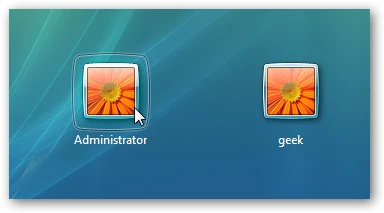
You’ll note that there’s no password for this account, so if you want to leave it enabled you should change the password.
Disable Built-in Administrator Account
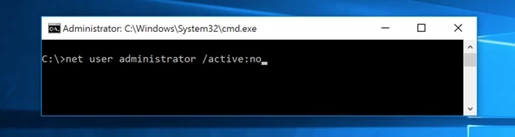
Make sure you are logged on as your regular user account, and then open an administrator mode command prompt as above. Type the following command:
net user administrator /active: no
Regards,
Akanchha
 AdChoices