Participant
July 17, 2024
Answered

Trying to print a snapshot

  • July 17, 2024
  • 3 replies
  • 1379 views

Hello. I'm trying to find a simple way to select a part of a PDF and print it. I don't want to use an external app, or Windows print screen, there must be a very simple 2-3 click way to do this. When I select a section of the screen, it gives me the option to save as a snapshot. When I try to print the snapshot, under printer, more options, it doesn't give me the option "Selected Graphic" as shown in many online turorials. I'm also not looking to print current view, only what I have selected. 


Driving me crazy. Any help would be appreciated. 

Correct answer JR Boulay

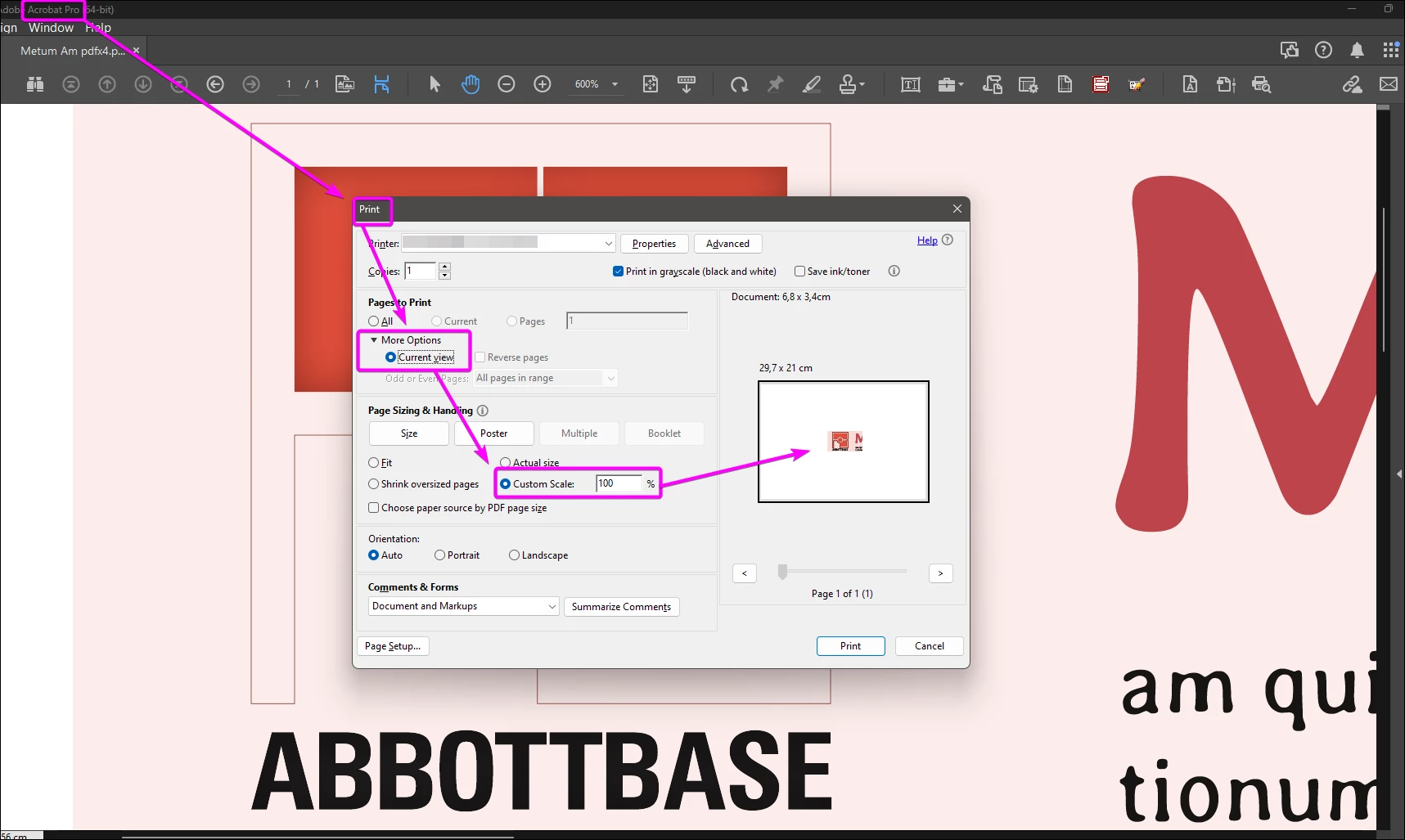
Select "More options : Current view":


3 replies

Community Manager
August 30, 2024

Since @JR Boulay has already provided the correct answer. Just adding a bit more to it.

Using Acrobat, you can take a snapshot of a PDF and then print that portion only. Once you take the snapshot, click on print, and that selected snap will only be printed. 


~Tariq


Participant
October 30, 2025

Hi,

It seems there is something weird with the "take snapshot" feature : 

When I simply select a portion of a page on my screen, right click on it and select "Take Snapshot", if I go to print, it only gives me the option to print "Current View" . 

When I go into the hamburger menu and go to "Undo, redo, more" and use the menu item "Take Snapshot", THEN select the portion of the pdf I am trying to print, when I go to print, now it gives me the option to print "Selected graphics" . 


Why is the behaviour of Take Snapshot from the menu and Take Snapshot from the right-click menu different?

Thanx!

JR Boulay
Community Expert
JR BoulayCommunity ExpertCorrect answer
Community Expert
July 17, 2024

Select "More options : Current view":


Acrobate du PDF, InDesigner et Photoshopographe
try67
Community Expert
Community Expert
July 17, 2024

I've never seen a "Selected Graphic" option in the Print dialog of Acrobat, but I tried it now and it did appear!

If it doesn't for you, though, then what you can do is create a new PDF from the screenshot, and then print it.

You can do that via File - Create - From Clipboard, after you've taken the screenshot. You can close the file without saving it after it's printed.