Participant
July 31, 2025
Answered

Type Text tool is missing

  • July 31, 2025
  • 7 replies
  • 428 views

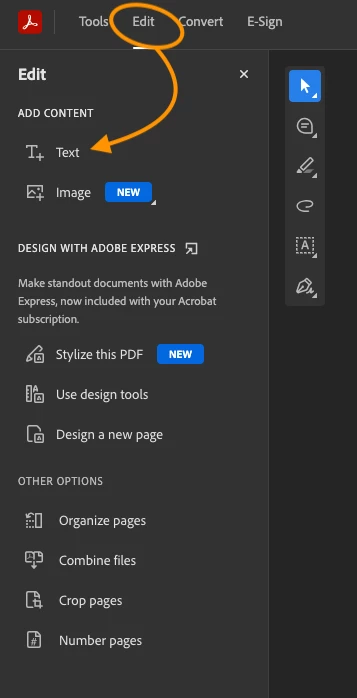
I have had this issues a few times now. I filled in and saved a form and wanted to edit some info after, I couldn't. 

Why is the type text tool missing after I edited and saved the pdf? 


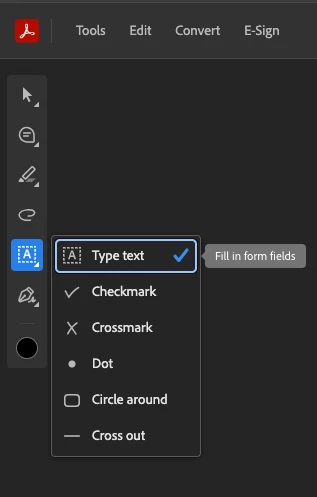
This was before I edited the pdf which shows the tool

 

After I edited and saved, it's missing

I tried to look for it from "Find tools" and nothing. 


I ended up having to fill in the form from downloading the new form again. 


Why is this happening?? 


Correct answer creative explorer

@Chloe_Ng8942  as per @Amal. who is an Adobe employee was asking what version you are using is quite important....  so they can diagnose the problem, it really becomes a guessing game.

It appears that you are using the online version of Acrobat: 


I was able to type in a few text boxes, and I couldn't replicate your issue. 

I even tried using the 'Edit' tab, and still couldn't replicate your issue


7 replies

Participant
August 17, 2026

We are using Adobe Acrobat DC version 26.00.1.21789 (updated on 8/14) and have received the same error. Note this happen after the user combines several PDFs opened from email. I am going to back up the preferences and reset them by renaming the file to   C:\Users[username]\AppData\Roaming\Adobe\Acrobat\DC\Preference.old then load it.  I will also try set the File Size option to Medium.
Any additional insight would be helpful.

Amal Jaiswal
Community Manager
Community Manager
August 17, 2026

​Hi @Fancy_youth725d ,

Hope you are doing well, and thanks for reaching out. We are sorry for the trouble you are experiencing.

A few things would help narrow this down:
1. What OS are you on (Windows version), and are you seeing this in the "Modern Acrobat" experience or Classic view?
2. Is the Add Text/Type Text tool missing entirely from the toolbar and Fill & Sign panel, or is it there but greyed out?
3. Does this happen with every combined PDF, or only specific ones, and have you tried the same action on a PDF that wasn't combined, to see if it's isolated to the combine step?

A couple of things worth checking:

-Since this only shows up after combining PDFs that came from email, check Document Properties > Security (Ctrl+D) on the combined file. Acrobat has an official article on checking security settings on forms here: https://adobe.ly/4cpIqAu 
PDFs from email are sometimes certified or security-restricted, and when Acrobat combines files, it can carry over the strictest permissions from any one of them, which would disable commenting/editing tools on the whole combined file. https://adobe.ly/4bTl2LF 

- There's also an official troubleshooting article specifically for tools disappearing or panes going blank: https://adobe.ly/4zo9iL2. Please check and see if that helps.

- Resetting preferences (what you're already doing) is the right first move. If renaming the Preferences folder doesn't fix it, also try a repair install from Help > Repair Installation (Windows only), since that catches some issues a preference reset doesn't.
The File Size/Medium setting during Combine is a compression setting and shouldn't affect tool availability, so I wouldn't expect that one to be the fix, but it's worth ruling out.

Let us know what you find on the security tab and whether Classic view changes anything, which will tell us which direction to dig further.


Regrds

Amal

Participant
August 17, 2026

Update:

  1. The user is running Windows 11 25H2.
  2. The issue appears to be specific to certain PDF files, rather than being related to whether the files are opened directly from email or combined. The Fill & Sign menu is completely greyed out and displays a spinning indicator, preventing the user from selecting the Type Text tool. The Edit PDF function is available, but this is a separate function and does not meet the user's need.
  3. I created three basic PDFs locally, and the Type Text tool was available on all three. After combining them, the Type Text tool remained available. I also opened a PDF directly from Outlook and combined it with the test files, and the tool remained available.

    However, we have identified that certain PDFs specifically cause the Type Text tool to become unavailable. For those files, printing the document to PDF restores the Type Text functionality. This suggests the issue may be related to how those specific PDFs were created or structured rather than the Combine Files function itself.

    In addition, I reset the preference and even uncheck several security enhanced/protected options. Still no luck. I change those setting back since they did not have an impact. 

creative explorer
Community Expert
creative explorerCommunity ExpertCorrect answer
Community Expert
July 31, 2025

@Chloe_Ng8942  as per @Amal. who is an Adobe employee was asking what version you are using is quite important....  so they can diagnose the problem, it really becomes a guessing game.

It appears that you are using the online version of Acrobat: 


I was able to type in a few text boxes, and I couldn't replicate your issue. 

I even tried using the 'Edit' tab, and still couldn't replicate your issue


m
Amal.
Legend
July 31, 2025

Hi there,

Hope you're doing well, and thanks for reaching out. We're sorry you're experiencing this issue.

Could you please let us know the version of your operating system and Acrobat DC?

To check the Acrobat version, go to Help > About Acrobat. Make sure you have the latest version 25.01.20577 installed. You can update it by going to Help > Check for Updates, and then restarting your computer.

If you're using Windows, please also try repairing the installation from the Help menu.

In case the issue continues, try resetting Acrobat preferences by following the steps here:How to reset Acrobat preferences

Let us know how it goes.

~Amal

Participant
July 31, 2025
Unfortunately, the issue persists even after resetting the preferences as instructed.
Is it because the pdf is a form which has a setting that disables editing after first save?


Get Outlook for Mac <>

This email and any attachments are confidential and may contain information that is protected by copyright. If you are not the intended recipient, please notify the sender immediately and then delete it and any copies.