


Participant
October 16, 2015
Answered

Typewriter setting in Adobe Acrobat Pro DC

  • October 16, 2015
  • 1 reply
  • 26982 views

In previous versions, the typewriter function allowed me to change the font type, color, and size and would remember it for each document opened.  DC does not do this.  I have to constantly change the settings.  Also, the box in which to type is way larger than the actual text and cannot be resized small.  As a result, text spaced closed together but in different fields overlap and if I want to change one, I have to literally move all the other out of the way to get to it.  Third, once saved and I go back in to edit the text that I added, all of the original document becomes editable and each field is overlapping one another, making it a pain to try to edit only the text I added without, again, having to move boxes out of the way.  This is especially a problem with a PDF document created by someone else that was meant to be printed and completed.

How do I set the default setting for "Add Text"?  How do I change the size of the field box?  How do I go back to edit text added to a document without all of the original document becoming editable?

This topic has been closed for replies.
Correct answer Document Geek

It seems to me that the Add Text tool analyzes the current document and pre-sets the tool with whatever Acrobat assumes the body type of the document is. I tried it on three different documents, and got three different results. How frustrating!

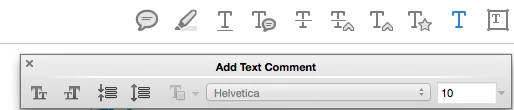
Have you considered using the Add Text Tool from the Commenting tools, rather than the Add Text tool that literally adds text in the body of your document? The Add Text Comment tool is easier to work with, lets you change the formatting more easily, and doesn't assume that you want to edit ALL the text in your document when you click on the tool.

I wrote an article about it a number of years ago, and it all still applies; Adobe just keeps changing the name and location of the tool. But the functionality is the same. That's the tool I use for whenever I have forms to fill out.

Document Geek: Acrobat Typewriter Tool: Just Embrace it!

And if you need to flatten the comments so that they become part of the body of the PDF (as opposed to just comments), try this flattener script: Flatten Form Fields and Comment using a FREE Acrobat X Action It's from a few years ago, but it still works in all the current versions that I've tried it in.

1 reply

Document Geek
Community Expert
Document GeekCommunity ExpertCorrect answer
Community Expert
October 16, 2015

It seems to me that the Add Text tool analyzes the current document and pre-sets the tool with whatever Acrobat assumes the body type of the document is. I tried it on three different documents, and got three different results. How frustrating!

Have you considered using the Add Text Tool from the Commenting tools, rather than the Add Text tool that literally adds text in the body of your document? The Add Text Comment tool is easier to work with, lets you change the formatting more easily, and doesn't assume that you want to edit ALL the text in your document when you click on the tool.

I wrote an article about it a number of years ago, and it all still applies; Adobe just keeps changing the name and location of the tool. But the functionality is the same. That's the tool I use for whenever I have forms to fill out.

Document Geek: Acrobat Typewriter Tool: Just Embrace it!

And if you need to flatten the comments so that they become part of the body of the PDF (as opposed to just comments), try this flattener script: Flatten Form Fields and Comment using a FREE Acrobat X Action It's from a few years ago, but it still works in all the current versions that I've tried it in.

cherylfjcAuthor
Participant
October 17, 2015

Thanks Document Geek.  This is exactly what I was looking for.