

Participant
January 7, 2020
Answered

Unable to change signature in the Fill & Sign Tool drop down list using Acrobat Pro DC

  • January 7, 2020
  • 18 replies
  • 130493 views

Unable to delete a signature in the drop down so that I can add a new one. The delete box is grayed out and won't respond.
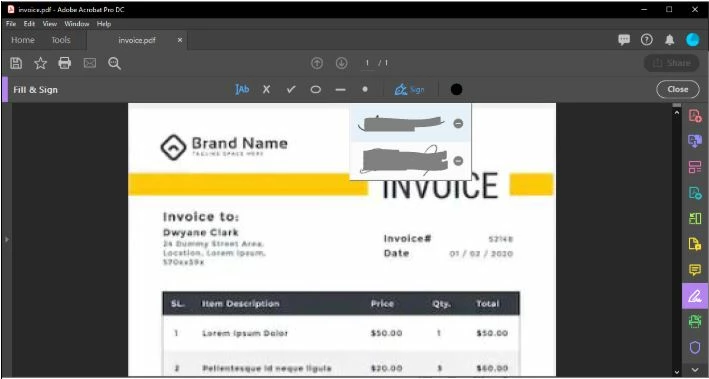


[Title Edited By Moderator]

Correct answer jjkadavil

I think the easiest way of fixing it is - First press on the close (x) button next to the signature a few times (it would be still not gone that is the problem we have), then open task manager (ctrl+alt+delete), 'End Task' Adobe Acrobat. Now start Adobe Acrobat, the signature will be gone and 'Add signature' will be shown.

18 replies

Participant
December 17, 2021

Just in case Adobe don't think there is a real problem here, there is a real problem here.

Known Participant
January 10, 2022

Same issues. Logging out/back in removed my signatures and initials, but when I try to add a new one, I just get an invisible dialogue box. So now I have... NO SIGNATURE.  Thanks, Adobe.

Amal.
Community Manager
Community Manager
January 11, 2022

Hi there


Sorry to hear that . The planned update for Adobe Acrobat/Reader DC version 21.11.20039  is now available. Please update the application from the help menu > Check for updates  and reboot the computer once.

You may also download the patch manually from the link https://www.adobe.com/devnet-docs/acrobatetk/tools/ReleaseNotesDC/index.html  and see if that works for you.


Regards

Amal

Participant
December 1, 2021

I have been receiving this glitch for over 6 months now. My only step to get rid of it is that I have to completely restart my computer if I have to ever switch between any of my agents' signatures. Sometimes it doesn't make me, and I have an easy time going back and forth with my on file signatures, and then just out of nowhere Adobe DC will not let me change the signature and I yet again have to restart my entire computer (which is a hassle as I run multiple other programs at all times so I have to shut everything down just for 1 task that should be very simple).


I've tried following the solutions that people have offered where logging out and then logging back in to apply a new signature, however that does not work for me. When I log out and then log back in, when I click "add signature +", Adobe DC then will completely freeze on me and not bring up the small window to select my signature from.


This whole thing has been made using Adobe DC a nightmare at times to use. Does anyone have any other solutions? My Adobe DC is up to date, I have uninstalled, re-installed, and restarted my computer too many times to try and get this to stop but to absolutely no avail. I'm using Windows 11 for my OS. 

Participant
December 1, 2021

I just want to add that I have tried all the suggestions in this thread, including the latest one provided by justin6579093. It does not work for me, when I followed his steps and then re-opened Adobe DC, it still didn't have a saved signature and trying to click to choose one just continues to give me a blank, darkened screen where the pop up window should show up but it does not.

Participant
December 17, 2021

Likewise.  I hope I can get the old signature back by renaiming the XXX* files... 😉
Doesn't fill users with confidence.  Reader is a fantastically useful application, but it can be clunky.

Participant
March 10, 2021

There is a super easy way to change your signature which is bizzare that Adobe Support can't provide.

You need to go into your adobe account's preferences > Adobe Online Services > E-signing Settings

Click the link and choose personal preferences on the left hand bar, then choose "My Signatures"

From here you can either just clear the signatures, go back into Adobe and create your new signature or you can update them directly from the website.

Participant
May 26, 2021

This is the money advice! Thanks justin6579093!


nilzetef16301264
Participant
February 7, 2024

100% great! Thank you Justin.

lukef77623638
Participant
February 1, 2021

Thank you jfk

... you're a genius it worked!!!!

Participant
September 18, 2020

I had the same issue and I had to log out of Adobe and sign back in -- once I did that I was able to delete signatures and add new ones again. 

jeffrym67581943
Participant
October 29, 2020

Had the same issue.  Logging out and logging back in was the easiest fix for me, without having to edit the file names.  Adobe, by their responses, clearly cares little for listening, addressing, and actually fixing issues.  They act as if this is open source software and something we are not paying for.  I had an issue where Adobe Acrobat DC was crashing every few minutes and it took them 10 months to get an update to fix it.  

Participant
June 10, 2020

Dear all,


I had a similar issue; unable to change signature in the Fill & Sign Tool drop down list.


Then I did this:
1. Close Adobe Reader application
2. Microsoft Windows - Go to Local(C) > Users > User(Yours) > AppData> Roaming> Adobe > Acrobat > DC > Security
3. Rename the below files
    reader_fss_signature_initials into XXXreader_fss_signature_initials
    reader_fss_signature_initiali into XXXreader_fss_signature_initiali
    reader_fss_signature_initialk into XXXreader_fss_signature_initialk
4. Open Adobe Reader application, then the signature in the Fill & Sign Tool is back to default blank


The issue has been fixed and system will create a new files for reader_fss_signature_initials, reader_fss_signature_initiali, and reader_fss_signature_initialk.


You may keep XXX---- files for the backup.


Hope this can help you.


Cheers,

jfk

Participant
July 27, 2022

This worked for me initially, but now I have to do this every time I need to switch signatures and I sign for several executives. Is there a permanent fix? I didn't have this problem until a few days ago.


Participant
July 27, 2022

Did you try justins65179093 method?  It was the easiest and most effective for me.


"There is a super easy way to change your signature which is bizzare that Adobe Support can't provide.

You need to go into your adobe account's preferences > Adobe Online Services > E-signing Settings

Click the link and choose personal preferences on the left hand bar, then choose "My Signatures"

From here you can either just clear the signatures, go back into Adobe and create your new signature or you can update them directly from the website." justins65179093  

Participant
June 8, 2020

For everyone having this problem, I followed Becky's example and logged out then back in and it worked. 

sevenmilligram
Participant
April 22, 2021

Came back to this thread to give this the thumbs up.  Becky's example worked for me as well.

Amal.
Community Manager
Community Manager
January 8, 2020

Hi there, 


We are sorry for the trouble. As described, you are unable to delete a signature in the drop-down menu and add a new one.


Are you getting any error message when trying to delete an existing signature or initial? If yes, please share the screenshot of the error message for a better understanding.


Also, what is the version of the Adobe Acrobat DC installed? To check the version of the application please use the link: https://helpx.adobe.com/acrobat/kb/identify-product-version.html

Make sure you have the latest version of the application 19.21.20061 Go to Help > Check for Updates.


Please click on the 'Minus' sign in front of the signature or initial to delete the existing one and then click on the 'Plus' sign to add a new signature or initial


Let us know if you still face the issue 


Regards

Amal

bkpage7Author
Participant
January 8, 2020

There are no error messages that come up. When I click on the gray minus
sign, it does nothing. That is the problem. There is no plus sign to add a
new signature or initial. Below is the version I have:

[image: image.png]


[Personal Information Removed By the Moderator]

Amal.
Community Manager
Community Manager
January 9, 2020

Hi there,


We are sorry to hear that the issue is still unresolved.


Please try to repair installation (For Windows) Go to Help > Repair Installation.


If it still doesn't work please try the following steps and see if that helps:


Let us know how it goes.


Regards

Amal