

Understand when and how can we edit a signed PDF.
If a PDF is signed using a digital ID or certificate, it's locked to prevent changes to the document. Digital IDs or certificates used to sign PDFs are used for the commercial and legal purpose and are governed by laws in many countries.
To understand, whether you can edit a signed document or not, go through these most frequently asked questions and their solutions-
1- Can I edit a PDF that I signed?
If you're the only one signer, you can remove the signature and then work on the document or edit the source document.
To remove your signature, right-click the signature and then choose Clear Signature.
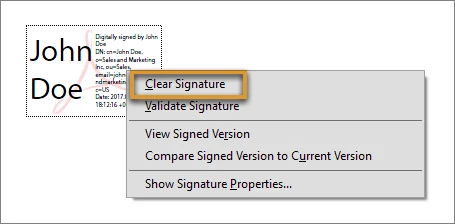
Note: If you got a signed PDF, you can request the signer to remove the signature and share the PDF or send an unsigned copy of the PDF.
2- Is there a way to retrieve the unsigned PDF and resign it?
If you're the only one signer, you can remove your signature and work on the document. If the document is signed by others, you can request the initiator to share an unsigned copy or the source document with you.
3- What if a PDF is locked after signing?
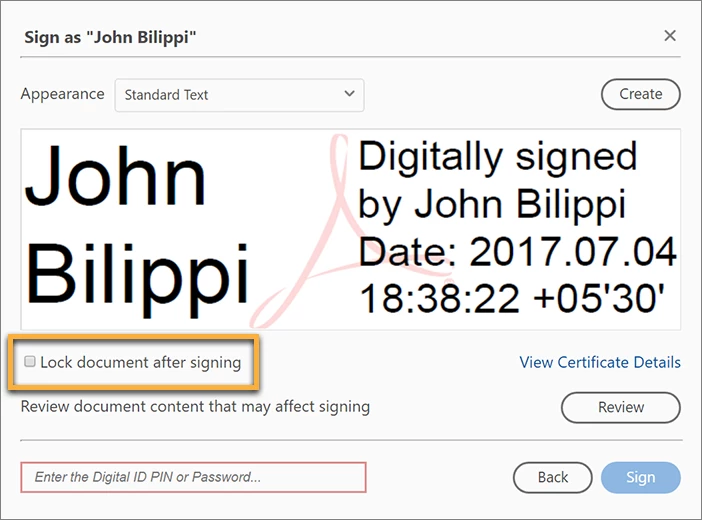
Occasionally, you or the signer may choose to lock the document after signing. In this case, the document becomes read-only and no further changes are allowed; even a signature can’t be added in the document. The Lock document after signing option is useful if you’re the last signer or the only one signer.
4- What are the scenarios in which a PDF is locked?
When you sign a PDF using your digital ID, the PDF becomes read-only for others. If you received a PDF digitally signed by others, you can sign it, but can't edit it.
While signing a PDF, if the signer chooses to lock the document after signing, the document becomes read-only for everyone, including the signer.
5- How to handle such issues better in future?
Before you sign a PDF, you can save a copy of the PDF. Also, while signing the PDF, you're prompted to save as the PDF. You can choose a different name so that you have the original PDF unsigned.
If you're expecting others to sign the PDF, don't select the Lock document after signing option in the Sign As dialog box or the Sign Document dialog box.
Hope this list of scenarios has answered your question too. If not, then join the conversation here. We are listening!
To discover a host of other great features added in recent update Go straight to: What's new in Acrobat DC | Create, Protect & Delete Digital IDs. | Workspace basics | Acrobat DC
 AdChoices