
Participant
February 14, 2012
Answered

Unwanted blank pages inserted when creating pdf from scanner

  • February 14, 2012
  • 2 replies
  • 26956 views

Hello, when creating a pdf from a document scanned via Adobe Acrobat X Pro, the program inserts an unwanted blank page in between each page  being scanned.  So, if scanning 50 pages, we get 100, etc.  How do we remediate this problem?  We have worked with the default settings, to no avail.  We're using a Fujitsu fi-5530c2 scanner.  We would appreciate any input to help resolve this issue!  Thanks Mark
This topic has been closed for replies.
Correct answer Meenakshi_Negi

Hi Sabork,

Sorry for the delay in response.

As the solution provided above does not help, you can remove the blank pages in Adobe Acrobat DC.

Go to Tools > Organize pages.

Then select the blank pages and delete them using the trash icon in the toolbar at the top.

You can also use the Preflight tool to remove the blank pages from the PDF as mentioned in reply 3.

Go to Tools > Optimize PDF > Preflight.

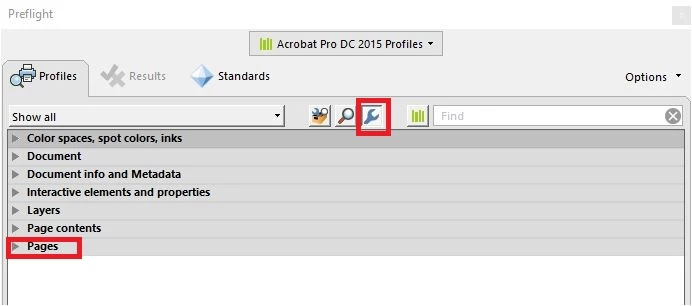
Then click on "Select single checks" icon shown in the screenshot below:

Then go to Pages and click on it.

Select "Remove empty pages" and click on Fix at the bottom right of the Preflight window.

Hope that helps.

As you scan the document to PDF, could you please share the exact steps you do.

Also, let us know the make and model of the scanner you are using.

Let us know if you experience any issue or need any help.

Regards,

Meenakshi

2 replies

Participant
July 1, 2018

i have also the same problem in adobe acrobat dc when i add some photo one to more time the document will create a blank page between of my document . is there any solution for it.

Meenakshi_Negi
Meenakshi_NegiCorrect answer
Legend
July 12, 2018

Hi Sabork,

Sorry for the delay in response.

As the solution provided above does not help, you can remove the blank pages in Adobe Acrobat DC.

Go to Tools > Organize pages.

Then select the blank pages and delete them using the trash icon in the toolbar at the top.

You can also use the Preflight tool to remove the blank pages from the PDF as mentioned in reply 3.

Go to Tools > Optimize PDF > Preflight.

Then click on "Select single checks" icon shown in the screenshot below:

Then go to Pages and click on it.

Select "Remove empty pages" and click on Fix at the bottom right of the Preflight window.

Hope that helps.

As you scan the document to PDF, could you please share the exact steps you do.

Also, let us know the make and model of the scanner you are using.

Let us know if you experience any issue or need any help.

Regards,

Meenakshi

Adobe Employee
February 27, 2012

Hi Mark,

This might be because you have selected "Both Sides" in Sides dropdown. I would like to inform you that some Fujitsu scanners can scan both the sides of the page simunltaneously. Thus, when you Scan with this setting, you will get 2 pages for 1 scanned document.

Can you try with "Front Side" scanning once. You will find this option in the Custom Scan dialog. In case, you are using Presets, go to Configure Presets and set the option in the Configure Presets dialog and click button "Save".

-Ankit

Mark5145Author
Participant
February 27, 2012

Ankit, thanks for your recommendations - that is what was needed to resolve the problem.

Mark

JR Boulay
Community Expert
Community Expert
February 27, 2012

Hi,

you can automaticaly fix previously made documents using the Preflight tool.

Acrobate du PDF, InDesigner et Photoshopographe