Known Participant
November 17, 2025
Answered

Usage Management in registry

  • November 17, 2025
  • 1 reply
  • 106 views

Hi All,


Recently a user for a client I support, came to me about the logtransport2.exe error on her Windows 11 machine.  It pops up a lot and causes freezes on her machine.  I'm looking into that more tomorrow.  


I read in various articles that this process is part of the data and usage collection Adobe sends to its servers.  I read that the process is controlled by the HKLM\SOFTWARE\WOW6432Node\Policies\Adobe\(product name)\(version)\FeatureLockDown "usagemeasurement" key.


I checked my adobe (free version) and I'm opted into sending data.  However, I don't see the usagemeasurement key?  If data collection is on in my account, shouldn't I see the "usagemeasurement" key?


Thoughts appreciated.

Correct answer creative explorer

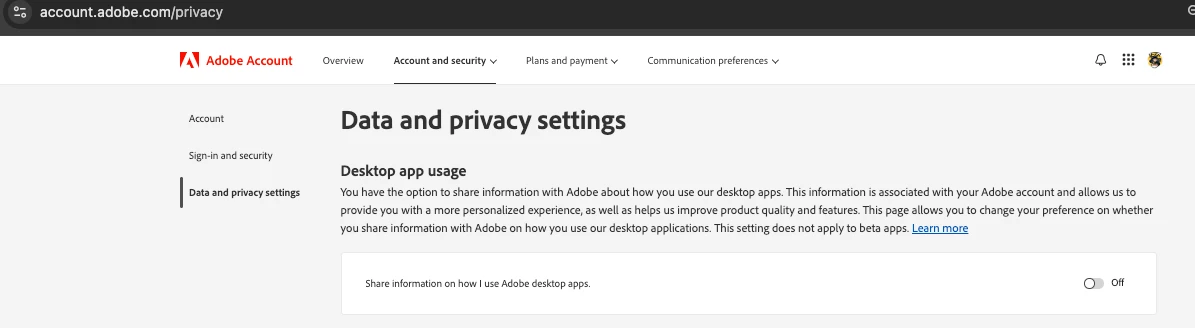
@jctech2025 because you opted in through the application interface, the setting is stored in your User Profile Registry path, not the System Policy Registry path you checked. Before you attempt a complete uninstallation and reinstallation of the Adobe product, you could try to see if disabling the data collection fixes it, to turn off the process that causes the logtransport2.exe error, you must manage your privacy settings through your web browser, as the dedicated in-app menu has been removed. 

Go to the official Adobe Account page: https://account.adobe.com/ Sign in with the Adobe ID associated with your Acrobat 2025 license. Navigate to the Account and security tab. Find the Privacy and personal data or Data and Privacy Settings section. Look for the setting that controls "Share information on how I use Adobe desktop apps" or "Desktop app usage" and toggle it OFF. 

The action immediately updates the setting for all Adobe desktop apps linked to your account, including Acrobat 2025, and will prevent the logtransport2.exe process from trying to upload usage logs.


1 reply

creative explorer
Community Expert
creative explorerCommunity ExpertCorrect answer
Community Expert
November 18, 2025

@jctech2025 because you opted in through the application interface, the setting is stored in your User Profile Registry path, not the System Policy Registry path you checked. Before you attempt a complete uninstallation and reinstallation of the Adobe product, you could try to see if disabling the data collection fixes it, to turn off the process that causes the logtransport2.exe error, you must manage your privacy settings through your web browser, as the dedicated in-app menu has been removed. 

Go to the official Adobe Account page: https://account.adobe.com/ Sign in with the Adobe ID associated with your Acrobat 2025 license. Navigate to the Account and security tab. Find the Privacy and personal data or Data and Privacy Settings section. Look for the setting that controls "Share information on how I use Adobe desktop apps" or "Desktop app usage" and toggle it OFF. 

The action immediately updates the setting for all Adobe desktop apps linked to your account, including Acrobat 2025, and will prevent the logtransport2.exe process from trying to upload usage logs.


m
Known Participant
November 18, 2025

Thanks for the reply.  I saw this post after working with the user.  I checked the same settings on her machine.  I notice that she was not opted into have her data collected from the browser view.  


I did check the registry key: "HKCU:\Software\Adobe\Commonfiles\UsageCC\machineguid\optin". I noticed that it was set to 1.  I changed it to 0, hoping that will effectively disable the service?  


Not sure if this has to do with it?  I have not checked things from the account page yet.  This just recently started happening.