


Participant
August 28, 2026
Question

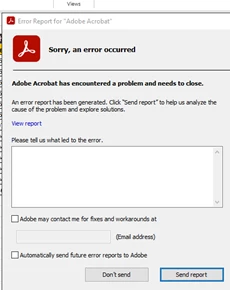
Users working on PDF file, suddenly we will receive the error popup, and we are not able to do anything. We need to fully end the session and reconnect.

  • August 28, 2026
  • 4 replies
  • 35 views

Users working on PDF file, suddenly we will receive the error popup, and we are not able to do anything. We need to fully end the session and reconnect.

It is causing major issue in our scenario, because user will work on big file say 500 to 1000 page, while working suddenly error popups and they need to rework from the first. Kindly help us to resolve this issue.

The PDF is running in azure virtual machine, all users have adobe acrobat pro license, they work the file in network drive. 
 

    4 replies

    Participant
    September 24, 2026

    Hi BaniVerma, 


    We are assigning specific licenses to users on individual accounts. When the Adobe error pop-up appears, users are unable to proceed. If they click either “Send report” or “Don’t send,” all open PDF files are closed.

    We have updated Adobe, but the issue persists and is impacting production. Could you please suggest a workaround or any additional steps we can take to resolve this?

    The files are stored on a shared drive, and users must work directly from that location due to policy restrictions that prevent working on local machines.

    Anand Sri Bhattacharya
    Community Manager
    Community Manager
    September 24, 2026

    ​Hello ​@Astonishing_critic48ef


    I hope you are doing well, and thanks for sharing all the details. Sorry for the trouble you had.

    Building on Bani and Karl's replies, the likely root cause seems to be editing a very large PDF directly over a network/shared drive.

    A suggestion for this symptom is to copy the file to a local disk, edit it there, and copy it back. Assuming you are already on the latest build of Acrobat: ​26.002.21931, Out of cycle update, Sep 17, 2026. This seems to be an environment/config issue, not a bad file or install.


    The key to your "no local work" constraint: that policy almost certainly means the user's physical endpoint, not the Azure VM's own disk. Inside the VM, you can likely edit on the VM's local scratch disk (a working folder on the VM's C: drive), then save back to the network share when done. The file never leaves the corporate VM or touches the physical machine, so it should meet the policy's intent while removing the network-share I/O that is causing the crash.


    If the issue continues, please share the following details, so that we can discuss this with the product team: 

    • Exact Acrobat version/build (Help > About Adobe Acrobat)?
    • Does it still crash if a user edits a copy on the VM's local disk versus the network share? (This one test confirms the cause.)
    • Is the storage Azure Files / SMB or a mapped drive, and is Autosave on?
    • Collect the Crash logs from the affected user machine, and share the log, and the log ID with us.
    • To collect the logs, please take help from this article: https://helpx.adobe.com/acrobat/kb/collect-logs-crash-freeze.html


    I hope the suggestions help, and please reach out if you have any questions, or need any assistance.


    Regards,

    Anand Sri.

    BaniVerma
    Community Manager
    Community Manager
    September 14, 2026

    Hi Astonishing_critic48ef,


    Thank you for reaching out, and we understand how disruptive this is. Losing progress on a 500- to 1000-page file is a significant setback, not a minor inconvenience.


    Here's a troubleshooting sequence worth working through in order:

    1. Turn on Autosave. In Acrobat, go to Preferences > Documents > Save Settings, and enable Automatically Save Document Changes To Temporary File Every X Minutes, with a short interval given the file size. This protects your work if the power goes out, saving changes to a temporary file you're prompted to recover on relaunch. A crash is a similar kind of unexpected shutdown, so the same prompt may appear, though we can't promise that specifically. If it does work the same way, you'd only lose a few minutes of edits instead of the whole session.

    2. Try working from a local copy instead of the network drive directly. Could you copy the file to the VM's local disk, edit it there, then copy it back to the network location when you're done? Copying files locally before editing has helped resolve similar Acrobat crashes involving network and cloud drives, so it's worth ruling out here too.

    3. Reduce the file's working size. For a 500 to 1000-page file, go to file> Save as Other > Reduced Size PDF, or Tools > Optimize PDF for more control over image downsampling, font subsetting, and discarding unused objects. If the content allows it, splitting the file into smaller sections with Organize Pages and working on those separately is also worth trying.

    4. Confirm the update and installation are healthy. Check Help > About Adobe Acrobat for the installed version, then Help > Check for Updates. If you're already up to date, try Help > Repair Installation (Windows).

    5. Check the licensing model on these VMs. Named User Licensing is supported in virtual environments; Shared Device Licensing is not permitted there at all. If these machines are set up with Shared Device Licensing, that itself needs to change, since Acrobat isn't meant to run that way in a VM. We support Acrobat in virtual environments, including Azure, on a best-effort basis; we can't guarantee the same performance or stability as a standard desktop deployment.

    If it still happens after all of the above: collect the crash logs and share them with us, here's how: https://helpx.adobe.com/acrobat/kb/collect-logs-crash-freeze.html. At that point, we'd want the exact Acrobat version and whether the crash occurs with the local copy as well, so we can look into it further.


    Thanks,
    ^BS

    Karl Heinz  Kremer
    Community Expert
    Community Expert
    August 28, 2026

    This is a crash of Acrobat - this means that when you see this, Acrobat is no longer running. Make sure you are running the latest version (check for updates in the Help menu). Other than that, save your work often, and report this as a bug to Adobe: https://www.adobe.com/products/wishform.html