



KWooper
Participating Frequently
March 19, 2026
Question

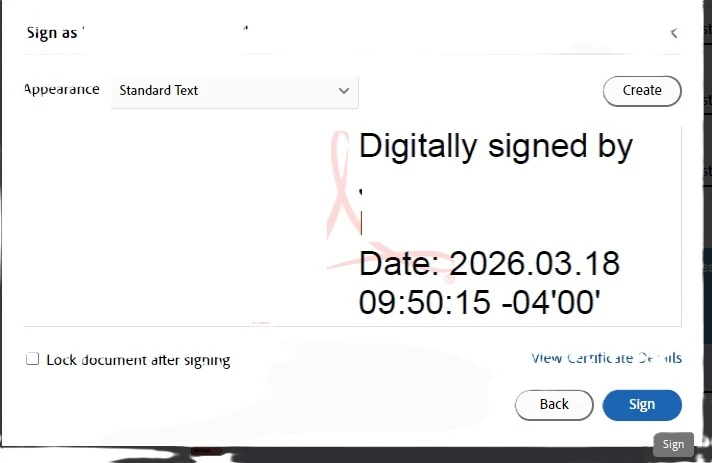
When I use a certificate to sign a document, clicking sign does nothing.
  • March 19, 2026
  • 2 replies
  • 136 views

Hi.


I can’t get sign with certificate to work on this one PC. It’s a fairly new install. When the user clicks sign, the usual window that shows up to save the signed version of the document does not open.


I have tried deleting the acrobat folder in roaming appdata to clear the cache, I have tried disabling protective mode on startup, I have done a repair of the app. The app is fully up to date.


Reinstall did not work. Cleaner (https://www.adobe.com/devnet-docs/acrobatetk/tools/Labs/cleaner.html ) did not work.


Nothing had worked so far. Anyone have any ideas?

    2 replies

    Meenakshi_Negi
    Legend
    March 19, 2026

    Hi KWooper,


    Thank you for reaching out, and I’m sorry to hear about your experience.


    I see that you’ve already tried some troubleshooting steps on your end. There could be various other factors to consider:

    - Did you check if the issue occurs with any other document? It may be a file-specific issue. Try creating a blank test PDF and see if you can add a digital signature.
    - Where is the file saved? Is it stored locally or on a network drive?
    - Try creating a new digital signature to see if that works. You can follow the steps outlined here: https://helpx.adobe.com/acrobat/desktop/protect-documents/manage-digital-ids/create-self-signed-id.html.


    If the above suggestions do not resolve the issue, you may want to reinstall the application using the following steps:

    1. Remove the application and run the cleaner tool (https://www.adobe.com/devnet-docs/acrobatetk/tools/Labs/cleaner.html).
    2. Reboot your machine.
    3. Install Adobe Acrobat from this page: https://helpx.adobe.com/acrobat/kb/acrobat-dc-downloads.html. 


    Please let us know how it goes, or if you need any help.


    Thanks,  
    Meenakshi

    KWooper
    KWooperAuthor
    Participating Frequently
    March 19, 2026

    More or less all of those have been done a few times already.


    It doesn’t seem to matter the document used.


    These are documents stored locally.


    We also disabled the setting to show cloud storage options on save.

    KWooper
    KWooperAuthor
    Participating Frequently
    March 19, 2026

    Clearing all the appdata folders did nothing.

    KWooper
    KWooperAuthor
    Participating Frequently
    March 19, 2026

    I have also tried this:

     I went to Edit > Preferences > Signatures > Creation & Appearance.  And took the following steps:

    1.  Ensured the Default Signing Method was set to Adobe Default Security
    2.  Signing Format set to CAdES-Equivalent
    3.  Made sure all boxes were unselected.  Unselected "Include signature's revocation status"
    4.  I changed "Enable Review of Document Warnings" to "Never"
    5.  I changed "Prevent Signing Until Warnings Are Reveiwed" to "Never"
    6.  I deselected "Use modern user interface for signing and Digital ID configuration.
    7.  I then created a signature under "New" 

    This failed