
Known Participant
December 8, 2021
Answered

White space behind picture

  • December 8, 2021
  • 2 replies
  • 3719 views

I recently converted a picture of a business card into a pdf so I could add links to the card.

Everything worked fine except there is white space above and below the picture. How do I get rid of the white space so only the business card shows in the pdf?
This topic has been closed for replies.
Correct answer Chris 486

Hi wislndixie!


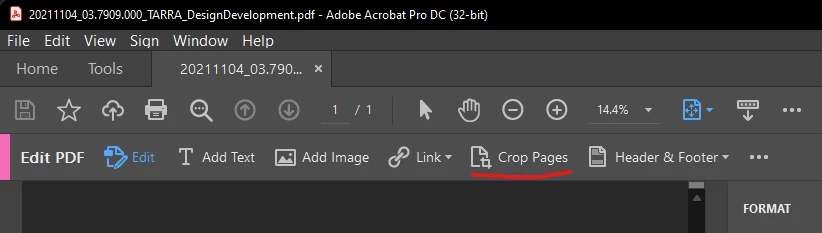
Once you are in edit pdf mode by clicking "edit pdf" on your right sidebar, you will see teh option to crop your image in the toolbar.


This adobe link may help as well: Crop PDF pages in Adobe Acrobat


2 replies

Chris 486
Community Expert
Chris 486Community ExpertCorrect answer
Community Expert
December 8, 2021

Hi wislndixie!


Once you are in edit pdf mode by clicking "edit pdf" on your right sidebar, you will see teh option to crop your image in the toolbar.


This adobe link may help as well: Crop PDF pages in Adobe Acrobat


Known Participant
December 9, 2021

Thank you for your response but it didn't seem to work. I followed the directions in the link you gave me. Opened the edit pdf menu, selected crop pages, drew a box around my picutre, double clicked and the set pages box opened, I selected delete white margins, etec, didn't change anything else and clicked ok but nothing seemed to happen. I saved the file and when I opened it back up it was the same as before. I see the picture of the business card but white space above and below it. I've attached a copy of my file for you.

<ike

Document Geek
Community Expert
Community Expert
December 9, 2021

When I look at your image, there is no white space above or below. It is just the business card. 


Can you take another screen shot and zoom out so we can see the Acorbat interface?

Document Geek
Community Expert
Community Expert
December 8, 2021

Use the Crop Pages command.