
whitelist DFS UNC network paths so we can save a password encrypted PDF
Greetings,
We are on Win11 PCs joined to an Active Directory enterprise environment running Adobe Acrobat DC 2025.0011.20474 64 bit. Opening a PDF on a windows 2019 server shared folder won't let us "save" that same PDF with the same filename after setting an encrypted password.
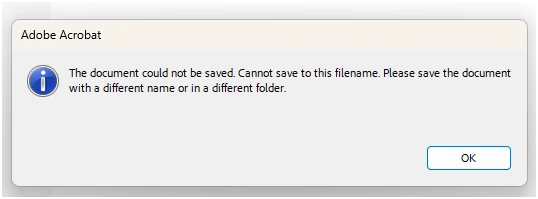
It will say the above error: "The document could not be saved. Cannot save to this filename. Please save the document with a different name or in a different folder."
Then the PDF will change to a tmp file inside local drive appdata folder 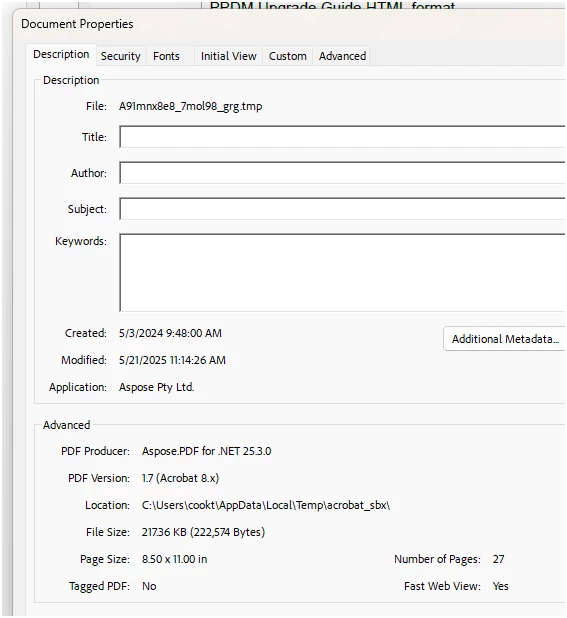
until you specify a new name and "save as" it to the original network location. Then the user has to remember to delete the prior version to be able to rename the file back to what it should be.
It happened when using a \\servername\share or a \\DFSname\Share. It didn't happen when the PDF was on a local drive. But our PDFs are on the network share so they are backed up consistently, so we need to get them saveable there without the error.
This issue stopped when I disabled "protected mode". But we need that protected mode to be on so we aren't running against best practice for security.
How do I "whitelist" or "safelist" or "trust" the network share location so the user will just have to click "save" and not go down this path of risking duplicated files and dealing with an error every time they encrypt a PDF?
I've tried putting the \\servername\path and the \\dfsname\path in the trusted zone in the Internet Options, but the issue still occurs.
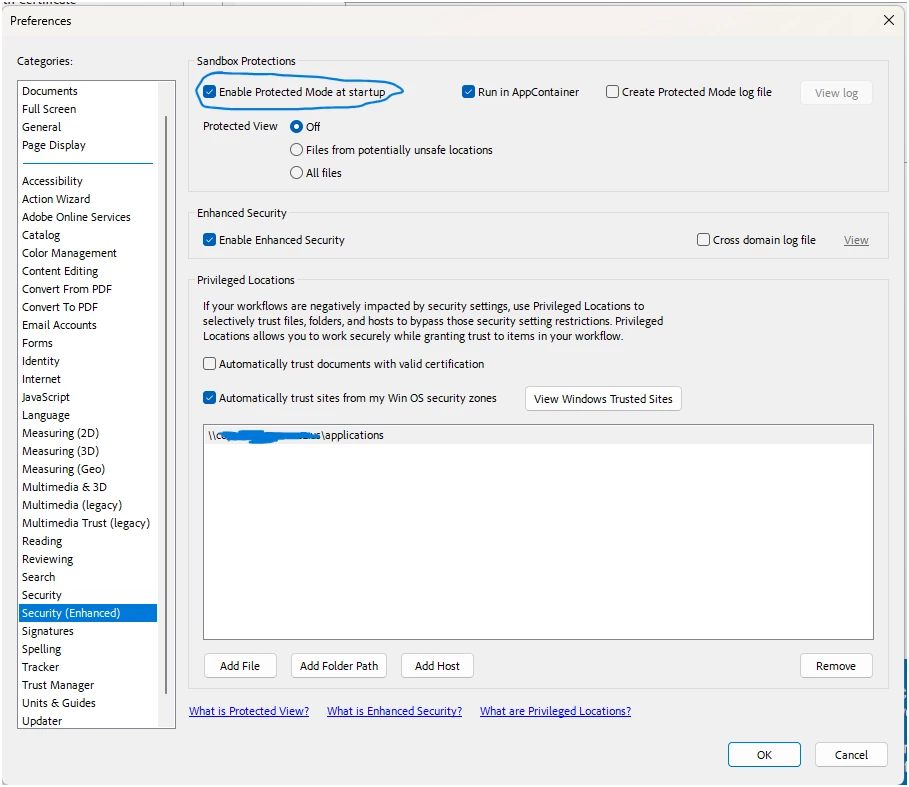
I've added the folder path to the "priviledged locations", but the issue still occurs. I've of course rebooted and tried it with different users on different PCs. It is not a unique user or windows file permissions issue. Please, we need the "save" button to simply work when it's on a network share after the change, like it does when the file is on a local drive or when protected mode is disabled.
Thank you for your time,
Ty


 AdChoices