
Answered
why do are all my document sizes 134% by default?
Every document I create seems to be scaled at 134% by default, and then I have to change it to 100% manually.
Every document I create seems to be scaled at 134% by default, and then I have to change it to 100% manually.
I assume this is the viewing magnification of the PDF and not the size of the page. This initial view is determined by one of two factors. The creator of the PDF can set the initial view magnification to a specific size, full page or full width, a fixed percentage, or "default" meaning the user's program uses the program's preference for initial view. The Acrobat and Reader both have an application level preference for setting the default view. One looks under the menu item "Edit => Preferences => Page Display" and then one select the Default and Zoom on the pop-up window in the appropriate dropdown field. Note that the displayed image will adjust automatically as the Navigation or Tool panels are opened and closed.
One can also use the key combination of <Ctrl/Option> + "K" to bring up the Preferences pop-up.
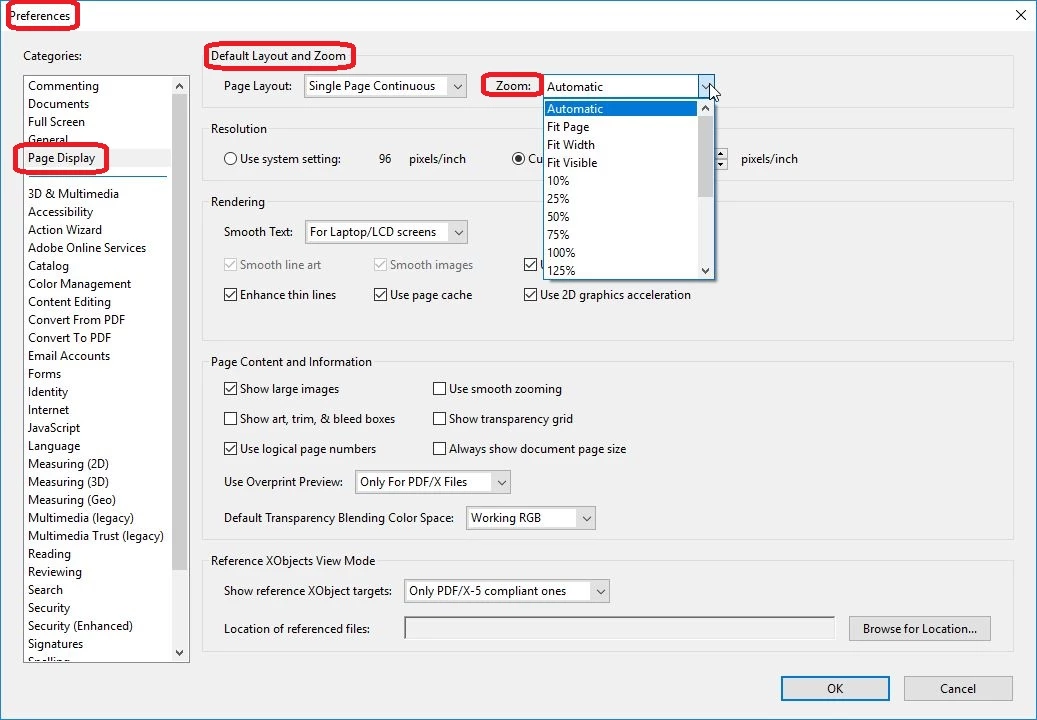
If you are creating the PDF's you should be able to set the "Initial View" using the options for creating the PDF for the printer of converter being used.
Already have an account? Login
Enter your E-mail address. We'll send you an e-mail with instructions to reset your password.
 AdChoices