



Participant
May 2, 2025
Question

Windows cannot find ... AcroTray.exe

  • May 2, 2025
  • 2 replies
  • 9412 views

Apologies for resurrecting this error, but I'd like some more up-to-date advice. This seems to be a recurring problem that has now found me. I've gone through a number of posts and tried various fixes, but this still persists. 
I'm on Windows 11. When I click on a .PDF file, I get the following error message:
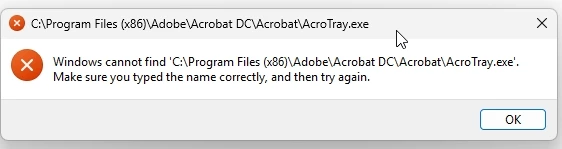
Every PDF I touch generates this error. If I'm scrolling through a folder of PDF files looking for something, I can have many, many error windows.

My guess is it is somehow related to the Explorer Preview Pane. If I switch Explorer View from "Preview Pane" to "Details Pane", I do not get the error. Or if I turn off the Preview Pane completely, there is no error. 

Based on other posts, I have tried to run a repair on Acrobat.

I've also tried uninstalling and re-installing the software. The first attempts the install "failed". It then moved to a different browser and downloaded from the Adobe FTP as suggested in the help page.

If I go to the indicated folder: C:\Program Files (x86)\Adobe\Acrobat DC\Acrobat there is NOTHING in the folder. 

This is not a "world hunger" issue, but it sure is getting annoying. Baffling how this suddenly pops up for no reason.
Maybe related? I do have an Adobe Photoshop subscription, which is regularly updated.

Any suggestions appreciated.

Thanks,

Ray

2 replies

huelliot
Participant
January 30, 2026

The repair process only work until a restart, the security system—specifically Microsoft Defender's Attack Surface Reduction (ASR)—is actively blocking Word from launching the "child process" acrotray.exe as a security precaution, which can be fixed by add it as a general exclusion:

  1. Open Windows Security > Virus & threat protection.
  2. Under "Virus & threat protection settings," click Manage settings.
  3. Scroll to Exclusions and click Add or remove exclusions.
  4. Click + Add an exclusion > File and browse to the location mentioned in your warning: E:\program\Adobe\Acrobat\Acrobat DC\Acrobat\acrotray.exe
huelliot
Participant
January 30, 2026

This only works until a restart again! There are two other options:
1. Kill the Trigger in Word

The error pops up because the Acrobat PDFMaker add-in in Word is "calling" the blocked file. You can disable this specific trigger:

  1. Open Word → File → Options.
  2. Select Add-ins on the left.
  3. At the bottom, set the "Manage" dropdown to COM Add-ins and click Go.
  4. Uncheck "Acrobat PDFMaker Office COM Addin" and click OK.
  5. Note: You can still save as PDF using Word's built-in File > Save As > PDF feature. 

2. The "Path Swap" (Reinstall to C:)

ASR rules are often "drive-aware." Many default enterprise security policies allow child processes on the C: drive but block them on secondary drives like E:.

  • Action: Uninstall Acrobat and reinstall it to the default pathC:\Program Files\Adobe\Acrobat DC\.
  • Why: There is a high chance your IT department has already whitelisted the default C: path but forgot to whitelist your custom E: path.
Legend
May 2, 2025

Hi @ArrSea,


Thank you for reaching out and bringing this to our attention.


The “AcroTray.exe” process is a component of Adobe Acrobat that supports background operations such as converting files to PDF and managing context menu actions. If you see the message “Windows cannot find ‘AcroTray.exe’”, it typically indicates a misconfiguration or an incomplete installation. This may also happen if the application wasn't installed in the root directory. 


Here are a few steps to help resolve this issue:


1. Repair Adobe Acrobat Installation:

  • Open the Control Panel > Programs and Features.

  • Select Adobe Acrobat from the list.

  • Click on Change > choose Repair and follow the on-screen instructions.


2. Check for Updates:

  • Open Acrobat.

  • Go to Help > Check for Updates and ensure the application is up to date.


3. Clean Reinstallation (if issue persists): Try Cleaner tool: https://adobe.ly/3ER352X

  • Uninstall Acrobat via Control Panel > Programs and Features.

  • Restart your system.

  • Download and reinstall the latest version of Acrobat from https://adobe.ly/44qLCJb.


4. Startup Configuration (Optional):

  • If AcroTray is being searched for at startup but you don’t use the features it supports (like right-click > Convert to PDF), you may also disable it via Task Manager > Startup tab. However, this is not recommended if you use any background PDF services.


Please let us know if the issue continues after trying the above. We’d be happy to take a closer look.


~Tariq