RvdT
Inspiring
June 1, 2026
Answered

OCR scan pages, save. Open in InDesign still an image

  • June 1, 2026
  • 3 replies
  • 48 views

Hi, when i OCR scan pages and convert to text. The text is selectable in Acrobat (Pro). But once i open that (saved) document in the newest version of InDesign it doesn’t recognize the text, and still opens it as an image.

Is there a way to apply the new scanned text to the document. And remove the underlaying text and preferably keep the images?

Thanks
    Correct answer JR Boulay
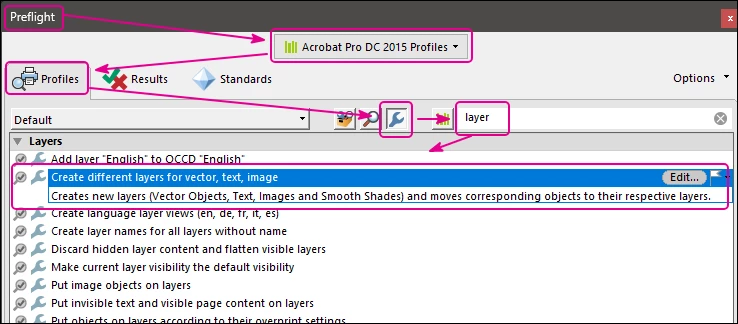
    1. Find the “Preflight” pane in the Print Production tools and use the fix profile as shown in the 1st capture (use the small “Fix” button in the lower right corner).
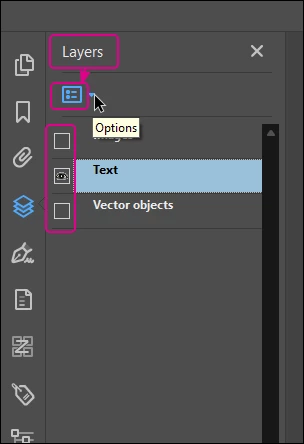
    2. Hide all newly created layers except the “Text” layer.
    3. Clic on the local menu to “Flatten” layers, this will remove all hidden layers (yes, I now, the layers support in Acrobat is really poor).
    4. Save as, then you should be able to get something coherent in InDesign…


    3 replies

    JR Boulay
    Community Expert
    JR BoulayCommunity ExpertCorrect answer
    Community Expert
    June 3, 2026
    1. Find the “Preflight” pane in the Print Production tools and use the fix profile as shown in the 1st capture (use the small “Fix” button in the lower right corner).
    2. Hide all newly created layers except the “Text” layer.
    3. Clic on the local menu to “Flatten” layers, this will remove all hidden layers (yes, I now, the layers support in Acrobat is really poor).
    4. Save as, then you should be able to get something coherent in InDesign…


    Acrobate du PDF, InDesigner et Photoshopographe
    Randy Hagan
    Community Expert
    Community Expert
    June 1, 2026

    That would, for the most part, be right. OCR output is laid as kind of a superstructure over your scanned PDF file. By default, that’s essentially metadata and accessible only through Acrobat and not intrinsic to the PDF file itself.


    If you want to get that text into InDesign, probably the best way to do that is to export it as a text file in another format. I recommend you do that as an RTF file (File>Export to>Rich Text Format menu command using the “old” Acrobat DC Interface; File>Export a PDF>Rich Text Format in the new Acrobat DC interface), opening it in a word processing program to clean up the text, then placing the cleaned-up word processing file.


    It’s kinda clunky, but it works. 


    Hope this helps,


    Randy

    RvdT
    RvdTAuthor
    Inspiring
    June 2, 2026

    Thanks, ​@Randy Hagan 

    Exporting the OCR-ed file as an .rtf file gave me a blank document.
    When I export as .docx or .doc Acrobat starts OCR-ing again and gives me a document with section breaks and columns that i don’t want.

    What works best, for now, is exporting as a .txt file (Accessible). Which gives the cleanest result. Although i wouldn’t mind some formatting (headers and body text).


    I would be nice if there is a way to disregard the old layer of “image-text” and just save the new OCR-ed text as a pdf.

    Randy Hagan
    Community Expert
    Community Expert
    June 2, 2026

    I understand your desires. That doesn’t exist right now, but it doesn’t necessarily mean it can’t.


    Adobe Systems actively monitors its feature request system, and does act upon what it finds to create new features and capabilities of its software. If you’d like to suggest this to Adobe, I’d recommend filling out a feature request through this link


    Hope this helps,


    Randy

    Bernd Alheit
    Community Expert
    Community Expert
    June 1, 2026

    What OCR options do you use?

    RvdT
    RvdTAuthor
    Inspiring
    June 2, 2026