
Ken Nielsen
Legend
August 31, 2018
Answered

How do I keep open windows from moving on their own while working in Photoshop?

  • August 31, 2018
  • 5 replies
  • 4806 views

In the past, I've been able to keep windows for files with layers I want to access, open and in place, out of the way a bit... and that was great. But now, after updating CC the last few updates, the windows seem to have a mind of their own and constantly re-appear in the center of the screen, covering work I am working on which is a nuisance. I have to constantly drag windows I want open but kept out of the way and in a place off to the side a bit... I can no longer do this as every time I go back to the Photoshop work area from another app, like Lightroom, the window or windows I want out of the way have moved again, on their own, back into the center area of the screen. What settings am I getting wrong? or, is this the new inherent behavior I must live with now?

TIA,

Ken


PS: Everything is updated constantly on my computer, OS, apps, everything is the latest and always updated.
    This topic has been closed for replies.
    Correct answer S_Gans

    I had a feeling that may be an issue. I couldn't be sure how you were working, before. And I had to look, but found the fix for the issue. At least, I THINK this'll fix it - did on mine:

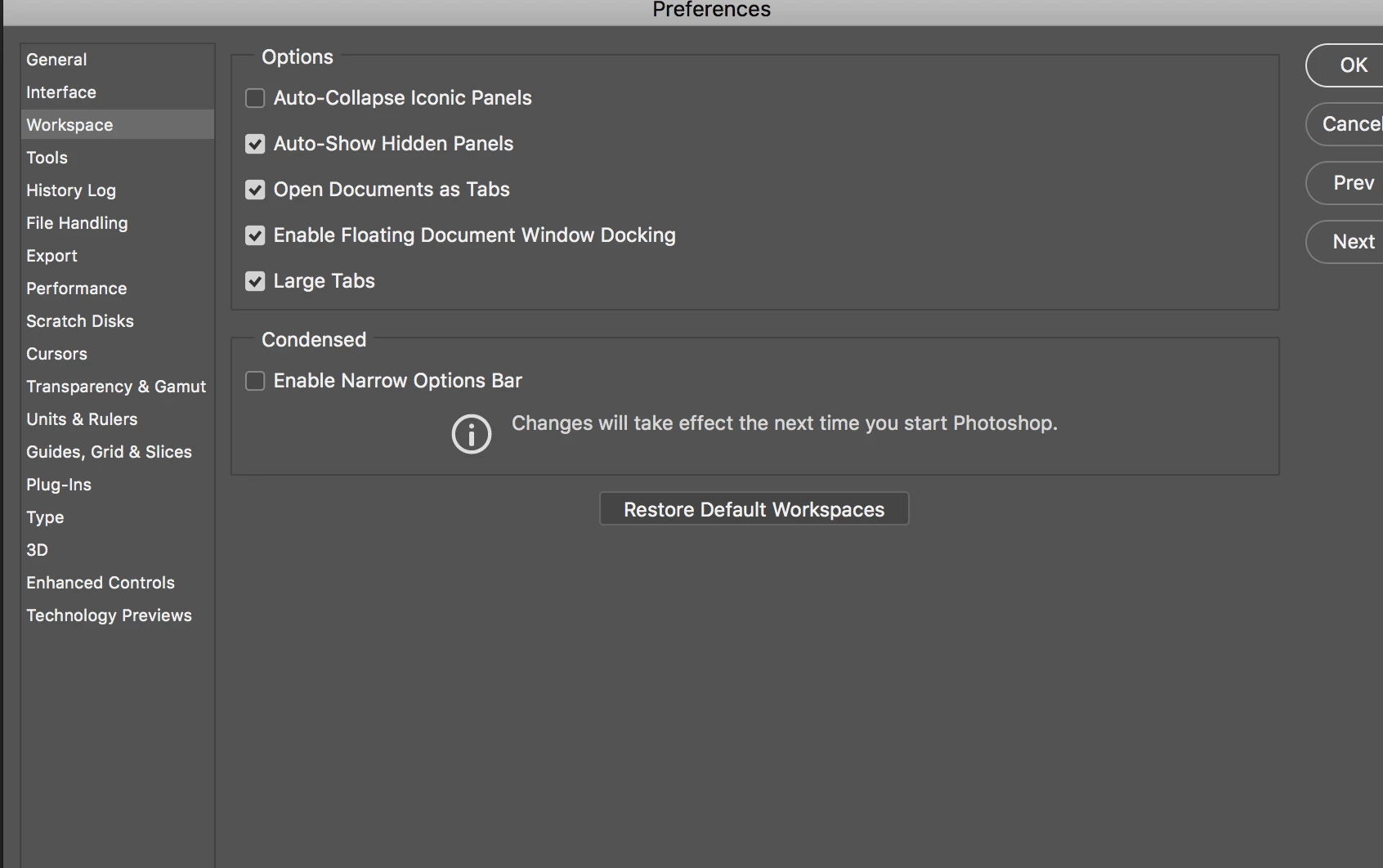
    Re-enable the Window>Application frame - then, go to Preferences Workspace - Uncheck Open Documents as Tabs.

    This OUGHT to get things working the old way. Personally, I always use tabs and rarely free-float on the screen anymore - so I only tested this, this once - but I think that'll do it.

    5 replies

    Participant
    March 7, 2023

    I have the same problem, and the solutions have nothing to do with solving it. I don't use docking or tabs, as I have a large monitor. Over time, my windows all drift to the bottom-left of the screen. This has happened for a few years, and it never happens when I am watching, so it might be related to viewing the desktop or when photoshop is in the background. 

    Paul Pareek
    Participant
    March 7, 2023

    Yes that is not working.

    S_Gans
    Community Expert
    Community Expert
    September 2, 2018

    @Ken Nielsen

    I'm so glad I could help! We all have our own ways of doing things - and in Adobe's efforts to enable them, they sometimes create a maze of choices! I've been using this since v2.5 (no layers at all!), and every time there's a new version, it's a whole new learning curve! Glad I could help you through this one!

    Adobe Community Expert / Adobe Certified Instructor
    S_Gans
    Community Expert
    S_GansCommunity ExpertCorrect answer
    Community Expert
    September 2, 2018

    I had a feeling that may be an issue. I couldn't be sure how you were working, before. And I had to look, but found the fix for the issue. At least, I THINK this'll fix it - did on mine:

    Re-enable the Window>Application frame - then, go to Preferences Workspace - Uncheck Open Documents as Tabs.

    This OUGHT to get things working the old way. Personally, I always use tabs and rarely free-float on the screen anymore - so I only tested this, this once - but I think that'll do it.

    Adobe Community Expert / Adobe Certified Instructor
    Ken Nielsen
    Legend
    September 2, 2018

    S_Gans, You cannot possibly know how much I appreciate your help with this. I had a suspicion that it might be 'workspace' related, but then, for not knowing and because of the plethora of choices in preferences, I was far far far away from seeing that choice you have not directed me to... Preferences>Workspace>uncheck Open Documents as Tabs.

    Thank You so very much for your excellent and spot-on help,

    Ken

    What I can do, and how I like to work on these types of photos, is to have the one open file that has all of the prepared layers that I want to transfer over to new images, watermark copyright info etc..., ready to go from the opened image, and SEE the newly opened image unobstructed by the one with the stuff I want to drag over from the layers, I can drag over and position correctly without the extra step of having to drag away the window that is in the way. Ideal and saves extra unnecessary work.

    S_Gans
    Community Expert
    Community Expert
    September 2, 2018

    You currently have only one of your layers floating. The other one is docked as a tab - which is how Photoshop works when you've chosen Window>Application Frame on a Mac. Then, you pulled the image of the white dog off the tab, and it became free-floating, while the image of the tan dog is docked. To get around this, either work with tabs only, or turn off that option by deselecting Window>Application Frame

    In the last image, you have the 2 docked images still together as tabs, but with the whole image section pulled away from the top. I think you'll prefer to turn it all off with Window>Application frame.

    Adobe Community Expert / Adobe Certified Instructor
    Ken Nielsen
    Legend
    September 2, 2018

    Thank You, I have not tried this yet, but you seem to know exactly what I'm wrestling with, and it is a selectable control as you have pointed out. I thought so as the windows used to stay separated and I could keep that one working 'layers image' in place at the bottom of the screen and out of the way... from what you are saying then, I should be able to return to that behavior for these image windows.

    Thank You  S_Gans ACP!

    Bojan Živković11378569
    Community Expert
    Community Expert
    August 31, 2018

    Can you please post a screenshot?

    Ken Nielsen
    Legend
    September 2, 2018

    Here is the 'layers image' (dog with red sock in mouth that has ingredients on layers I want to use for newly opened images... I do not want it to be centered or in the way on screen so I can't see image I want to work on...

    Ken Nielsen
    Legend
    September 2, 2018

    What is happening is that the 'layers image' (dog with red sock in mouth) is already opened and when I open the new image I want to work on the 'layers image' attaches itself to the new image and does not stay down on the screen down and out of the way...