shayneorok92
Participant
July 23, 2017
Answered

Image becomes noisy/grainy when I open it in Illustrator

  • July 23, 2017
  • 3 replies
  • 7275 views

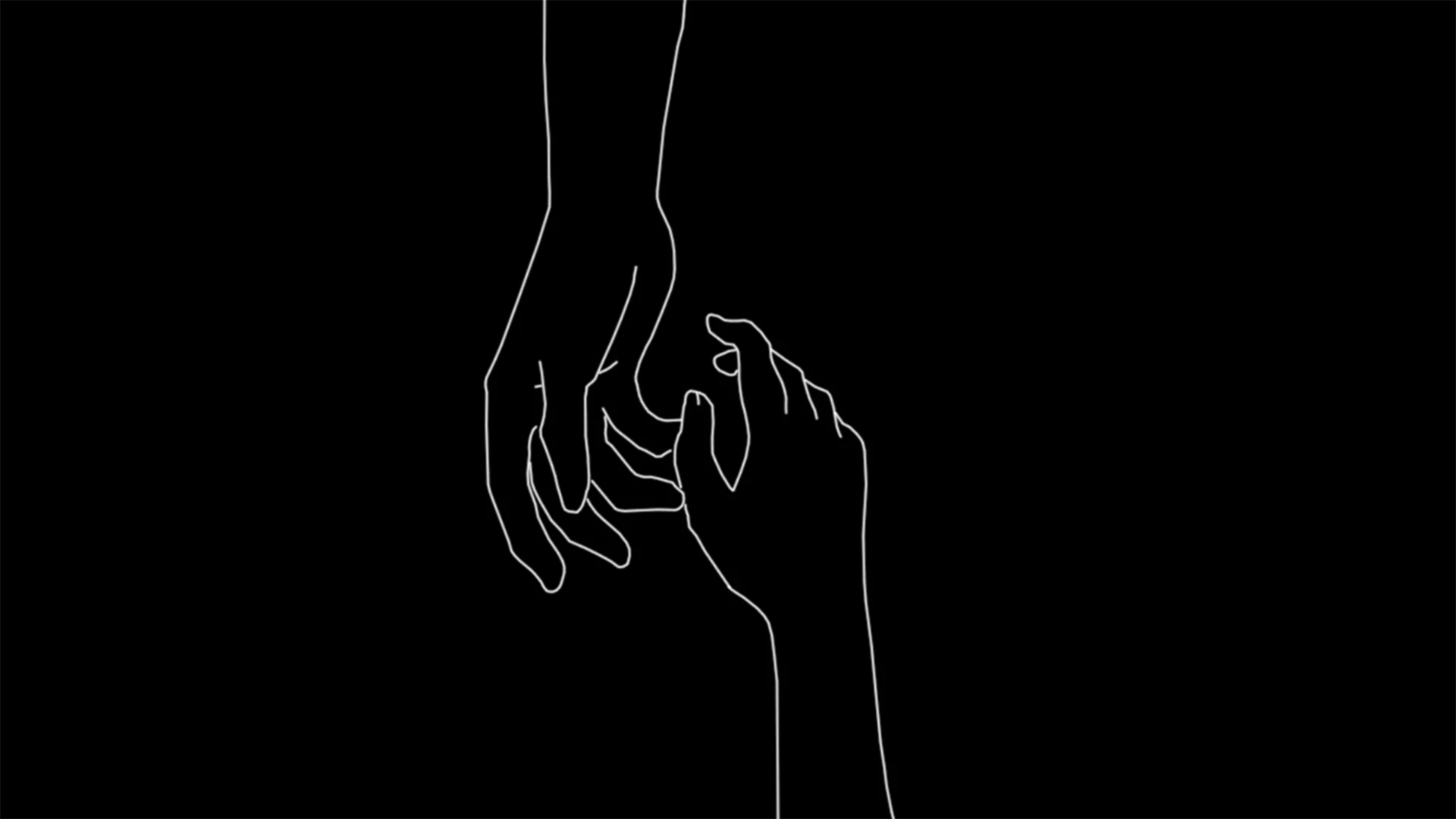
Here's the image:

I want to enlarge this and then use image trace, but when I open the above image into Illustrator, it ends up looking like this:

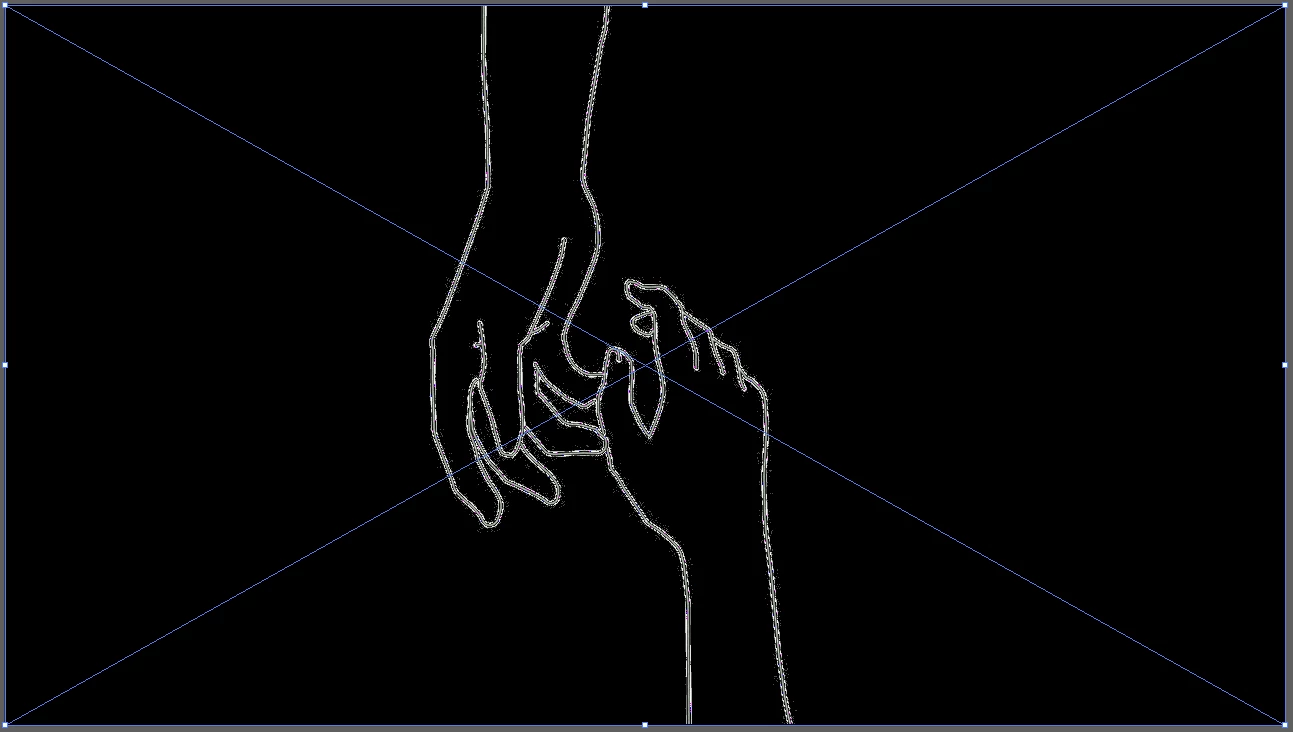
Would anyone know why this is happening? Any help at all would be greatly appreciated. Thank you!

This topic has been closed for replies.
Correct answer Ton Frederiks

If I take your first image and paste it into Illustrator, it looks fine, also after Image Tracing.

Maybe it's the preview, altough looking at your screendump, GPU Preview seems to be turned off.

Did you try switching between GPU and CPU Preview?

Preferences > GPU Performance

3 replies

Ton Frederiks
Community Expert
Ton FrederiksCommunity ExpertCorrect answer
Community Expert
July 23, 2017

If I take your first image and paste it into Illustrator, it looks fine, also after Image Tracing.

Maybe it's the preview, altough looking at your screendump, GPU Preview seems to be turned off.

Did you try switching between GPU and CPU Preview?

Preferences > GPU Performance

Participant
January 26, 2023

that worked for me. when i uploaded a great-quality image to Ai it went really grainy. When i turned on the GPU performance, it cleared immediatelly!

S_Gans
Community Expert
Community Expert
July 23, 2017

Did you enlarge the image before bringing it into Illustrator? If so, you're probably seeing artifacts from enlarging something with such fine, thin, contrasty lines.

In my opinion, if you're doing what you said you're doing above, you're working backwards. It's really really hard to get a good enlargement of a raster line drawing. All the computer can do is add pixels and make educated guesses as to where those pixels go.

Instead, I'd recommend creating an Illustrator document at the dimensions you're eventually going to want. Then, use File>Place to place the image into that document (instead of opening the document directly into Illustrator). Then, run Auto Trace, and find the settings that work best. If you're enlarging the whole thing after that, you can just try resizing from there - or you may find the enlargement looks better after you hit "Extract". Either way, it's generally a lot cleaner to enlarge a vector image (the result of Image Trace), than it is to do so to a raster image (the .png).

Adobe Community Expert / Adobe Certified Instructor
barbara_a7746676
Community Expert
Community Expert
July 23, 2017

It looks noisy/grainy because it is raster, made of pixels. Once you Image Trace and Expand it should look pretty smooth.