
Known Participant
December 20, 2017
Answered

How to remove these grey dots?

  • December 20, 2017
  • 3 replies
  • 3007 views

I have downloaded a template from Photoshop and spent hours making the design but when I print it out it is covered in small grey dots (see section attached). How do I get rid of these? They aren't the grid lines or pixels. They appear in the original template (but I assumed they would be 'transparent' when printed). Help!

This topic has been closed for replies.
Correct answer davescm

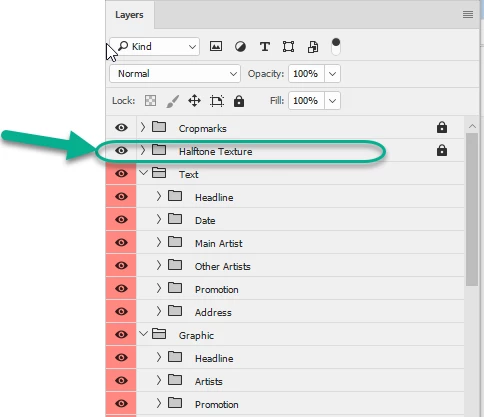
Right at the top of the layer stack there is a group called "Half Tone Texture" use the eye symbol to turn it off/on

Dave

3 replies

jane-e
Community Expert
Community Expert
December 20, 2017

Is this from Adobe Stock? What is the number?

rosalyncAuthor
Known Participant
December 20, 2017

It's in the 'print' section of the photoshop templates and it's called Indie Rock Newspaper-Style Flyer - the grey dots seem to be on the background layer (?) -I am really new to photoshop so don't know all the terminology!ology!

davescm
Community Expert
davescmCommunity ExpertCorrect answer
Community Expert
December 20, 2017

Right at the top of the layer stack there is a group called "Half Tone Texture" use the eye symbol to turn it off/on

Dave

Peru Bob
Community Expert
Community Expert
December 20, 2017

Is it in a separate layer in the template?

If so, make the layer not visible.

rosalyncAuthor
Known Participant
December 20, 2017

It seems to be in the base layer? I am very new to photoshop so not really sure about the terminology or indeed how to find the base layer!

Silkrooster
Legend
December 20, 2017

I am thinking it is a filter applied to one of the layers. Look for half toning. Filter>Pixelate>Color Half Tone...

Something like the example below. Just an example.

Silkrooster
Legend
December 20, 2017

there is also a half tone found in the filter gallery