janes_p
Inspiring
August 9, 2018
Answered

Signing with Swiss PostSuisseID no longer working on macOS

  • August 9, 2018
  • 5 replies
  • 3989 views

Signing with PostSuisseID on macOS Acrobat worked until a while ago, but not any more.

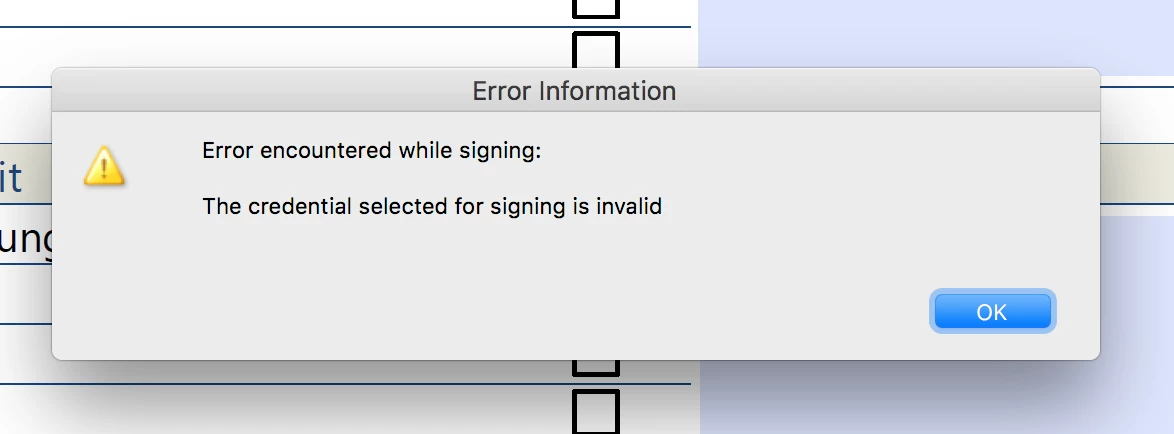
The signing dialog appears in Acrobat (including password requests), but at the end of the process, the error message "The credential selected for signing is invalid" appears. The file is written, but without a signature.

Current installation:

macOS High Sierra 10.13.6

Adobe Acrobat Pro DC 2018.011.20055

PKCS#11 module and timestamp link are installed according to PostSuisseID support page (images missing, unfortunately).

The problem could have the same root case as described in a similar issue 10.11.6 CAC signing not working with 11.0.17 Acrobat, caused by changed SHA fallback logic and APIs.

This topic has been closed for replies.
Correct answer janes_p

Recommended settings based on conversation with SwissSign:

SwissSign recommends to deactivate Enhanced Security. In my case, both settings with and without enhanced security worked.

Settings under Preferences > Signatures > Identities & Trusted Certificates:

Navigation "Digital IDs" (top level): As the SwissSign token (USB stick or chip card) contains two certificates, the one for signing (Qualified Signature) must be set to "use for signing" under "Usage Options". The setting is shown with a pencil symbol left to the certificate.

Refresh might be necessary in case the certificates are not displayed.

Sometimes, the SuisseID certificates are displayed twice - it appears that they are cached on the Apple keychain. I could resolve the situation by restarting Acrobat.

In the "PKCS#11 Modules and Tokens" navigation, the path to the PKCS#11 module must be set to /usr/local/lib/libcvP11.dylib - the module is copied to that directory in the SwissSign installation process (but the path is not automatically set).

Navigation "cv PKCS#11 module": Login is required (using the SuisseID token password/pin). In my case, this doesn't always reliably the first time; more attempts might be necessary. Once logged in, the certificates are accessible.

Navigation "SuisseID": Again, the certificate used for signing (Qualified Signature) must be set to "used for signing" (shown by pencil to the left).

Settings under Preferences > Signatures > Document Timestamping:

Under the navigation "Time Stamp Servers", a path to the SwissSign server must be added: http://tsa.swisssign.net

In addition, the SwissSign server must be set as default, displayed by the star symbol to the left.

A last effect: In case macOS went through a few sleep cycles with applications open, Acrobat doesn't recognise the token anymore. Restarting Acrobat helped in my case. Sometime, a system restart might be required.


5 replies

janes_p
janes_pAuthorCorrect answer
Inspiring
August 16, 2018

Recommended settings based on conversation with SwissSign:

SwissSign recommends to deactivate Enhanced Security. In my case, both settings with and without enhanced security worked.

Settings under Preferences > Signatures > Identities & Trusted Certificates:

Navigation "Digital IDs" (top level): As the SwissSign token (USB stick or chip card) contains two certificates, the one for signing (Qualified Signature) must be set to "use for signing" under "Usage Options". The setting is shown with a pencil symbol left to the certificate.

Refresh might be necessary in case the certificates are not displayed.

Sometimes, the SuisseID certificates are displayed twice - it appears that they are cached on the Apple keychain. I could resolve the situation by restarting Acrobat.

In the "PKCS#11 Modules and Tokens" navigation, the path to the PKCS#11 module must be set to /usr/local/lib/libcvP11.dylib - the module is copied to that directory in the SwissSign installation process (but the path is not automatically set).

Navigation "cv PKCS#11 module": Login is required (using the SuisseID token password/pin). In my case, this doesn't always reliably the first time; more attempts might be necessary. Once logged in, the certificates are accessible.

Navigation "SuisseID": Again, the certificate used for signing (Qualified Signature) must be set to "used for signing" (shown by pencil to the left).

Settings under Preferences > Signatures > Document Timestamping:

Under the navigation "Time Stamp Servers", a path to the SwissSign server must be added: http://tsa.swisssign.net

In addition, the SwissSign server must be set as default, displayed by the star symbol to the left.

A last effect: In case macOS went through a few sleep cycles with applications open, Acrobat doesn't recognise the token anymore. Restarting Acrobat helped in my case. Sometime, a system restart might be required.

janes_p
janes_pAuthor
Inspiring
August 13, 2018

I had a conversation with SwissSign support today - the good news is that the solution works. However correct installation is crucial (even detail settings count). SwissSign is in the process of amending their online instructions - these should become available in the course of the next days. I will post the link once it is published.

janes_p
janes_pAuthor
Inspiring
August 10, 2018

One additional question to readers of this thread: Is there anybody who is able to successfully use PostSuisseID with Acrobat on macOS High Sierra?

If so: Which settings are used?

Without confirmed evidence my current assumption is that the PKCS#11 module needs to be amended due the fallback/API change described in the thread mentioned in my initial post.

Andrea Valle
Community Manager
Community Manager
August 10, 2018

Hi Peter

thanks for sharing the screenshot. However you missed the one I asked showing Key usage and Extended Key usage.

Could you please add this one?

Also, are you able to login to the token from the PKCS#11 Modules panel?

- Plug the SuisseID device

- Click on "cv PKCS#11 module"

- On the right panel you'll see the device listed. Select it and click "Login"

- Enter the PIN

- Click on SuisseID on the left.

Can you see the two certificates listed?

Andrea

janes_p
janes_pAuthor
Inspiring
August 10, 2018

Hi Andrea,

I have added the requested screens to the existing post. However I did not find an "Extended key usage" object in the Details tab.

Direct login to the module fails, as per screen. However I am able to sign PDFs with the dedicated "LocalSigner" application - so the certificate itself appears to be ok, looks like the PKCS module for Acrobat has an issue.

I can see both certificates at top level, but not under the module.

KR ...Peter

janes_p
janes_pAuthor
Inspiring
August 9, 2018

Due to missing screens on the Swiss Post support page, below are visualizations of current settings:

SuisseID is a hardware device with two certificates: One for signing (Qualified Signature, highlighted), the other one for authentication (log in). In my case, the hardware device has the form factor of a USB stick. The fact of the two certificates confuses some applications (certain browsers).

The signing certificate is set for non-repudiation.

Key usage details.

Issuer of the certificate is SwissSign (certificate service provider for Swiss Post), algorithm is SHA256.

Signature algorithm details.

As per Swiss Post support page, SwissSign certificate require installation of a dedicated PKCS#11 module.

Login to PKCS#11 module fails.

Andrea Valle
Community Manager
Community Manager
August 9, 2018

Hi Peter,

it seems like the PostSuisseID web page is not showing the screenshot images, so it does not help much understand what's going on.

Could you please try to capture the screenshot of the certificate details?

Open the Preferences > Signatures > Identities & Trusted Certificates [More]

Select your certificates from the list and click on Certificate Details.

Click on the Details tab and take a few screenshots of the certificate details, including Signature algorithm, Key usage, Extended Key usage.

Thanks

Andrea