
Das Boomer
Known Participant
November 17, 2018
Respondido

Clipping mask over multiple layers?

  • November 17, 2018
  • 2 respostas
  • 3655 Visualizações

Greetings,

I am rejigging a few beautiful Christmas I bought on GraphicsRiver that I will print on a Xerox Iridesse Press.

I have them as Psd and as Ai files.

I then use InDesign to prepare the final file for print using mixed inks and custom spot colors.

The idea then is to print the cards with gold, silver and clear.
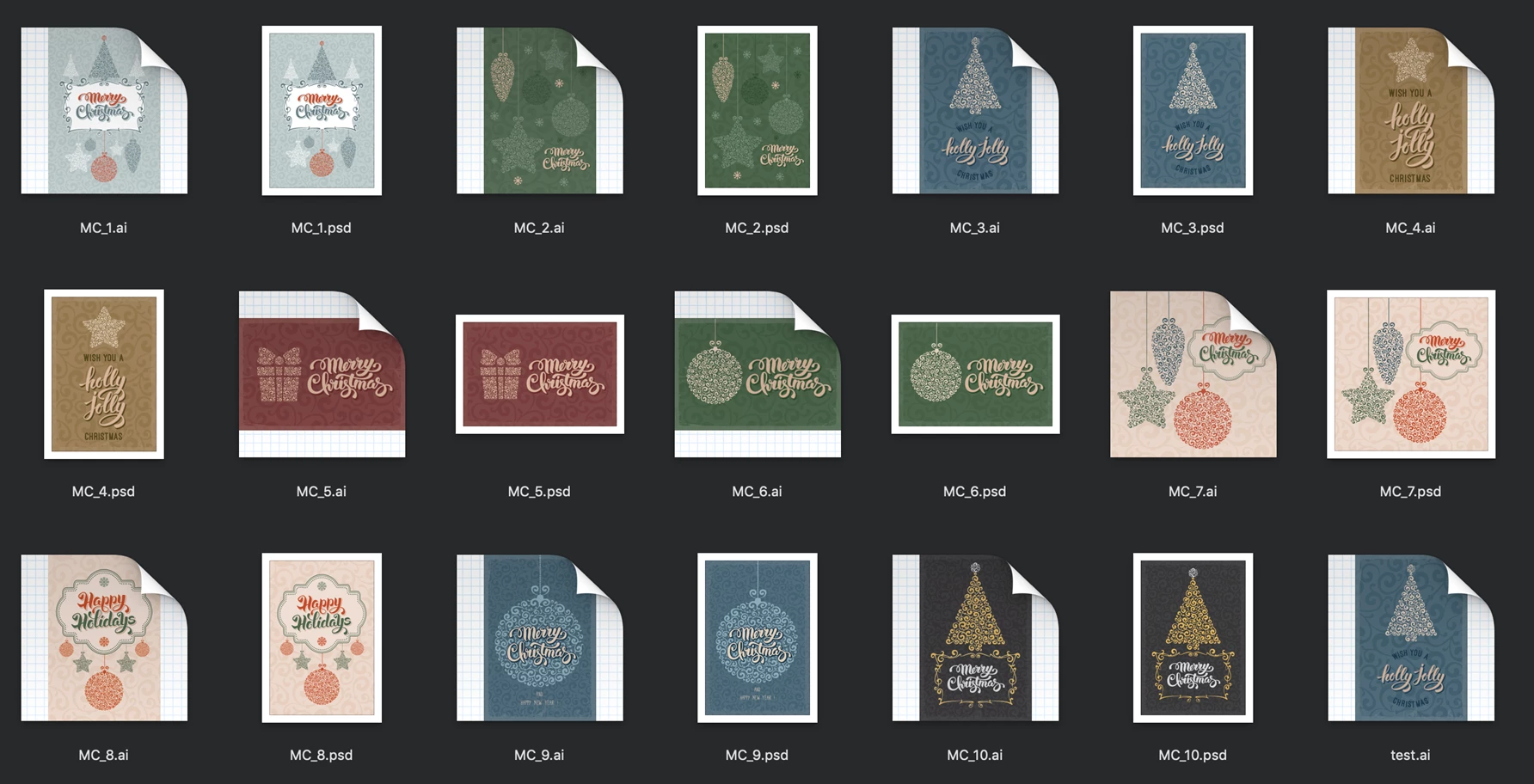
The difficulty I am facing is that on most cards, the pattern covering the entire card will also be printed using Clear toner (think spot varnish).

Clear can only be printed on top of everything else (technical limitation).

Now, just printing that pattern in clear is easy however  the challenge here is that the clear pattern cannot overlay anything else.

For example, the part of the pattern that covers the Christmas tree must be deleted otherwise it interferes and diminishes the effect in print.

The Clear would print over

the Christmas since

the Clear can only print on top

See how the two interferes with each other?

That means I need to somehow delete or clip the parts of the clear pattern that are covering anything else, from any layers or object.

Since the document is a multilayered document, I am, I admit, completely out of my depth on how to do this.

How to I cut that pattern so that it doesn't cover this or that object, given a psd or ai file that has many layers?

Any help or pointers is appreciated, and whoever can help me out can ask me for a personalized Christmas cards or two!

Cheers,

Antoine

Este tópico foi fechado para respostas.
Melhor resposta por Monika Gause

Probably the easiest method would be masking.

You could make a copy of the yellow layer with the Christmas tree and paste it in front of the all-over pattern. Then color the Christmas tree in black (pitch black, you can use RGB 000 or even the registration color for this). Then select the all-over pattern and the CHrsitmas tree and in the transparency panel click on "Make Mask" You then have to uncheck the "Clip" option and you should be good.

2 Respostas

Das Boomer
Known Participant
November 17, 2018

Hi guys,

Here's a video that explains better...

Monika Gause
Community Expert
Monika GauseCommunity ExpertResposta
Community Expert
November 17, 2018

Probably the easiest method would be masking.

You could make a copy of the yellow layer with the Christmas tree and paste it in front of the all-over pattern. Then color the Christmas tree in black (pitch black, you can use RGB 000 or even the registration color for this). Then select the all-over pattern and the CHrsitmas tree and in the transparency panel click on "Make Mask" You then have to uncheck the "Clip" option and you should be good.

Monika Gause
Community Expert
Community Expert
November 17, 2018

Without seeing the actual files this will be difficult to say. On top of that I don't think I have understood what you want to do.

Everything depends on how exactly those files have been built.

If you're lucky, you will be able to just separate them in the layers panel. Open it first and see what you have there.

In side the layers there may be several objects stacked on top of each other.

Das Boomer
Known Participant
November 17, 2018

Hi Monika,

They are indeed stacked upon each other. It's how to clip the pattern (in one layer) from covering everything else that is on the card that is my mystery

Cheers from Vancouver!

Antoine