
Participant
March 6, 2019
Answered

Need help! Pen tool paths disappear when they fall within the bounding box of another path, but not always.

  • March 6, 2019
  • 1 reply
  • 9032 views

Hello!

I've only had Illustrator for a few days and I've managed to fumble my way through some basic stuff, but I can't figure this one out.  I'm using windows/PC and have a monthly subscription so I have the latest updates, version, etc.

I need to create line drawings of boots and bindings for a owners manual project I'm working on. 

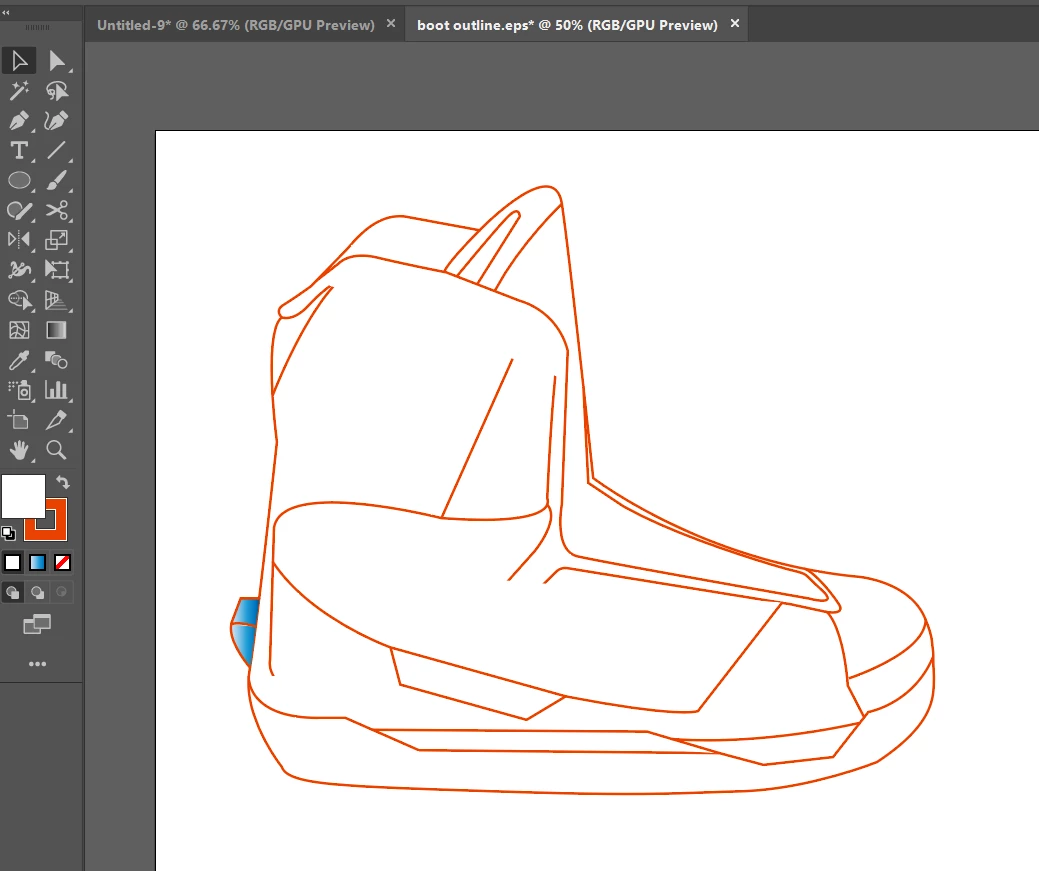
Using the pen tool, I traced the boots.  I can see there are paths I've drawn that aren't showing.  I realized this early in the process so I tried creating layers for each path I traced, but the same thing happened.  So, I did the entire trace on a single layer.

I'm guessing/hoping there is a setting I just need to switch off/on that will make the lines appear.  I've spent several hours searching online and looking through all the menus and troubleshooting, etc but I can't figure it out. 

Can someone please tell me what I need to do?

Thanks!

Below is what I see.
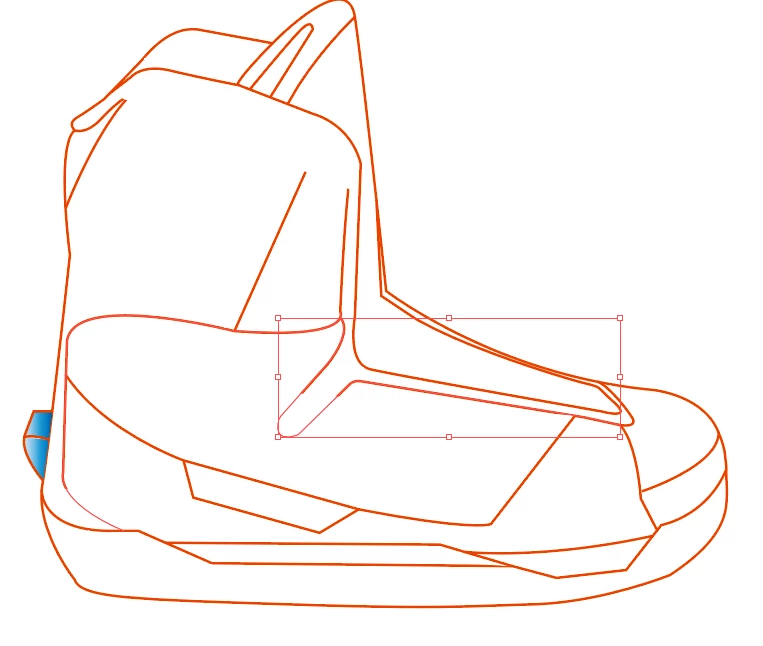
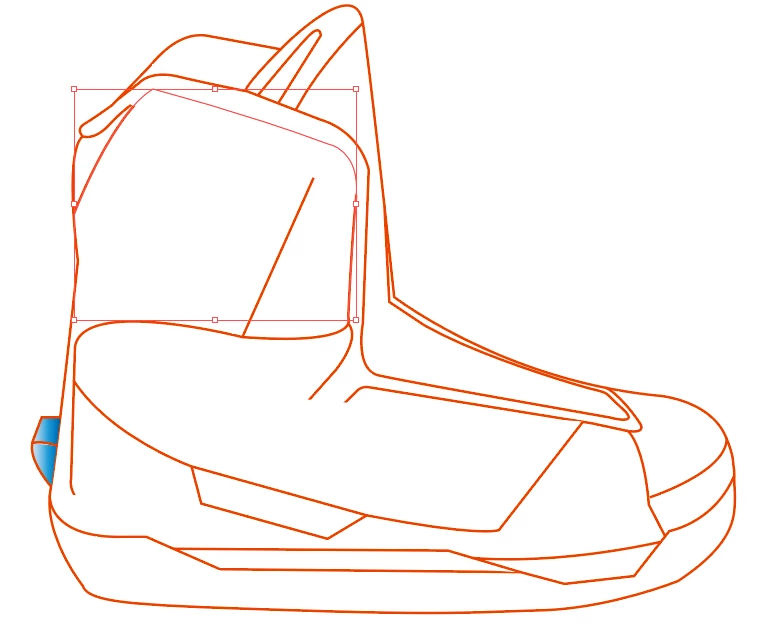
Here are some examples of what I've drawn that is somehow missing from the completed drawing:
This topic has been closed for replies.
Correct answer Michael Bullo

Not only are you using a red stroke but I notice you are also using a white fill. Is it possible that you have drawn shapes, or even open paths, that have a white fill that are obscuring objects below?

If so, you could…

  • Select everything and set the fill of everything to "None".
  • Menu > View > Outline: This will show you your paths without any Strokes or Fills. Make sure you select "Menu > View > Preview" to get back to the default view.

1 reply

Michael Bullo
Community Expert
Michael BulloCommunity ExpertCorrect answer
Community Expert
March 6, 2019

Not only are you using a red stroke but I notice you are also using a white fill. Is it possible that you have drawn shapes, or even open paths, that have a white fill that are obscuring objects below?

If so, you could…

  • Select everything and set the fill of everything to "None".
  • Menu > View > Outline: This will show you your paths without any Strokes or Fills. Make sure you select "Menu > View > Preview" to get back to the default view.
Participant
March 6, 2019

You were right, I went back and found the paths with white fill covering up the other paths.  Took me a session with the adobe help people though.  Super helpful.  Thanks for helping out a noob!!

Michael Bullo
Community Expert
Community Expert
March 6, 2019

Hey Daniel. That's great. Happy to help.