


- Home
- Illustrator
- Discussions
- Select Tool Problems in Illustrator CC 2017
- Select Tool Problems in Illustrator CC 2017
Select Tool Problems in Illustrator CC 2017

Copy link to clipboard
Copied
With every previous version of Illustrator and Photoshop I've used, I've always used the select tool (black arrow) to, simply, "click + drag" at the corners of the image to resize -- following with shift + alt to keep the image within its constraints. For the past two days, this hasn't been working. Rather than resizing at the corner, doing this only moves the image around the art board.
I, of course, go into scaling the image through Object > Transform > Scale; however, this is a major hit to my workflow. Each time I have to resize, I have to do this, and it's a total drag.
Not sure if it's a bug or if I've managed to turn off this feature without knowing. Does anyone else know how to fix this or has the same problem?



Explore related tutorials & articles
 16
Replies
16
16
Replies
16


Copy link to clipboard
Copied
View > Show Bounding box?

Copy link to clipboard
Copied
Does View > Show Bounding Box solve it?

Copy link to clipboard
Copied
jazznbustamante0213393 wrote
Not sure if it's a bug or if I've managed to turn off this feature without knowing.
Here is the shortcut that you might have done accidentally:


Copy link to clipboard
Copied
And, although this is an Illustrator question, you also talk about the Photoshop Bounding Box. You can always show it when:
1) first select the Move tool (V)
2) After that, click the checkbox "Show Transform Controls"

The Illustrator problem is, like they said before, probably the Bounding Box (View > Show Bounding Box or CTRL/CMD-SHIFT-B)
Copy link to clipboard
Copied
Hi everyone!
Thank you for your responses. I checked for that and, unfortunately, that's not the problem I'm having. The bounding box wasn't hidden.
😕
Copy link to clipboard
Copied
Then please go into details:
- which system?
- what kind of object exactly?
- anything special: is it in perspective grid or something?
- what did you do to get into this situtation?
- and please show a screenshot. Layers panel open, object selected.

Copy link to clipboard
Copied
illustrator selection tool movement problems
Copy link to clipboard
Copied
And just to confirm, you have the
• Black arrow (Selection tool) and not the
• White arrow (Direct Selection tool)
Correct? (Because I've seen this too many times, so it has to be asked.)

Copy link to clipboard
Copied
Here's the info for the type of system I'm using

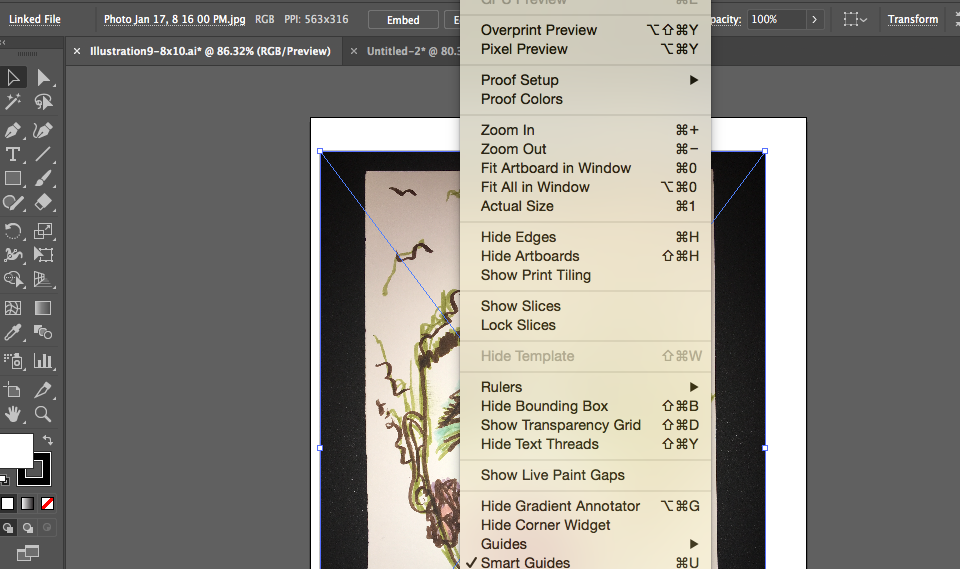
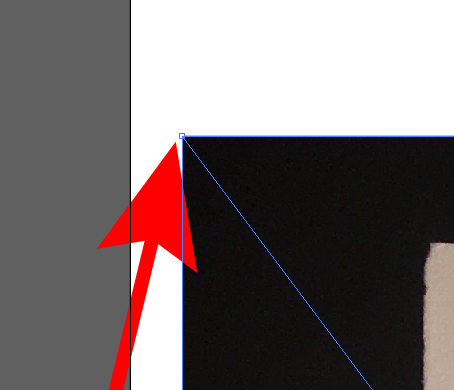
Also, I'm definitely using the select tool and not the direct select. The problem is that I'm unable to "click + drag" the corner of an image to resize. It's a placed image that I need to vector. Everything looks the same, but I'm thinking I've somehow turned it off.
Typically, when the select tool hovers the bounding box, it turns into a straight double ended arrow at the anchors on the corners or the curved arrow to rotate on either side of the corner anchor. Right now, it's doing neither. Instead, it's just simply dragging the image around the art board.
Copy link to clipboard
Copied
Can you scale it when you use the Free-transform tool?
It should definitely work, your image shows the bounding box.
When have you last restarted that system? Maybe it's time to do so.

Copy link to clipboard
Copied
This can be solved by doing the following...
View > Show Bounding box

Copy link to clipboard
Copied
CTRL + SHIFT + B
Show Bounding Box

Copy link to clipboard
Copied
Thank you. This worked for me.
Rosemary

Copy link to clipboard
Copied
Try to do:
1- go to ( Edit menu ) - ( My Settings ) - ( Export Settings ) and Export it on your Desktop.
2- Reset your illustrator preferences by pressing ( Option+Command+Shift ) (Mac OS) as you start Illustrator.
3- after illustrator open go to ( Edit menu ) - ( My Settings ) - ( Import Settings ) and Import the saved one on your Desktop.
and try to scale your image

Copy link to clipboard
Copied
I had the same issue. The bounding box was there but with the direct selection tool - the adjustments and handles were not showing for any of my selected items.
SOOOOO this isn't an official fix but it seemed to shake the glitch out. Might be worth a shot for anyone having the same problem:
Where did my bounding box handles go??
> Select the text box or object you wish to size
> Right click on the selected object
> Select transform in the drop-down list
> Select Scale (cancel out of it by this time you should see that the bounding box goes back to normal)
Then you will see the handles come back on all of the bounding boxes and for some reason they work properly again.
Not sure if this will work for you but I thought I would share as I wasn't finding any answers - no one was understanding the issue and judging by the way it fixed for me, this seems to be a glitch in illustrator!


Copy link to clipboard
Copied
This method detailed above did not work for me. I have restarted my computer several times, restarted the application several times, cleared the clipboard, updated to OS Mojave, and updated Java (probably means nothing). If I hold the COMMAND key (on my MAC), the handles come back and I could resize, but normally I don't have to hold that button and this is really slowing me down having to change the way I do things. I can't select a whole item and move it easily or resize it w/o having to do work arounds. This started happening last week at the end of October 2018.


Get ready! An upgraded Adobe Community experience is coming in January.
Learn more
 AdChoices