


- Home
- InDesign
- Discussions
- Applying different images into various pages based...
- Applying different images into various pages based...

Copy link to clipboard
Copied
Hey, I know it must be super simple but I just can't figure it out.
I want to make 30 Pages PDF, each page should contain one image. I want the images to appear in the same location on the page- so I created a master page with a frame, hoping I would drag onto it a different image on every page.
For some reason, I can't use the master page correctly and place the different images.
when I place an image, it shows up in all the page- same picture!
I know that's the purpose of a master, but I only want to use the frame as a placeholder for different pages and that's it!
PLEASE help me!
Thanks a lot!


 1 Correct answer


Once you have established the graphic frame on the master page and inserted the correct number of document pages that use the master into the document, select all of the pages using the Pages Panel. Then in the pull-down menu use the Override all master page items option. This will unlock all of the graphic frames on the document pages. Then click on the image you used in the master page on the graphic frame of each page in turn with the direct selection tool and use the File>Place command (Comm
...
 7
Replies
7
7
Replies
7

Copy link to clipboard
Copied
Once you have established the graphic frame on the master page and inserted the correct number of document pages that use the master into the document, select all of the pages using the Pages Panel. Then in the pull-down menu use the Override all master page items option. This will unlock all of the graphic frames on the document pages. Then click on the image you used in the master page on the graphic frame of each page in turn with the direct selection tool and use the File>Place command (Command (Mac)/Control (PC)-D) to replace the place-holder image with the correct new image. If all of your images are the same size they should just pop into place at the right size. You can also do this with an empty frame on your master which you can set to "Fit Frame Proportionally" (or any other available option) through Object Menu>Fitting.

Copy link to clipboard
Copied
I agree with Bill. This is how I achieve success when placing multiple images using the master page.
The only difference is that I create and apply an object style for how I want to image to fill the frame.
Copy link to clipboard
Copied
WOW, that simple! thanks a lot!
Copy link to clipboard
Copied
Happy to help.

Copy link to clipboard
Copied
Hm…
Just do the frame that should hold an image on the master.
You could prepare the frame with fitting options.
Then go to your document pages and apply the master where necessary.
Stay with your document pages. Do not go to the master pages.
Load all images you want to place to the place gun.
To apply the images, just hover with the loaded place gun over the frame that is "mirrored" from the applied master and do one single click. That will place the image to the prepared frame that is visible from the applied master.
Regards,
Uwe
Copy link to clipboard
Copied
Did either of these solutions work for you?
If so, please update the forum so can continue to troubleshoot if needed.

Copy link to clipboard
Copied
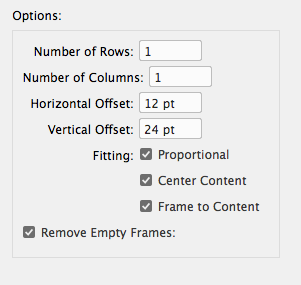
There is also the free ImageCatalog.jsx script that ships with ID and should show in your scripts panel. You can set 1 row x 1 column in its dialog and choose the folder with you 30 image files. The script will create the 30 pages and place the images for you:


Get ready! An upgraded Adobe Community experience is coming in January.
Learn more
 AdChoices