


- Home
- InDesign
- Discussions
- Re: PDF Comments Input Error: PDF Created by an ol...
- Re: PDF Comments Input Error: PDF Created by an ol...

Copy link to clipboard
Copied
I'm getting a strange error while trying to import some pdf comments a co-worker created. The process is as follows:
1. My co-worker has an Indesign file (presumably from a slightly older version of InDesign)
2. She creates a PDF from that INDD and then places comments on it in Acrobat for updates to be made by another team member (me, in this case)
3. I open her INDD file in my InDesign (mine is completely up to date)
4. When I import her PDF comments I get an error message that looks like this:
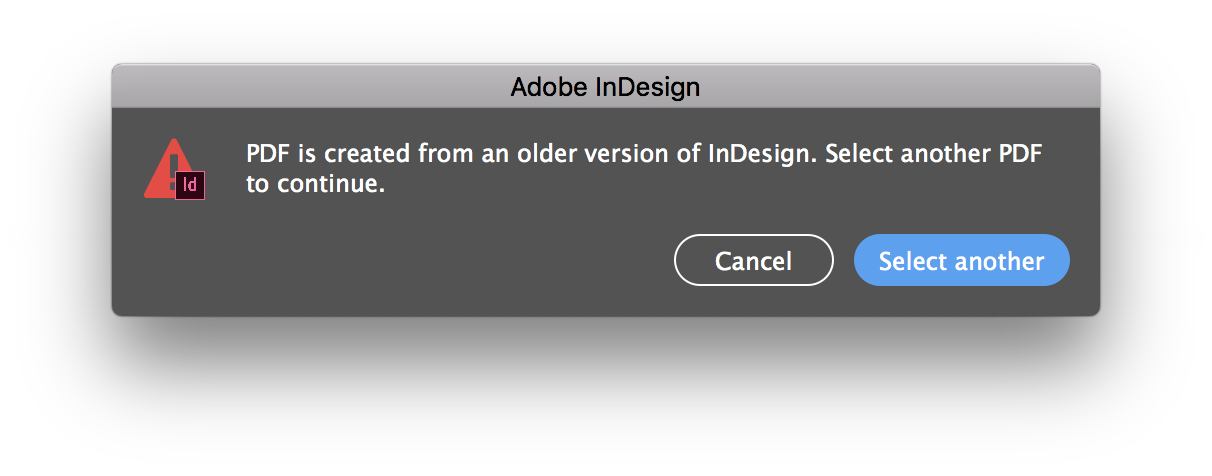
I'm curious why it should matter in which version of InDesign the PDF was created? I've got a work-around that involves me exporting the PDF from my InDesign, and then importing the comments from her PDF to my new one in Acrobat—but it really doesn't seem like it should matter what InDesign version created a PDF....
Has anyone else seen this error and/or know its origin?


 2 Correct answers


gajuscd wrote
…I'm curious why it should matter in which version of InDesign the PDF was created? I've got a work-around that involves me exporting the PDF from my InDesign, and then importing the comments from her PDF to my new one in Acrobat—but it really doesn't seem like it should matter what InDesign version created a PDF....Has anyone else seen this error and/or know its origin?
Hi gajuscd ,
the error message is well known.
A limitation of the new feature.
The cause:
InDesign CC 2019's PDF expo
...

hi, i found another fix to this that may be easier while in LYNDA.COM doing the new features training.
open the old .pdf, give it a name, remove the comments, save it. now go back to comments and choose "import Data file", import the comments from the original .pdf. save it.
now you should be able to load that .pdf into indesign 2019 and see the comments
go here:

 12
Replies
12
12
Replies
12

Copy link to clipboard
Copied
I have had it.
There must some new technology on a .pdf made from 2019 that allows the comments to be read on the way back when you import.
Copy link to clipboard
Copied
gajuscd wrote
…I'm curious why it should matter in which version of InDesign the PDF was created? I've got a work-around that involves me exporting the PDF from my InDesign, and then importing the comments from her PDF to my new one in Acrobat—but it really doesn't seem like it should matter what InDesign version created a PDF....Has anyone else seen this error and/or know its origin?
Hi gajuscd ,
the error message is well known.
A limitation of the new feature.
The cause:
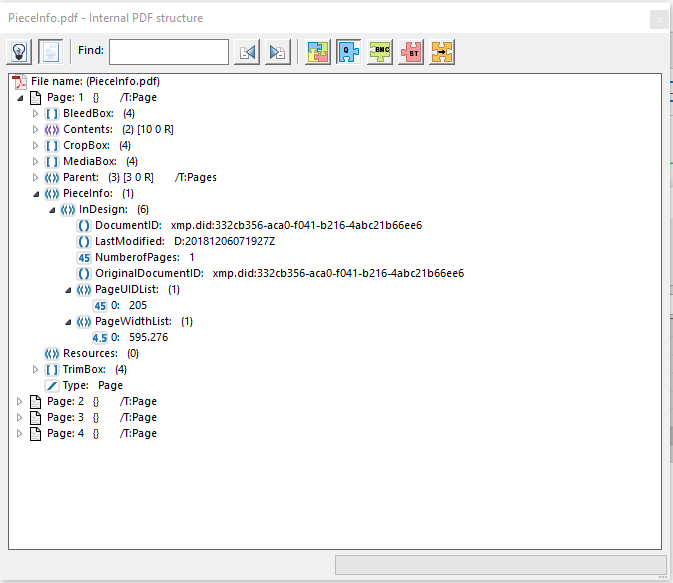
InDesign CC 2019's PDF export is writing discrete information to every PDF that the import module of PDF Comments needs to work ok. This information is not written with older versions of InDesign or to PDFs that are made by other applications like Acrobat Distiller etc.pp. You can make that extra information visible with Acrobat Pro DC. It's called PieceInfo.
Here one example. Open a PDF in Acrobat Pro DC.
Print Production > Preflight > Options > Browse Internal PDF Structure…
Page: n > PieceInfo: > InDesign
Regards,
Uwe
EDITED
Copy link to clipboard
Copied
Much appreciated, and that makes more sense now!
I suppose for some reason I had assumed that you could import the comments of any PDF—not specifically only those created from the version of InDesign with the new feature.
I'm guessing the practical application of that type of capability would be limited 😃
Thanks again!

Copy link to clipboard
Copied
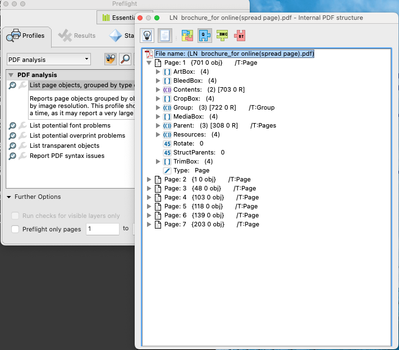
Hi i am not ble to find pieceinfo
can you please help me


Copy link to clipboard
Copied
Hi,
Thank you for reaching out. Can you share more about what is happening along with the version of InDesign & OS? We'll try our best to assist you.
Thanks
Rishabh

Copy link to clipboard
Copied
For earlier InDesign files, open and save the file in InDesign CC 2019 or later and export a PDF file. Then you can use Acrobat to move the comments from an older PDF into the newly created PDF
Only InDesign CC 2019 can write the position of the objects in the file so that the process can be handled later on when you want to use the PDF commenting process.
Copy link to clipboard
Copied
That's the work-around I was trying to describe in my original post. Much appreciated!

Copy link to clipboard
Copied
- You have to export a PDF from CC2019 to use this feature and make your comments there.
- And even if you have a PDF from CC2019 there should not changes be done in InDesign after export as several synchronization problems will occur. That is my experience.
Copy link to clipboard
Copied
hi, i found another fix to this that may be easier while in LYNDA.COM doing the new features training.
open the old .pdf, give it a name, remove the comments, save it. now go back to comments and choose "import Data file", import the comments from the original .pdf. save it.
now you should be able to load that .pdf into indesign 2019 and see the comments
go here:

Copy link to clipboard
Copied
Thands JonathanArias, you solved a big problem for me.
With your solution I was able to import the corrections of the pdf (made with InDesign 2018) in InDesign 2021!
Copy link to clipboard
Copied
yay!! you welcome.

Copy link to clipboard
Copied
Yes! Thank you so much for this workaround!!!!


Get ready! An upgraded Adobe Community experience is coming in January.
Learn more
 AdChoices