Inspiring
January 19, 2018
Answered

How do I use Photologo Animation on a photo?

  • January 19, 2018
  • 2 replies
  • 2419 views

I received a new logo from the "Photologo" company. Then I sprung for their "animated" logo.  I'm pretty proficient at P.S. but do you think I can figure out how to put my animated logo GIF over one of my photos?  No way.  Can someone help?  The company is Horrible. They don't include any instructions nor do they get back to you after sending many emails and "contacts". 

This topic has been closed for replies.
Correct answer Trevor.Dennis

Does the animated gif have a transparent background? Or is it a solid rectangle? 

To do what you want is actually very easy.

load the animated gif, and set the workspace to motion

Select frame 1, which should also be layer 1
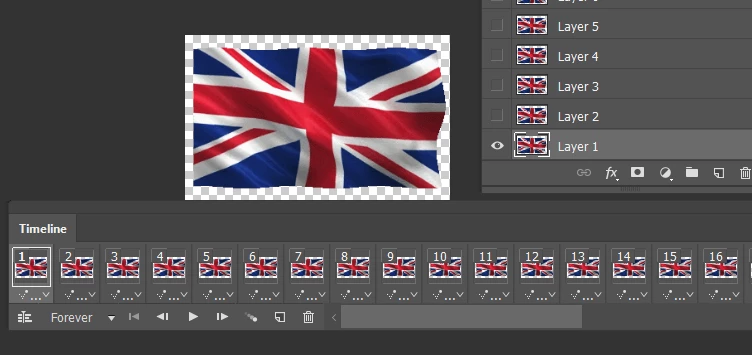
Increase canvas size to match your proposed background image.
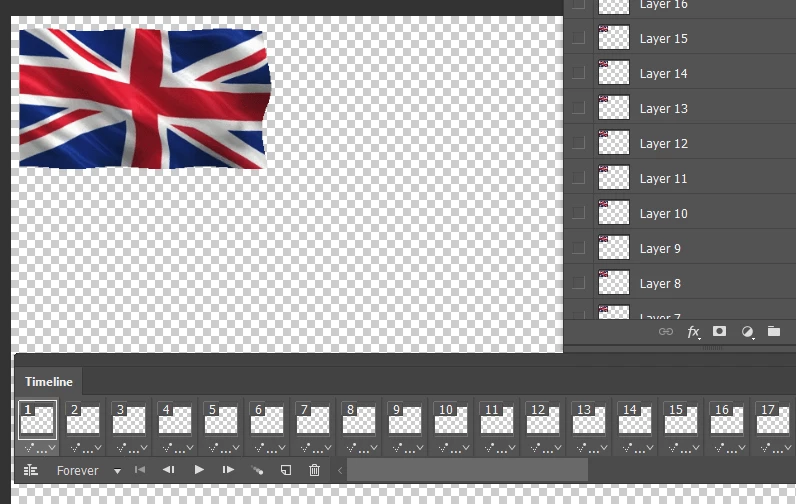
With frame 1 and layer 1 selected either drag or place your background image.  It needs to be right at the bottom of the layer stack, so if comes in above other layers, drag it to the bottom.  This is crucial.
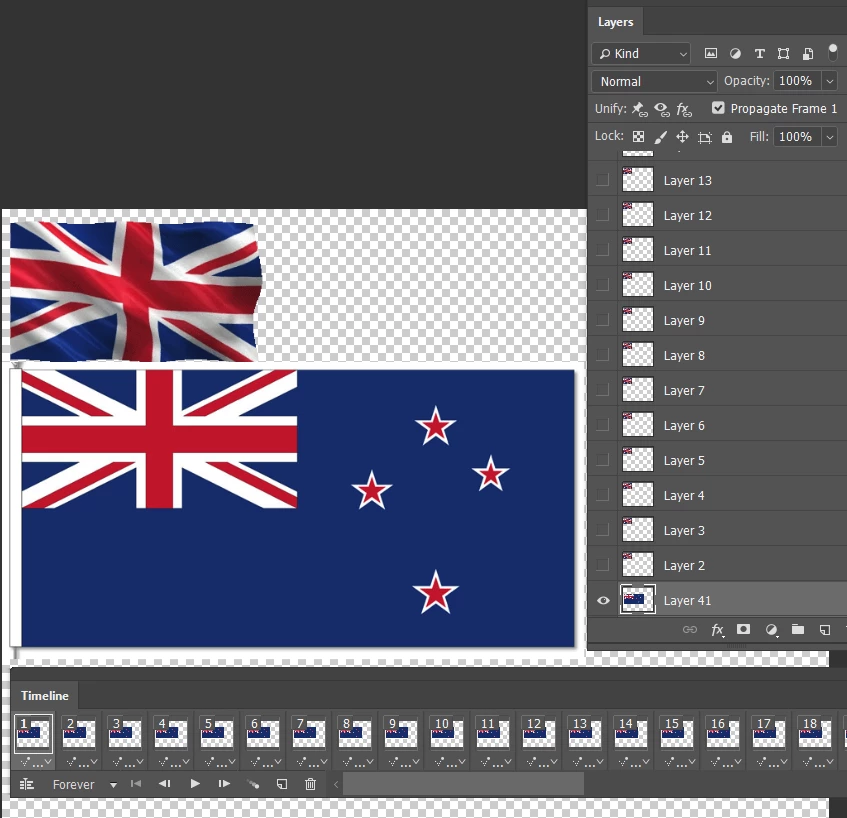
It gets ever so slightly complicated here, so read carefully and follow all steps.  I want to put the NZ flag behind the animated Union Jack and you can see the sizes are not quite right.  You can use Free Transform to change the size, but you need to have all frames selected, or the size change will only show for the selected frame.  That's the tricky bit.

Right so select _all_N frames, and Free Transform the background image. (Ctrl T or Cmd T)
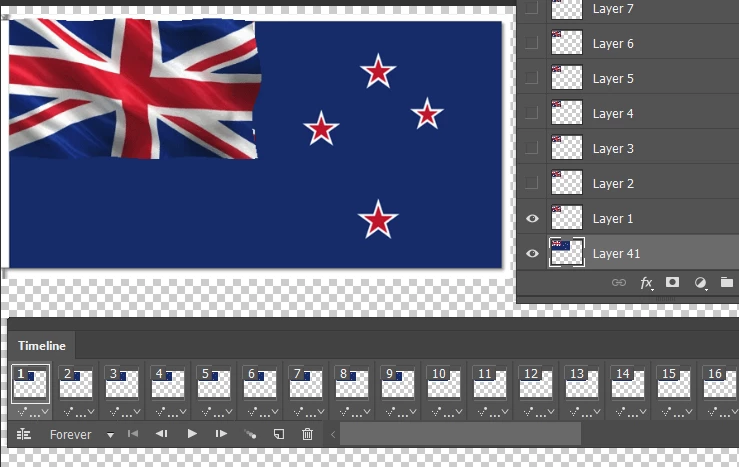
That's pretty much job done, but we might need to do some tidying up.  Your situation will be completely different though.  I can see a bit of background peeking out from behind the animation, but I'll test to see how it works.

First thing is to Crop out the unwanted image area
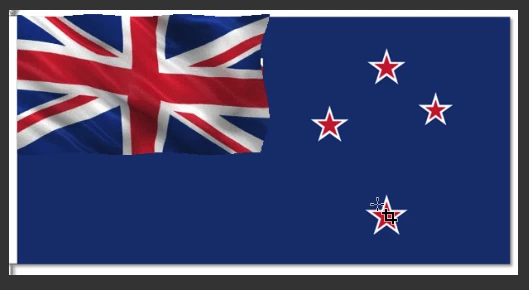
Now go File > Export > Save for Web (Legacy) which opens this window.

Set format to GIF.  Check the size, and reduce the number of colours if you can get away with it.  The only way to know for sure is to try it, and if it ruins the image, do it again with more colours.  256 is the maximum, so we are not talking about super photo quality.
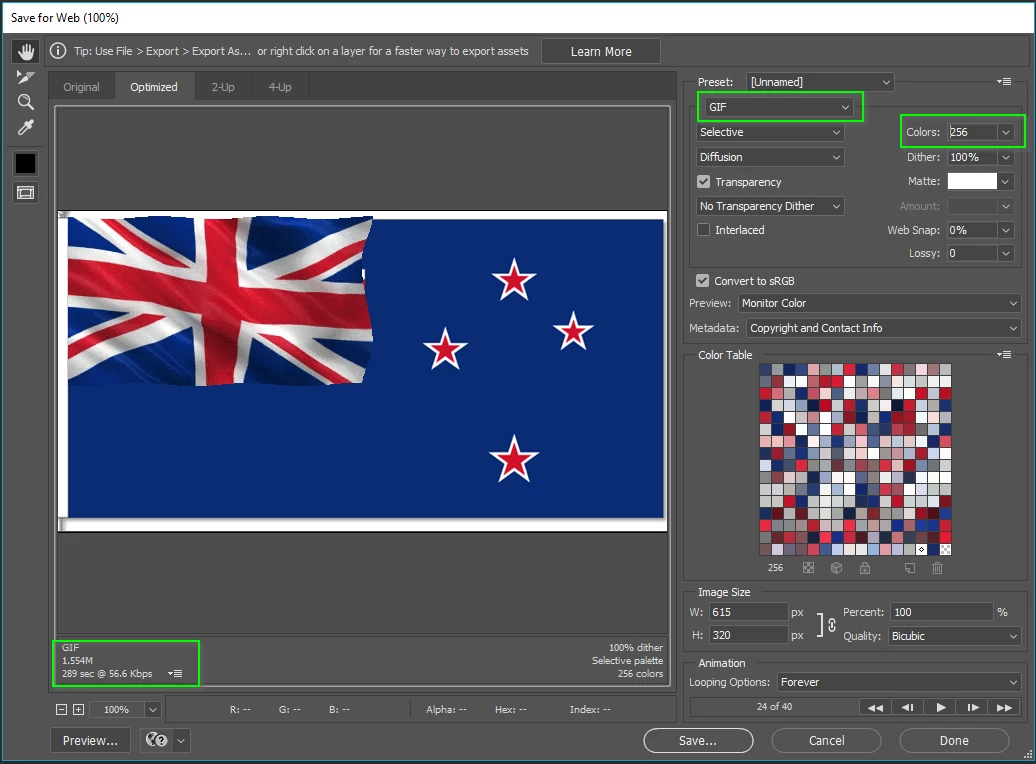
I can see the background Union Jack peeping out, so I am going to cover that with blue and export again.  Because this is a single layer, we don't need to select all the frames this time.

Now I have a clean animation, although the animated area is showing above the background a touch.

I hope that helps.  You can see it is not a complicated process, but like you said back up the thread, there is very little by way of tutorials for this.

2 replies

crowleyVT
Participating Frequently
July 18, 2018

I bought the animated Photologo and had the same problem. I question how to and received this rather complicated answer. I wish I hadn't had them create this animation because I have no use for it. It's too complicated to add to an image. The samples look good but not worth all the extra effort for $40. I wish their answer was a demo of an actual logo rather than a flag. Not very good tech support but live and learn.

Add a GIF to a Still Image (Photoshop CS6 Tutorial) - YouTube

I also asked how to get the GIF to not LOOP. They didn't answer. I did choose ONCE in the PSCC option and it works fine until you upload it to a website site for viewing. It LOOPS forever (annoying) or is converted into a JPEG file which is useless. It loses it transparency on social media.

JJMack
Community Expert
Community Expert
July 18, 2018

Open the Gif in Photoshop. Step through the animation till you see the frame you would like to use as your non animated logo and save out a png file. Use the png as your non anomated logo on web pages and images.

JJMack
JJMack
Community Expert
Community Expert
January 19, 2018

I do not know what is possible html you may be able to do that using two files where image and logo are separate files a static jpeg image and an animated gif logo displayed over it.  You could also  create a Frame animation in Photoshop where you animate a logo over an image.   You could then Use Export Save for web to save out an animated gif if there are not too many colors in the image and logo.  Gif only supports 256 mapped colors.  If there and many colors you can instead use export render video and save out an MP4 video instead of an animated gif.

Here is a simple move logo across the image. Save as a GIF. The MP4 version is better it is twice the size as the gif.  The gif was 300KB the mp4 600KB.

JJMack
Inspiring
January 19, 2018

That's way to complicated. This company: "Photologo" has an animated GIF they sent me for $39.99.  They said it is easy to use over your photos however no instructions are included with it and the company does not answer emails or their contact page. THEY SUCK. I have initiated a STOP PAYMENT with my bank for the transaction.  I was just wondering if anyone else has received an animated logo from them (GIF FILE) and knows how to use it.  thanks. 

JJMack
Community Expert
Community Expert
February 7, 2018

The easiest way I can think of is the make a web page where your image is the page's background and you display you animated logo gif on that page.   Use straight HTML or css.   I do not know either HTML or CSS so I can not give you a detail example but  you should able to find that information one the web from a site like this CSS background-size property

JJMack