bartv74721173
Known Participant
June 20, 2017
Answered

How to avoid black vertical bars on each side of my video.

  • June 20, 2017
  • 5 replies
  • 19901 views

Hi,

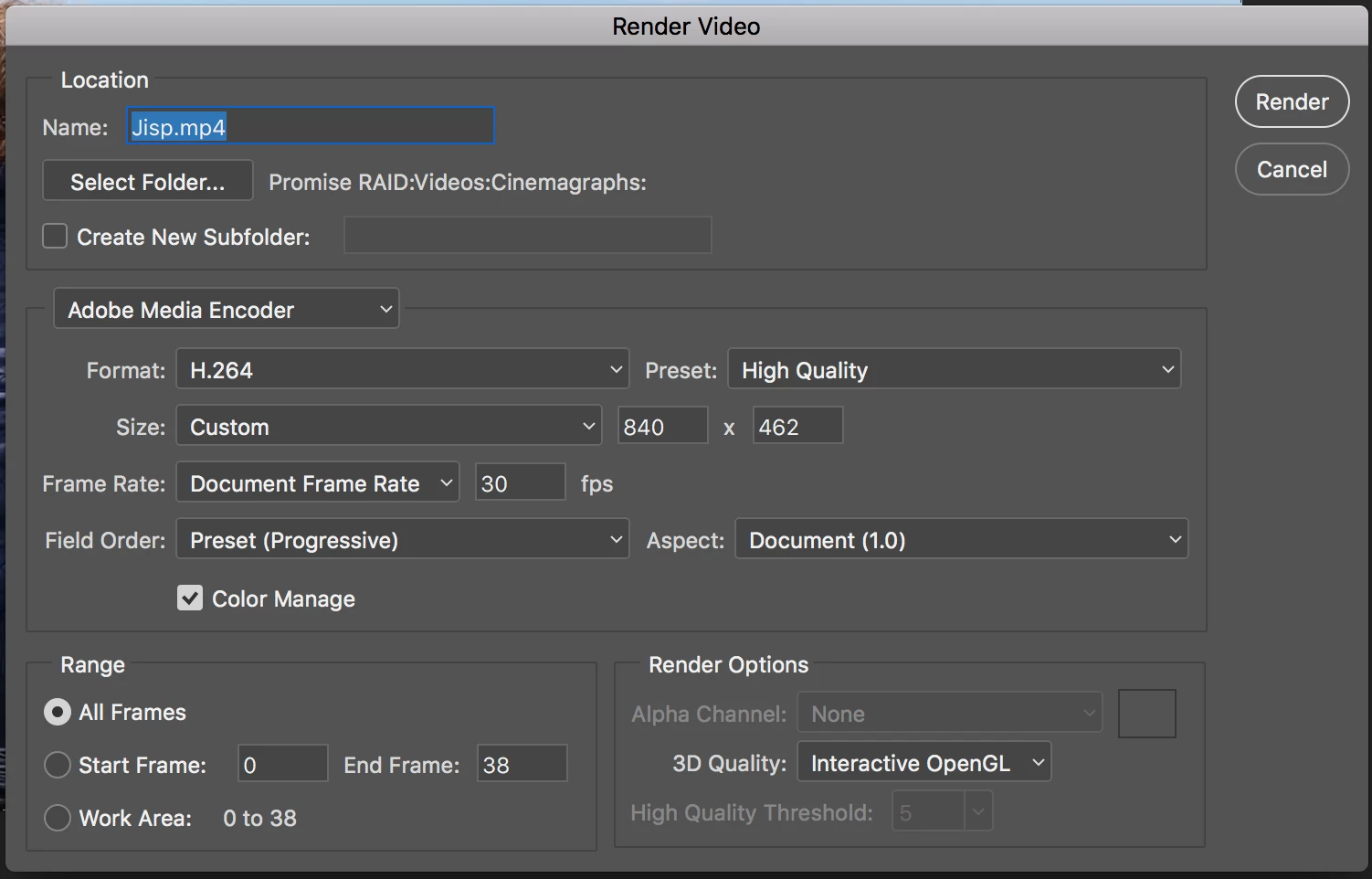
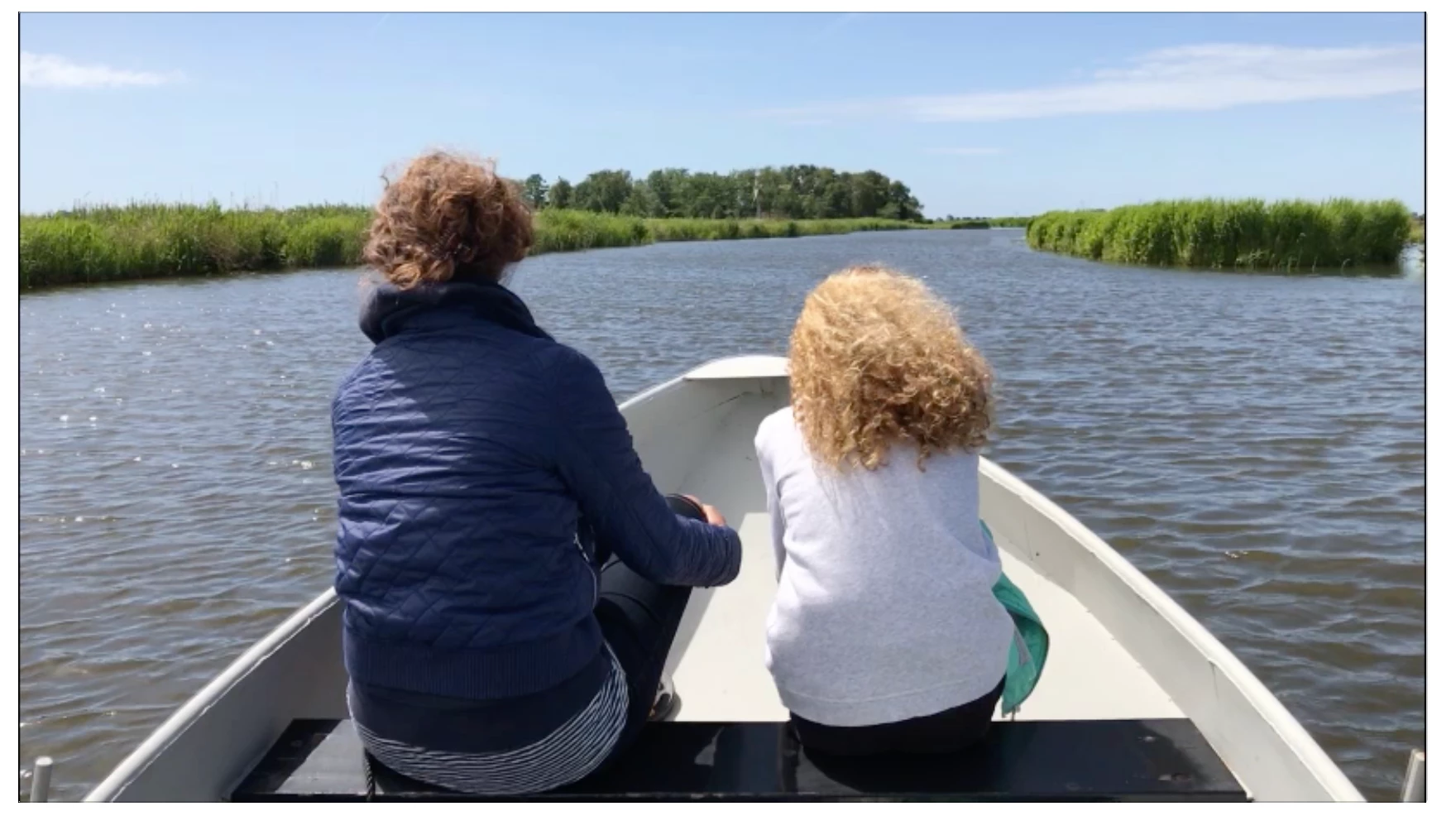
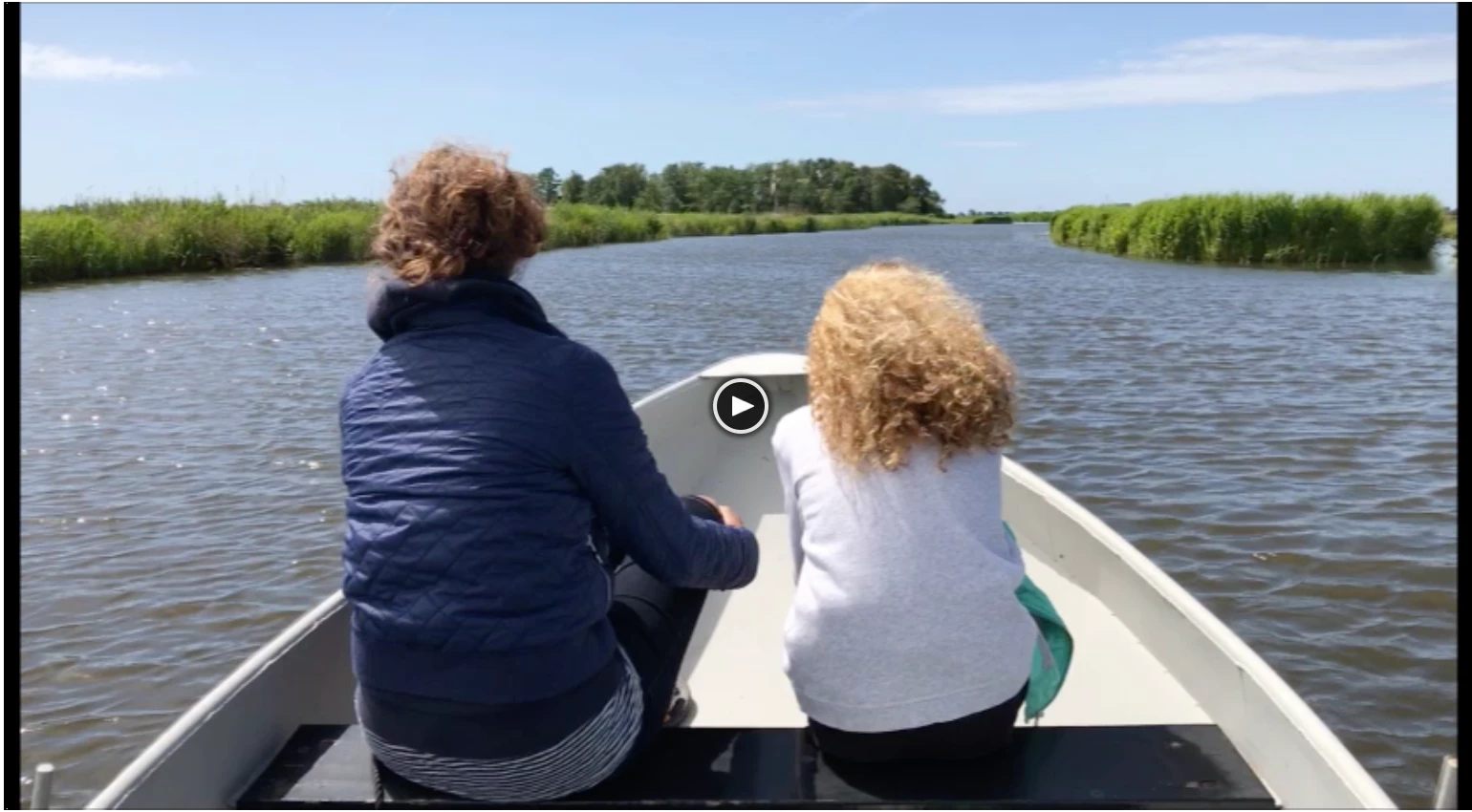
I use Photoshop to create a cinemagraph. When I export my video by choosing File>Export>render video, I get on both sides a small vertical bar (see screenshot). This bar is not visible in Photoshop. When I export the same video as GIF I don't have this problem.

So my question is; how can I export as MP4 without the bars.

I have tried several settings for the 'aspect' option, but that doesn't solve the problem.

I have enclosed two screenshots.

Thanks for your reply in advance.

Bart
This topic has been closed for replies.
Correct answer davescm

Hi Dave,

Thanks for your reply.

I double checked, but exporting in 1920x1080 does not give the bars (I had the 'aspect' set to square). When exporting in the sizes you suggest I still see a very small black lines (see screenshot)

Bart


Hi

I am surprised that gives any black bars as the pixel ratio is exactly 16:9 the same as the original

However I do have a thought. The scaling to that size is an awkward 0.4416 recurring, which may be leading to rounding errors.

There are a couple of scale values which give whole pixel dimensions and simple scaling ratios, which you could try in order to rule this out.

One is 816x459 which is 1920x1080 scaled by x 0.425

Another is 864x486 which is 1920x1080 scaled by x 0.45

Dave

5 replies

Known Participant
August 9, 2022

Hello, I am experiencing the same issue here, would anyone be able to give me advice specific to my video if possible?


https://community.adobe.com/t5/photoshop-ecosystem-discussions/remove-black-borders-on-video-from-photoshop-for-instagram/m-p/13122724#M663239


Thank you so much x

jane-e
Community Expert
Community Expert
August 9, 2022


@gracet68502989 wrote:

Hello, I am experiencing the same issue here, would anyone be able to give me advice specific to my video if possible?


Did you try the advice given by Dave earlier in this thread?

@davescm wrote:

So the key to avoiding black edges appears to be - ensure the aspect ratio is the same as the original (in your case 16:9) and ensure the height is an even number of pixels


Jane

Known Participant
August 9, 2022

Hi I did not as I am bad with numbers and didn't really understand how to apply his advice to my numbers specifically, BUT for anyone else having this problem: I just cropped the actual video on my iphone in photos (edit in the top right hand corner  > then used the crop and rotate feature at the bottom) which removed the black borders and was fine for uploading in my situation, not totally technical but I hope this helps! x

Legend
June 20, 2017

So did you do an image resize to the exact size in pixels that you are using for the video? If the size matches exactly there should be no black border, so that's a real puzzle.

bartv74721173
Known Participant
June 20, 2017

If I resize the video and I choose e.g. 840 width and leave the constrain aspect ratio on and than choose to render the video and use the 'original' format (840 width) I get two small stripes on each side. The only dimension that works is when I use the scale ratio of 0,45.

davescm
Community Expert
Community Expert
June 20, 2017

Hi Bart

I had a little time to experiment this afternoon and I get the same as you. Whether scaling at render or scaling before using image size - the mp4 file for the 816x459 example has black edge pixels at each side but actually measures 816x458 not 816x459 when brought back into Photoshop.

Why 459 height was being changed to 458 I did not know. So I tried other odd pixel heights and all were changed to an even number at render.

So the key to avoiding black edges appears to be - ensure the aspect ratio is the same as the original (in your case 16:9) and ensure the height is an even number of pixels

Dave

Legend
June 20, 2017

What happened with the Image Size? It sounded good in theory...

bartv74721173
Known Participant
June 20, 2017

I still had two black stripes on each side. Although small, still visible.

Legend
June 20, 2017

I'm thinking (though I may be missing a quality issue) that the easiest thing might be to do an Image Size just before the export. This could do any flight stretching out of shape neatly.

Legend
June 20, 2017

What is your image size in pixels as shown by the Image Size box?

bartv74721173
Known Participant
June 20, 2017

Even when exporting at the original file size I get the bars on the side.

Legend
June 20, 2017

Hi Dave,

Thanks for your reply.

I double checked, but exporting in 1920x1080 does not give the bars (I had the 'aspect' set to square). When exporting in the sizes you suggest I still see a very small black lines (see screenshot)

Bart


Glad you have it fixed. This shows the importance of choosing your design size correctly to reflect your final video needs (I lost a lot of work to this mistake once!)