
Known Participant
April 3, 2018
Answered

How would you compile different texture maps into one image?

  • April 3, 2018
  • 3 replies
  • 2338 views

Hi,

I am not sure if this is a stupid question or not, it probably is, but I am still new to PS and I have only really used 3d texturing software.

If I have different textures that I want to add to say a model of a road, and I have different asphalt or concrete textures, but for those textures I don't just have albedo or diffuse but I also have normal maps and roughness maps to give the textures extra realism, how would these be added to the road with all 3-5 maps that come with the texture?

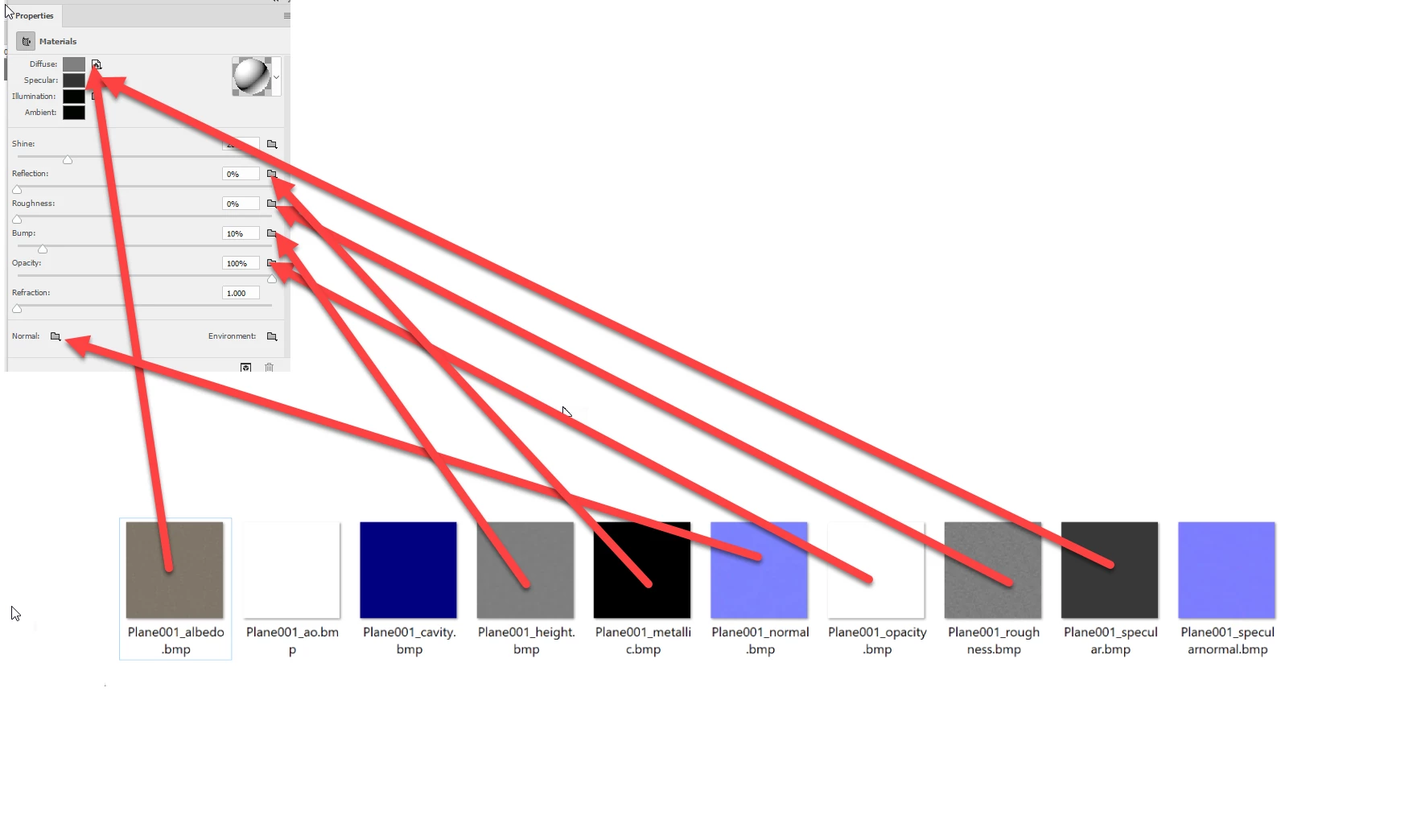
Above are different types of the maps for one concrete material, the albedo would just be the color of the texture but I would like to texture a road with more than just the albedo, id like to have about 4 of the maps overlaid on top of one another then use that to texture it, I am just not sure how to do it.

Thanks

Edit: Actually, I just added each map individually as layers, I guess I would save the final material out that way
    This topic has been closed for replies.
    Correct answer davescm

    Hi

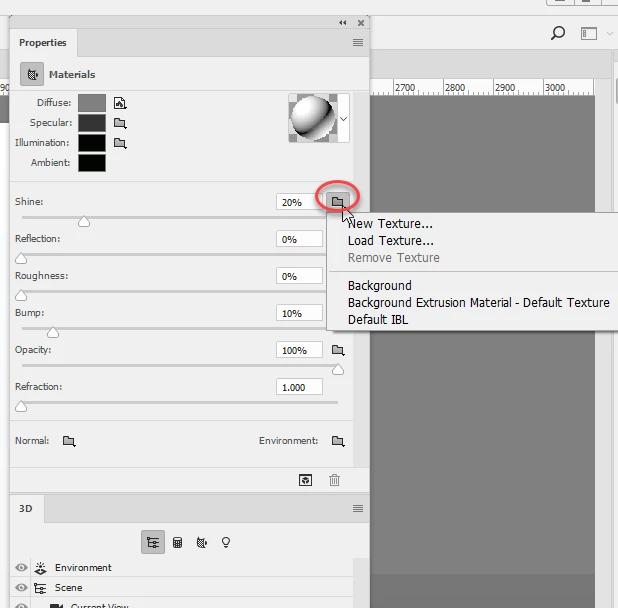
    You can apply varies texture maps in the properties panel for the material in Photoshop 3D. Next to each material property you will see a small folder. Click on it and you will get a menu to load texture, create a new texture (and if a texture exists to Edit or remove the texture)

    It is hard to tell just from the thumbnails but try adding them as below - just add one at a time and if you get an unexpected result just remove that texture

    Dave

    3 replies

    Easton777Author
    Known Participant
    April 5, 2018

    what type of model file is needed, FBX does not work.

    Or would I just import the UV

    davescm
    Community Expert
    Community Expert
    April 5, 2018

    Try using wavefront (*.obj) or collada(*.dae). Make sure the textures are in the same folder.

    Dave

    Easton777Author
    Known Participant
    April 4, 2018

    How would you import a 3d model? When I look under the 3D tab everything is greyed out and not selectable.

    davescm
    Community Expert
    Community Expert
    April 4, 2018

    Easton777  wrote

    How would you import a 3d model? When I look under the 3D tab everything is greyed out and not selectable.

    You can open a 3D model as a new document using File >Open

    or

    with an existing document open (it must be in RGB mode) then use menu 3D >New Layer from File

    Note : If everything in 3D is still greyed out, with an RGB document open  -then  go to Help >System Info click copy and post the info here. We may be able to see what is causing it.

    Dave

    davescm
    Community Expert
    davescmCommunity ExpertCorrect answer
    Community Expert
    April 3, 2018

    Hi

    You can apply varies texture maps in the properties panel for the material in Photoshop 3D. Next to each material property you will see a small folder. Click on it and you will get a menu to load texture, create a new texture (and if a texture exists to Edit or remove the texture)

    It is hard to tell just from the thumbnails but try adding them as below - just add one at a time and if you get an unexpected result just remove that texture

    Dave

    Easton777Author
    Known Participant
    April 4, 2018

    Hi Dave,

    When I follow your screenshots I do not see any folder to add the maps into.

    This is what I see:

    davescm
    Community Expert
    Community Expert
    April 4, 2018

    You have to create or import a 3D object then select the materials in the 3D panel. At that point you will see the propeties in the screenshot.

    Dave