

TheRedGuy
Inspiring
June 6, 2017
Answered

I Can't Move A Layer, it switches back to another Layer when I start to drag it...

  • June 6, 2017
  • 5 replies
  • 74763 views

Some of my layers (unlocked) will not move, when I click on them to drag and move them, the program switches to selecting another layer and it moves instead.

[Moved to Photoshop based on other discussions... Mod]

[Here is the list of all Adobe forums... https://forums.adobe.com/welcome]
    Correct answer Brad Lawryk

    Sounds like a Photoshop question?

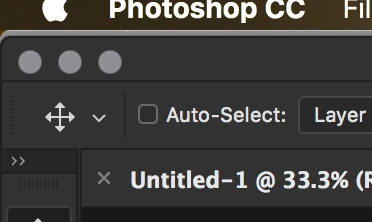
    With the Move tool selected toggle on and off the 'Auto Select Layer' box to see which one works the way you want. By what you are saying I'd say you want it checked. But try both.

    5 replies

    Participant
    October 24, 2021

    This answer was very useful, Thank you.

    It staggers me how stupid Adobe can be changing defaults without explaination.

    Barb Binder
    Community Expert
    Community Expert
    June 7, 2017

    It certainly sounds like you are fighting Auto-Select (as per both Brad and cmgap). In recent versions, this is now on as a default (it has always defaulted to off in past versions) so it's catching those who recently upgraded by surprise.

    Both of their screen shots show you how to disable it—select the Move tool, then head up to the Options bar and just uncheck it. This will restore the behavior that you are used to:

    1. First select a layer in the Layers panel
    2. Then drag your mouse on the image to move the selected layer

    Once you feel like things are normal again, you might experiment with turning it back on. I love using it when I am shifting a bunch of layers around because I can make a layer active by just clicking it with my mouse. In any other situation, I keep it unchecked.

    One more note: the Options bar uses a sticky state, meaning once it's on it stays on, and once it's off it stays off. If you really don't like it, uncheck it and you all good to go. (Until you end up deleting your preferences, which resets the defaults and turns it back on again!)

    ~Barb at Rocky Mountain Training
    TheRedGuy
    TheRedGuyAuthor
    Inspiring
    June 7, 2017

    Thanks, everybody.

    I found it, this worked perfectly.  Thank you very much.

    Participant
    March 21, 2022

    Thank you!  This helped me too.


    cmgap
    Community Expert
    Community Expert
    June 6, 2017

    If you are in Photoshop, check the settings that you have for Auto-Select... are you on layer or group? Do you have multiple layers in a group?

    Brad Lawryk
    Brad LawrykCorrect answer
    Legend
    June 6, 2017

    Sounds like a Photoshop question?

    With the Move tool selected toggle on and off the 'Auto Select Layer' box to see which one works the way you want. By what you are saying I'd say you want it checked. But try both.

    MiraR
    Participant
    November 24, 2022

    thank you very much!  even struggling to find a proper search term for the problem and now i found your solution ❤️

    Chuck Uebele
    Community Expert
    Community Expert
    June 6, 2017

    What program are you using?