Exit
  • Global community
    • Language:
      • Deutsch
      • English
      • Español
      • Français
      • Português
  • 日本語コミュニティ
  • 한국 커뮤니티
0

I downloaded a black icon from Adobe stock, how can I change the color?

New Here ,
Jul 25, 2017 Jul 25, 2017

I downloaded a black icon from Adobe stock in InDesign, but saved it to my CC Library. I am able to open the file in Photoshop. How can I change the black icon's color?

1.2K
Translate
Report
Community guidelines
Be kind and respectful, give credit to the original source of content, and search for duplicates before posting. Learn more
community guidelines
Adobe
Community Expert ,
Jul 25, 2017 Jul 25, 2017

You h ave probably downloaded a grayscale image.  Choose Image > Mode > RGB Color so that color rendition is available.

Translate
Report
Community guidelines
Be kind and respectful, give credit to the original source of content, and search for duplicates before posting. Learn more
community guidelines
New Here ,
Jul 25, 2017 Jul 25, 2017

Hi Norman, thanks! It looks like it's already in RGB...what else can I try to change the color?

Translate
Report
Community guidelines
Be kind and respectful, give credit to the original source of content, and search for duplicates before posting. Learn more
community guidelines
Community Expert ,
Jul 25, 2017 Jul 25, 2017

Double click on the Foreground Color patch foregr.jpg which will bring up the Color Picker. Choose a color and OK.

It will then appear in the patch. Choose Edit > Fill and fill with the Foreground color. Set its blending mode to Color if the area consists of more than one solid full-value color. If it consists of only the full value color, set the Blending Mode to Normal

Translate
Report
Community guidelines
Be kind and respectful, give credit to the original source of content, and search for duplicates before posting. Learn more
community guidelines
Enthusiast ,
Jul 26, 2017 Jul 26, 2017

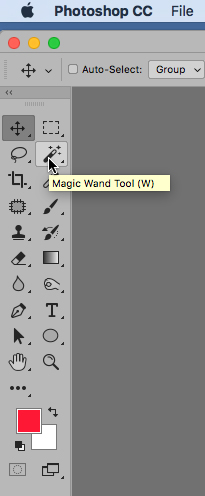
In case there is a white background instead of a transparent one (showed by a check marked pattern) the icon should be selected before filling. For that, use the magic wand tool and klick on the black icon, to select it.

MagicWand.jpg

Translate
Report
Community guidelines
Be kind and respectful, give credit to the original source of content, and search for duplicates before posting. Learn more
community guidelines
Community Expert ,
Jul 26, 2017 Jul 26, 2017

Thanks, Teachbit. I don't know what I was thinking when i posted that comment. Setting the Blending Mode to Color will not alter Black. You must Select and then Fill with Blend: Normal. Chalk it up to a momentary brain freeze.

Translate
Report
Community guidelines
Be kind and respectful, give credit to the original source of content, and search for duplicates before posting. Learn more
community guidelines
Community Expert ,
Jul 26, 2017 Jul 26, 2017
LATEST

You can also add a solid fill color layer (or any color layer) above your logo and use the blend if sliders in the layer effects to change the color. This doesn't require you to make a selection and is easily editable.  I put a mask on the solid fill layer to show the underlying original layer.

Translate
Report
Community guidelines
Be kind and respectful, give credit to the original source of content, and search for duplicates before posting. Learn more
community guidelines