Inspiring
August 2, 2017
Answered

In CC 2017, how do I set the background to white and get rid of the drop shadow?

  • August 2, 2017
  • 4 replies
  • 801 views

Like most photographic printmakers, I print on white paper.  So when I am working in PS, I need the background surrounding my image to be pure white with no drop shadow so I can judge my edge densities.  I have all my previous versions of PS set up this way but fumbled around in CC 2017 and couldn't figure out how to make it happen.
This topic has been closed for replies.
Correct answer davescm

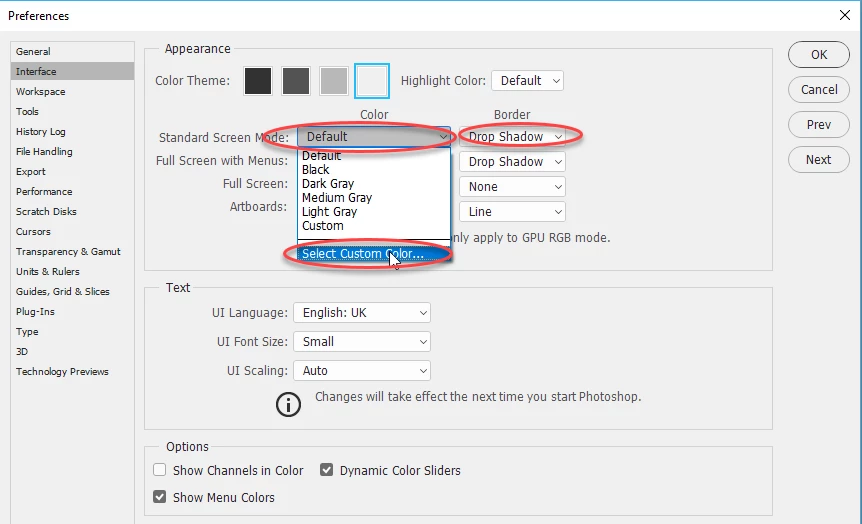
I think you are referring to the interface window background rather than the image itself.

Go to Preferences > Interface.

There you can set the colour and the border shadow

Dave

4 replies

Inspiring
August 3, 2017

Yes, I meant the interface. Thank you!!

Here is a question for bonus points: I am making a PDF in Acrobat Pro DC from a folder full of images.  I want to change the color of the border area surrounding the images from Adobe's stupid default gray to white. How can I do it?

Adobe doesn't seem to know that in the art gallery and museum world, white is the only border color ever used for prints or mats. White should be the default border color for all Adobe interfaces.

gener7
Community Expert
Community Expert
August 3, 2017

PDFs deal basically with documents, print on white paper, so the gray is needed for that.

However you can change the Full Screen Background color in Acrobat's Preferences to white.

Preferences > Full Screen > Full Screen Appearance.

Inspiring
August 3, 2017

Here is a question for bonus points: I am making a PDF in Acrobat DC from a folder full of images.  I want to change the color of the border area surrounding the images from the stupid default gray to white. How can I do it?

Adobe doesn't seem to know that in the art gallery and exhibition world, white is the only border color ever used for prints or mats.

davescm
Community Expert
davescmCommunity ExpertCorrect answer
Community Expert
August 2, 2017

I think you are referring to the interface window background rather than the image itself.

Go to Preferences > Interface.

There you can set the colour and the border shadow

Dave

Silkrooster
Legend
August 2, 2017

Ah, I didn't think of that.

Silkrooster
Legend
August 2, 2017

In photoshop there is no shadow, unless you or someone else adds it to the image.

Basically there are two ways to add the white background, technically three.

First is to create a new layer, fill it with white then move that layer below the image.

Second is to right click on the layer (for mac I think you need to hold the ctrl key for single button mice) select flatten from the pop up menu.

Third is to just save as a jpg, since jpg's don't support transparency or layers, you end up with a white background.

Hope this helps...

Silkrooster
Legend
August 2, 2017

BTW, I am assuming you meant the background was transparent and not a solid color or other texture. If it is, you may need to share a sample so we can give help based on that background.