
AaronIL
New Participant
June 19, 2019
Answered

Layer won't unlock in RGB Mode and COMMAND+J not unlocking duplicate. Help?

  • June 19, 2019
  • 3 replies
  • 1464 views

Hi, I am experiencing an issue with Photoshop CC 2017 that I haven't encountered quite in this way.

My layers won't unlock. Normally, I would think this was a case of being in Indexed Color mode, but nope, I am in RGB.

And my usual workaround of COMMAND+J to duplicate the layer only duplicates another locked copy.

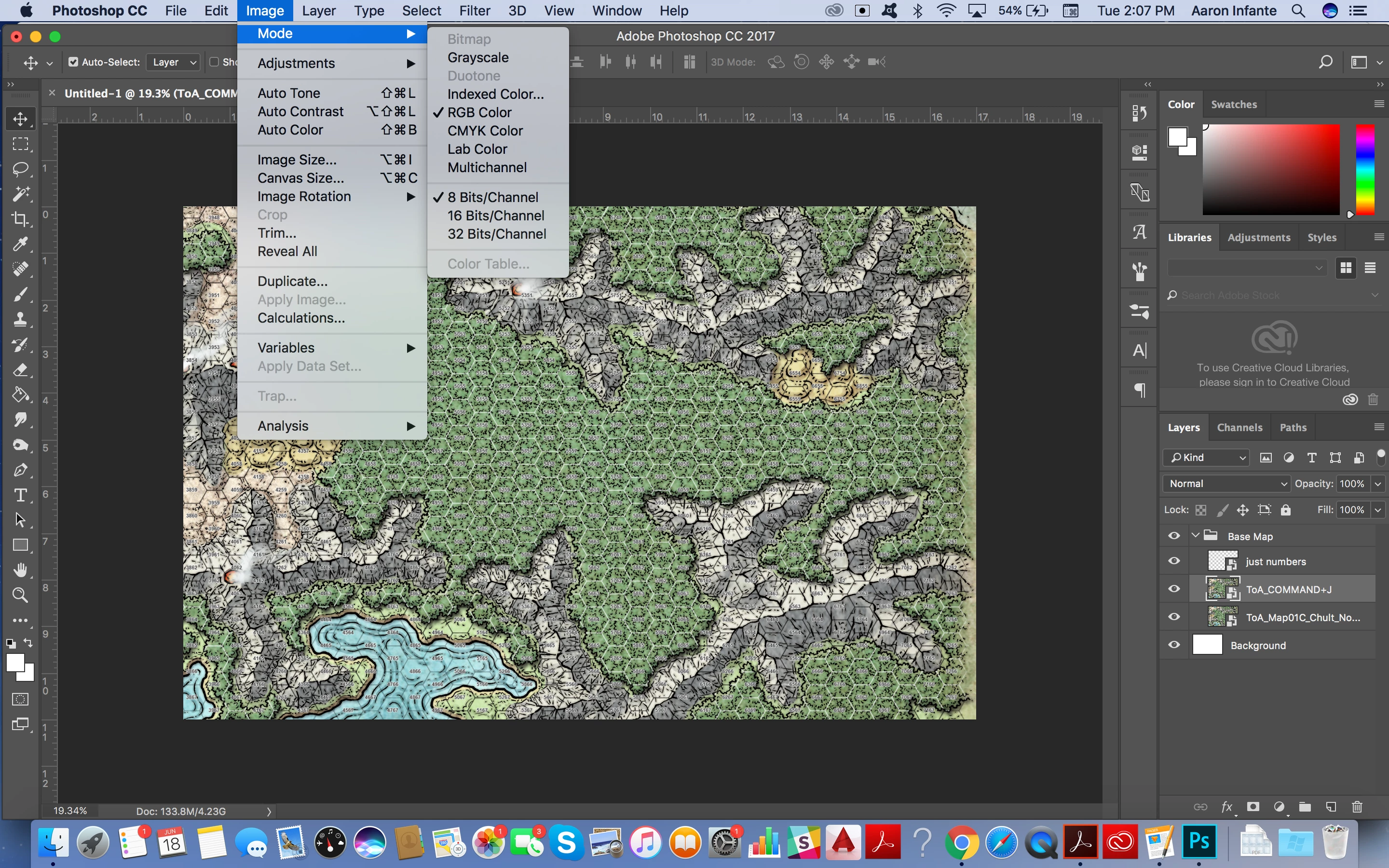
When I create a new layer, I have no problem – it is created unlock. It's just layers of images I'm working with that I drag and drop into Photoshop which are appearing locked. I've attached a screenshot verifying all this.

I'm at a loss of how to resolve this. It must be some easy fix? Thanks very much for your help!
This topic has been closed for replies.
Correct answer lambiloon

Hi i have seen your layers they are not locked , you are importing them using place embed method for them so its are in smart object mode if you want to edit them right click on it , click on rasterize this layer then all will be good to go.

Regards

3 replies

AaronIL
AaronILAuthor
New Participant
June 19, 2019

Thanks lambioloon. I had no idea that why Photoshop defaulted to doing "place embed" for the layers when I was just drag-and-dropping .jpgs.

Your solution worked. I had to go to LAYER > RASTERIZE and the lock icon went away.

lambiloon
Community Expert
lambiloonCommunity ExpertCorrect answer
Community Expert
June 19, 2019

Hi i have seen your layers they are not locked , you are importing them using place embed method for them so its are in smart object mode if you want to edit them right click on it , click on rasterize this layer then all will be good to go.

Regards

Ali Sajjad / Graphic Design Trainer / Freelancer / Adobe Certified Professional
Chuck Uebele
Community Expert
Community Expert
June 19, 2019

I would first update you version of PS. If that doesn't work, I would reset my preferences.

AaronIL
AaronILAuthor
New Participant
June 19, 2019

Thanks Chuck. I found in Preferences (General) a box that was checked for "Always Create Smart Objects When Placing."

I've unchecked that so that when I place images into Photoshop they appear on unlocked layers.