

TTCJ
Inspiring
January 14, 2019
Answered

Photoshop - Export As - Multiple Scale Script

  • January 14, 2019
  • 3 replies
  • 2891 views

I have a workflow that requires one image to export to 2 exact pixel dimensions.

It is repetitive and needs to be done thousands of times with no end in sight.

I would like to write a script that uses Export As to export two jpg files with the width of 800px and another of the same image to a width of 2000px.

The problem I am hitting is that for some reason Export as uses a scale, not in pixels, but rather 1x 2x 3x etc.

My source image is large 3275px X 4334px at 300dpi.

My goal is to use Export As to get a file:

800px X 1058px at 72 dpi

as well as

2000px X 2647px at 72 dpi

I have found that if I enter .25 into the scale of Export As I get close at a width of 819px.

And if I enter .62 into the scale I get 2031px.

I am baffled to why Export As does not allow exact pixel amounts. But these numbers are close enough if that is all it can process.

So I am now working on trying to script the export process. Then I plan to run an action that runs the script.

I have done a thorough search of the forums and although I have found some things, nothing has been functional yet due to my lack of knowledge.

I am on a PC and some things I found were Apple Script. So I am hoping someone has figured this out or can lead me in a better direction. Thank you.

[Moved from Photoshop forum to Photoshop Scripting forum by Mod]
This topic has been closed for replies.
Correct answer JJMack

TTCJ  wrote

I have a workflow that requires one image to export to 2 exact pixel dimensions.

It is repetitive and needs to be done thousands of times with no end in sight.

I would like to write a script that uses Export As to export two jpg files with the width of 800px and another of the same image to a width of 2000px.

The problem I am hitting is that for some reason Export as uses a scale, not in pixels, but rather 1x 2x 3x etc.

My source image is large 3275px X 4334px at 300dpi.

My goal is to use Export As to get a file:

800px X 1058px at 72 dpi

as well as

2000px X 2647px at 72 dpi

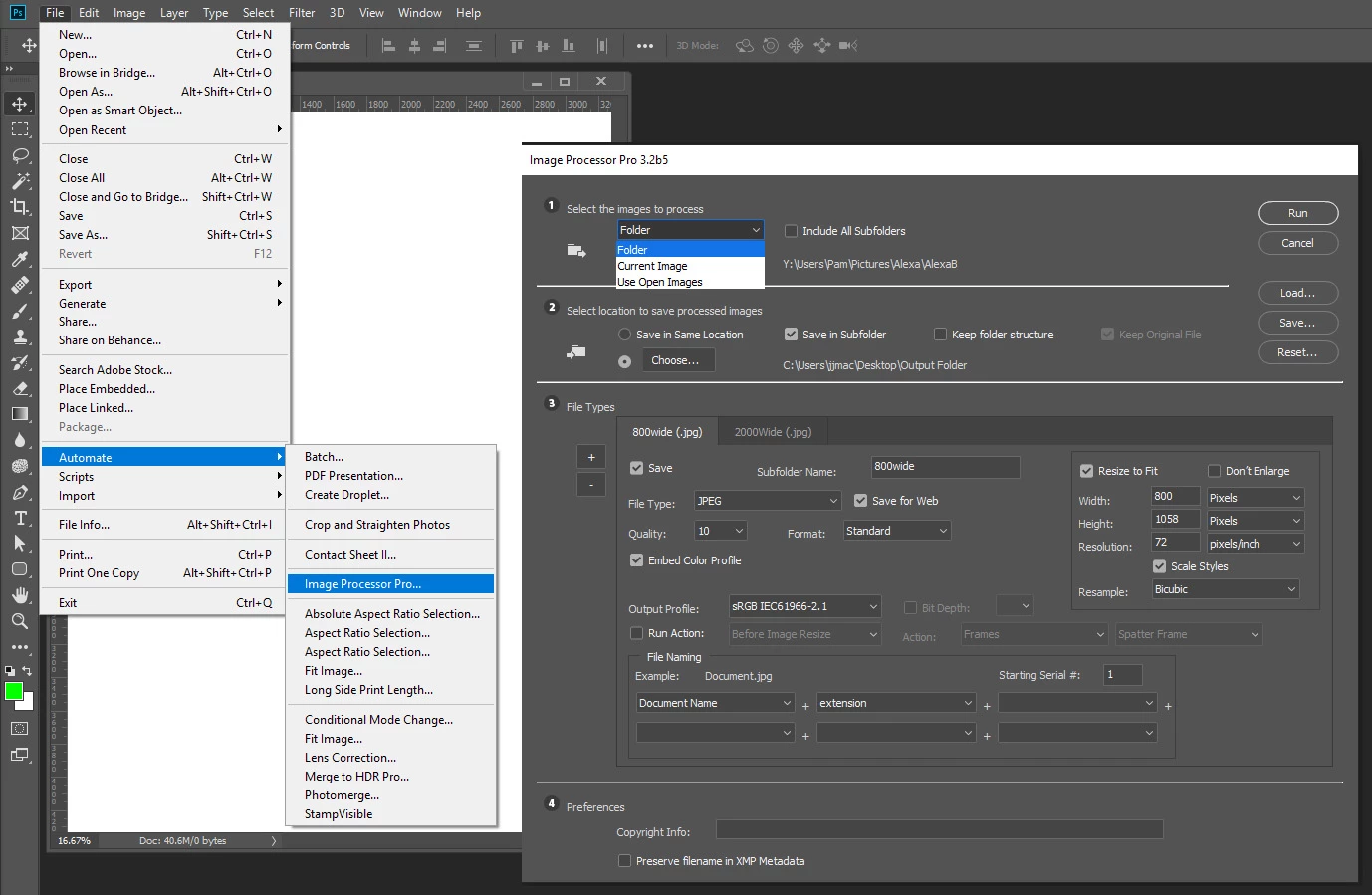
The problem your source image has Portrait image aspect  ration and  most automated resizing scripts I have seen are gears to preserve the image aspect ratio so the image  not distort.   They can fits and image int and size area.  If you make the ares square the les size imahe longest set be the size  of the square area set.   In you case you can control the resize portrait height..   If all you source image are exactly the same size   3275px X 4334px at 300dpi. or all have exactly that 3:4 aspect ratio you can usethe Image Processor Pro Plug-in to do what you want.

3 replies

JJMack
Community Expert
JJMackCommunity ExpertCorrect answer
Community Expert
January 14, 2019

TTCJ  wrote

I have a workflow that requires one image to export to 2 exact pixel dimensions.

It is repetitive and needs to be done thousands of times with no end in sight.

I would like to write a script that uses Export As to export two jpg files with the width of 800px and another of the same image to a width of 2000px.

The problem I am hitting is that for some reason Export as uses a scale, not in pixels, but rather 1x 2x 3x etc.

My source image is large 3275px X 4334px at 300dpi.

My goal is to use Export As to get a file:

800px X 1058px at 72 dpi

as well as

2000px X 2647px at 72 dpi

The problem your source image has Portrait image aspect  ration and  most automated resizing scripts I have seen are gears to preserve the image aspect ratio so the image  not distort.   They can fits and image int and size area.  If you make the ares square the les size imahe longest set be the size  of the square area set.   In you case you can control the resize portrait height..   If all you source image are exactly the same size   3275px X 4334px at 300dpi. or all have exactly that 3:4 aspect ratio you can usethe Image Processor Pro Plug-in to do what you want.

JJMack
TTCJ
TTCJAuthor
Inspiring
January 14, 2019

Woohoo JJMack!

That works great. Thanks so much.

No scripting required, which is good since I have no idea how and I am a hack when it comes to compiling one or more found scripts.

It should be noted to all those needing a similar solution you need to download this, I found it here:

New Version: Russell Brown's Image Processor Pro #Photoshopscaresme

JJMack, I am not sure how you got it to appear in your Automate menu?

TTCJ
TTCJAuthor
Inspiring
January 15, 2019

I just made an action to run it, so I don't need it to appear in the automate menu anymore.

Also I discovered that the version I found did not have the ability to just process the current selected open image.  So as I was trying to write in the option I searched and came upon a newer version that already took care of this option:

Image Processor Pro for Photoshop CC 2015 « Julieanne Kost's Blog

Again a big thanks to JJMack.

TTCJ
TTCJAuthor
Inspiring
January 14, 2019

Chuck that is a good question,

I did tests with both and the image quality seemed to be better, nominal at the 800pxx but noticeable at 2000px.

Also Export As seems to place the image where it originated from, whereas Save as seemed to put it somewhere else.

This "save" location hiccup may be solved with the script perhaps?

Chuck Uebele
Community Expert
Community Expert
January 14, 2019

You just need to specify where the saveas location is. It can be either a hard coded location - always the same, or a relative one based on the file's location.

TTCJ
TTCJAuthor
Inspiring
January 14, 2019

I found this via user name Joonas at Stack Exchange.

It uses a script to run a batch process in order to save in the origin folder. I feel like it is helpful because it works, but I have no idea how to add or edit any parameters for pixel size or naming convention.

How to 'Save as' in the same folder using File Naming option with Photoshop Actions? - Graphic Design Stack Exchange

var doc = app.activeDocument;

var doc_path = doc.path;

var sub_dir_name = 'Batch Processed Files';

var sub_directory = new Folder( doc_path + '/' + sub_dir_name );

if ( !sub_directory.exists ) sub_directory.create()

var new_path = sub_directory + '/' + doc.name.split('.')[0] + '.jpg';

// =======================================================

var idsave = charIDToTypeID( "save" );

    var desc17 = new ActionDescriptor();

    var idAs = charIDToTypeID( "As  " );

        var desc18 = new ActionDescriptor();

        var idEQlt = charIDToTypeID( "EQlt" );

        desc18.putInteger( idEQlt, 12 );

        var idMttC = charIDToTypeID( "MttC" );

        var idMttC = charIDToTypeID( "MttC" );

        var idNone = charIDToTypeID( "None" );

        desc18.putEnumerated( idMttC, idMttC, idNone );

    var idJPEG = charIDToTypeID( "JPEG" );

    desc17.putObject( idAs, idJPEG, desc18 );

    var idIn = charIDToTypeID( "In  " );

    desc17.putPath( idIn, new File( new_path ) );

    var idDocI = charIDToTypeID( "DocI" );

    desc17.putInteger( idDocI, 432 );

    var idLwCs = charIDToTypeID( "LwCs" );

    desc17.putBoolean( idLwCs, true );

    var idsaveStage = stringIDToTypeID( "saveStage" );

    var idsaveStageType = stringIDToTypeID( "saveStageType" );

    var idsaveBegin = stringIDToTypeID( "saveBegin" );

    desc17.putEnumerated( idsaveStage, idsaveStageType, idsaveBegin );

executeAction( idsave, desc17, DialogModes.NO );

Chuck Uebele
Community Expert
Community Expert
January 14, 2019

If you're writing a script, why don't you just use resizeImage and do a normal saveas rather than going through export?