Participant
April 11, 2019
Answered

Please help - cutting out rounded corners!!

  • April 11, 2019
  • 3 replies
  • 2898 views

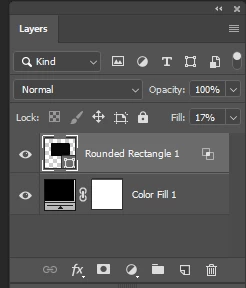
I need help cutting out a rounded corner rectangle I placed on top of a color filled layer so the background shows as transparency. The thumbnail shows exactly what I want but the work area is still solid. I am complete PS rookie so I need simple step by step language pretty please.  
    This topic has been closed for replies.
    Correct answer barbara_a7746676

    Still not sure I understand, but maybe this is what you want.

    You've got a color fill layer on the bottom and a shape layer over it. Instead of subtracting the round corner rectangle shape from a larger shape, just use a round corner rectangle shape, like this:

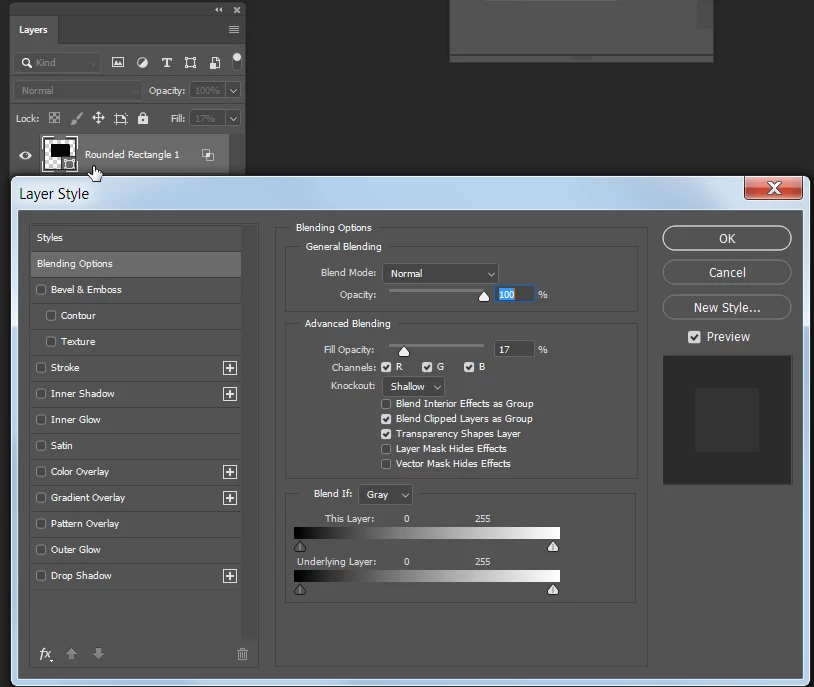
    Double-click the shape layer to open the Layer Style dialog box.

    Choose Kockout: Shallow.

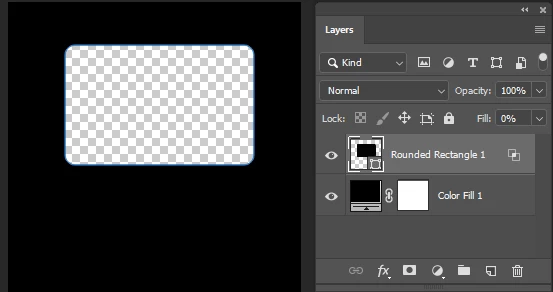
    Change the Fill for the round corner rectangle layer to zero, and this is what you get:

    3 replies

    barbara_a7746676
    Community Expert
    barbara_a7746676Community ExpertCorrect answer
    Community Expert
    April 11, 2019

    Still not sure I understand, but maybe this is what you want.

    You've got a color fill layer on the bottom and a shape layer over it. Instead of subtracting the round corner rectangle shape from a larger shape, just use a round corner rectangle shape, like this:

    Double-click the shape layer to open the Layer Style dialog box.

    Choose Kockout: Shallow.

    Change the Fill for the round corner rectangle layer to zero, and this is what you get:

    Participant
    April 12, 2019

    THANK YOU ladies!!! Got it!! Because I wanted rounded corners the knockout method worked perfect. Is there a way to round corners using the marquee tool?

    barbara_a7746676
    Community Expert
    Community Expert
    April 12, 2019

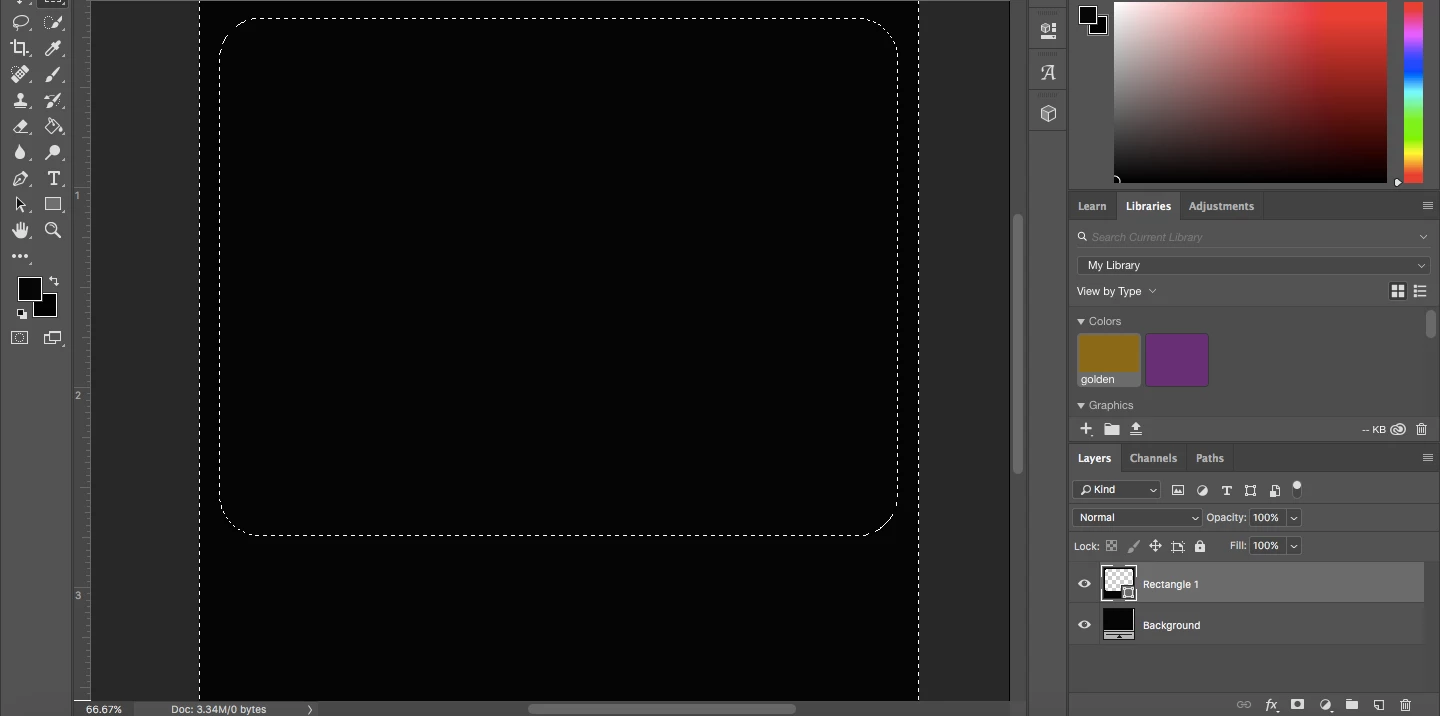
    As a matter of fact there is, although it is not obvious. First draw a rectangle with the marquee tool.

    Then choose Select > Modify > Smooth and enter a radius. You won't get a preview so it may take a little experimenting to get the roundness you want on the corners.

    barbara_a7746676
    Community Expert
    Community Expert
    April 11, 2019

    If I'm understanding correctly, you should be able to achieve what you want by hiding or deleting the color fill layer.

    Nancy OShea
    Community Expert
    Community Expert
    April 11, 2019

    Click on File > New.  Select Background Contents:  Transparent from the drop-list. See screenshot.  Hit OK.

    The checkerboard pattern denotes transparency.

    Next draw a rounded rectangle shape and give it desired fill and stroke values.

    I hope that's what you're going for.  If not, post back.

    Nancy O'Shea— Product User & Community Expert
    Participant
    April 11, 2019

    Thank you, Nancy. I actually need the reverse of that. I need the black frame like it is the photo above. I need exactly what the thumbnail shows the rectangle to be. Do you see it shows the rounded rectangle to be cut out and transparency behind it. It's like something isn't working correctly.

    Nancy OShea
    Community Expert
    Community Expert
    April 11, 2019

    OK.  Start with a transparent background layer.

    Add a new layer above it and paint it desired color.

    With the rectangular marquee tool selected, draw an area and hit Backspace key.

    Nancy O'Shea— Product User & Community Expert