
Participating Frequently
April 9, 2018
Answered

Prints are too dark printing from photoshop on ultra premium glossy

  • April 9, 2018
  • 2 replies
  • 10851 views

I look forward to any help solving my dilemma. I am trying to print photos on epsons ultra premium glossy photo paper using photoshop. Here are the steps I've taken so far. Every time with these steps the image comes out less vibrant, dull really and slightly darker.

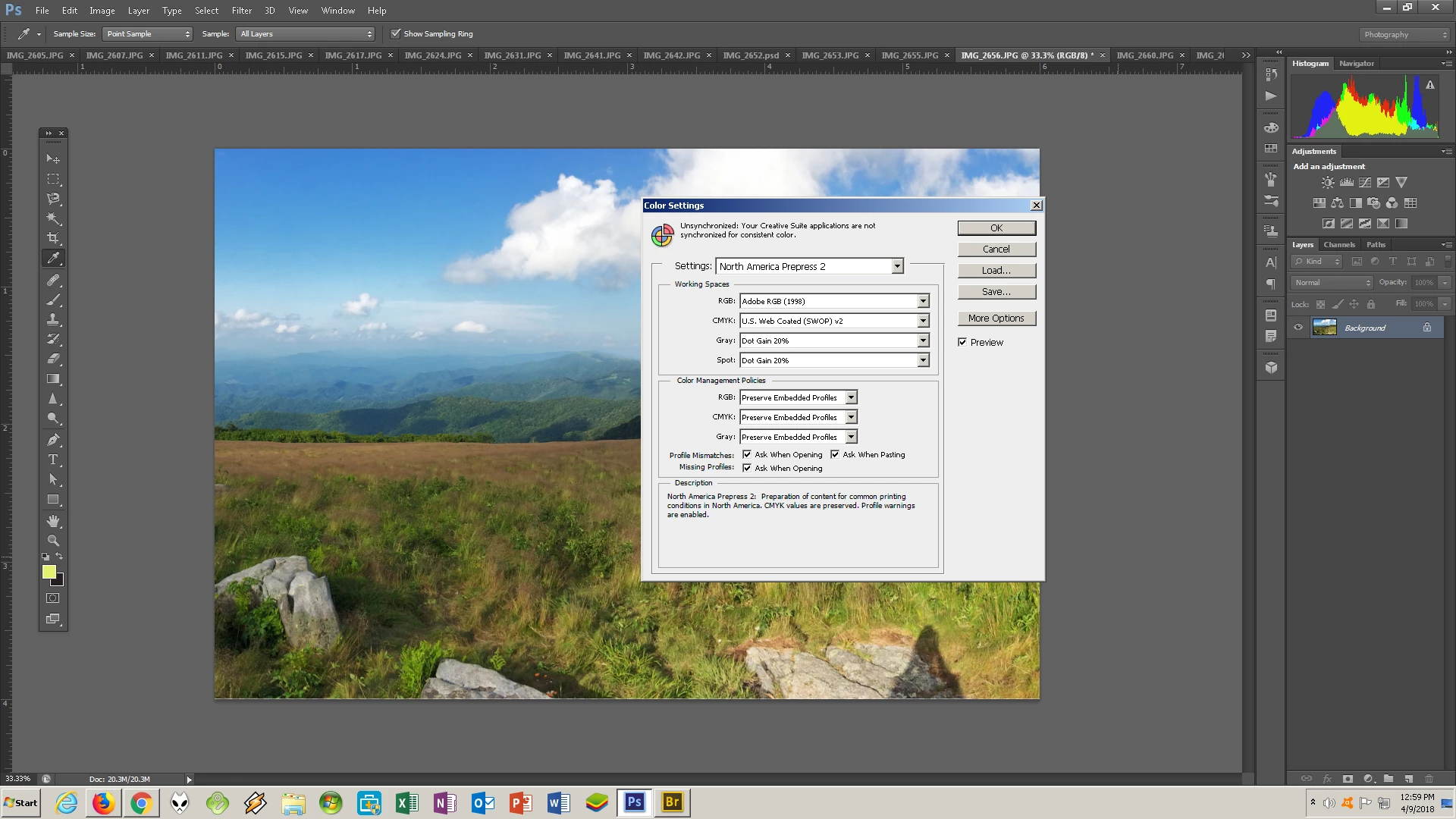
color settings:
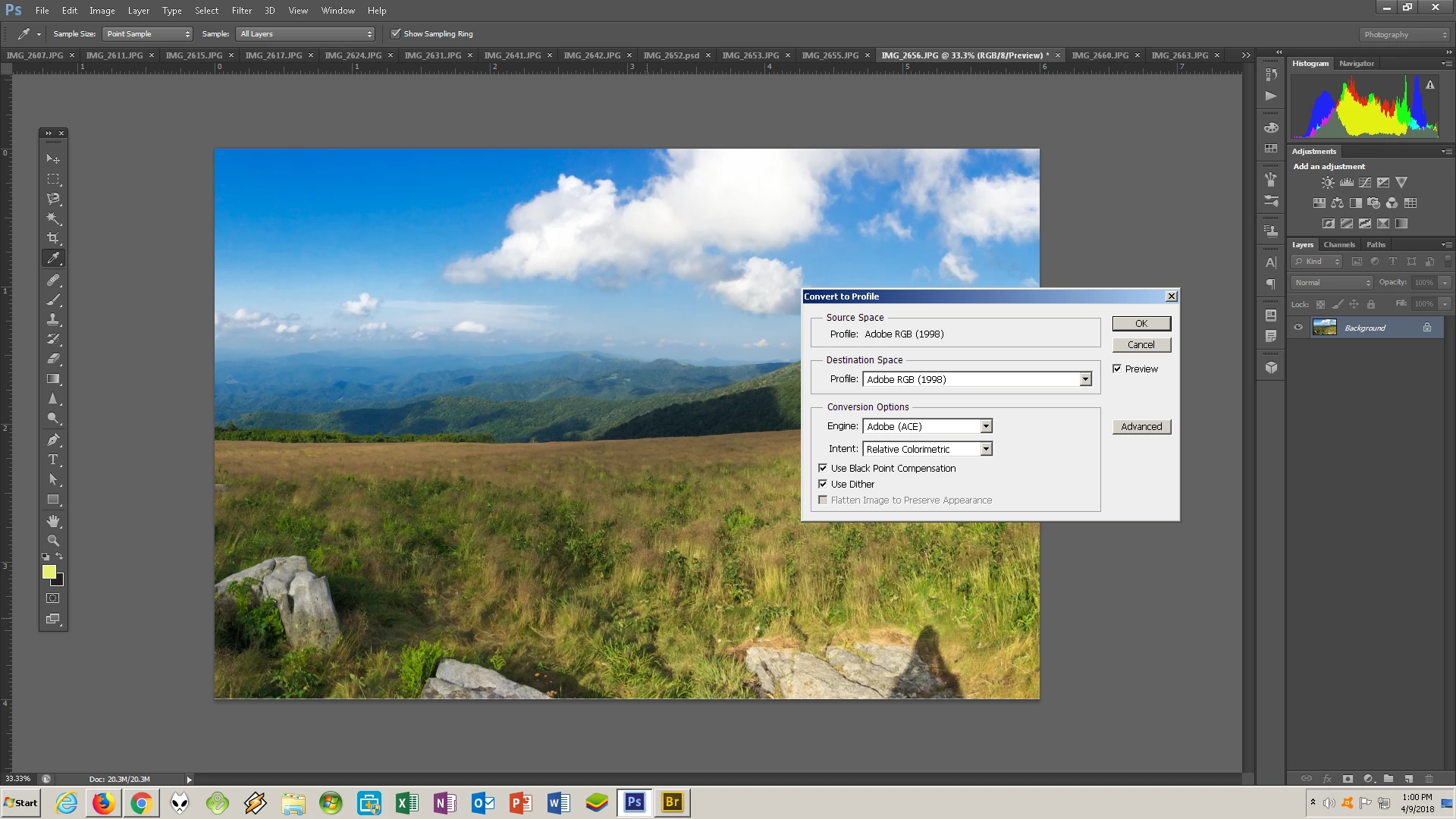
converted to profile, (I read in places to be sure to do this step. Before it said srgb in the print settings. Now that I converted it says adobe rgb 1998 in the print settings).
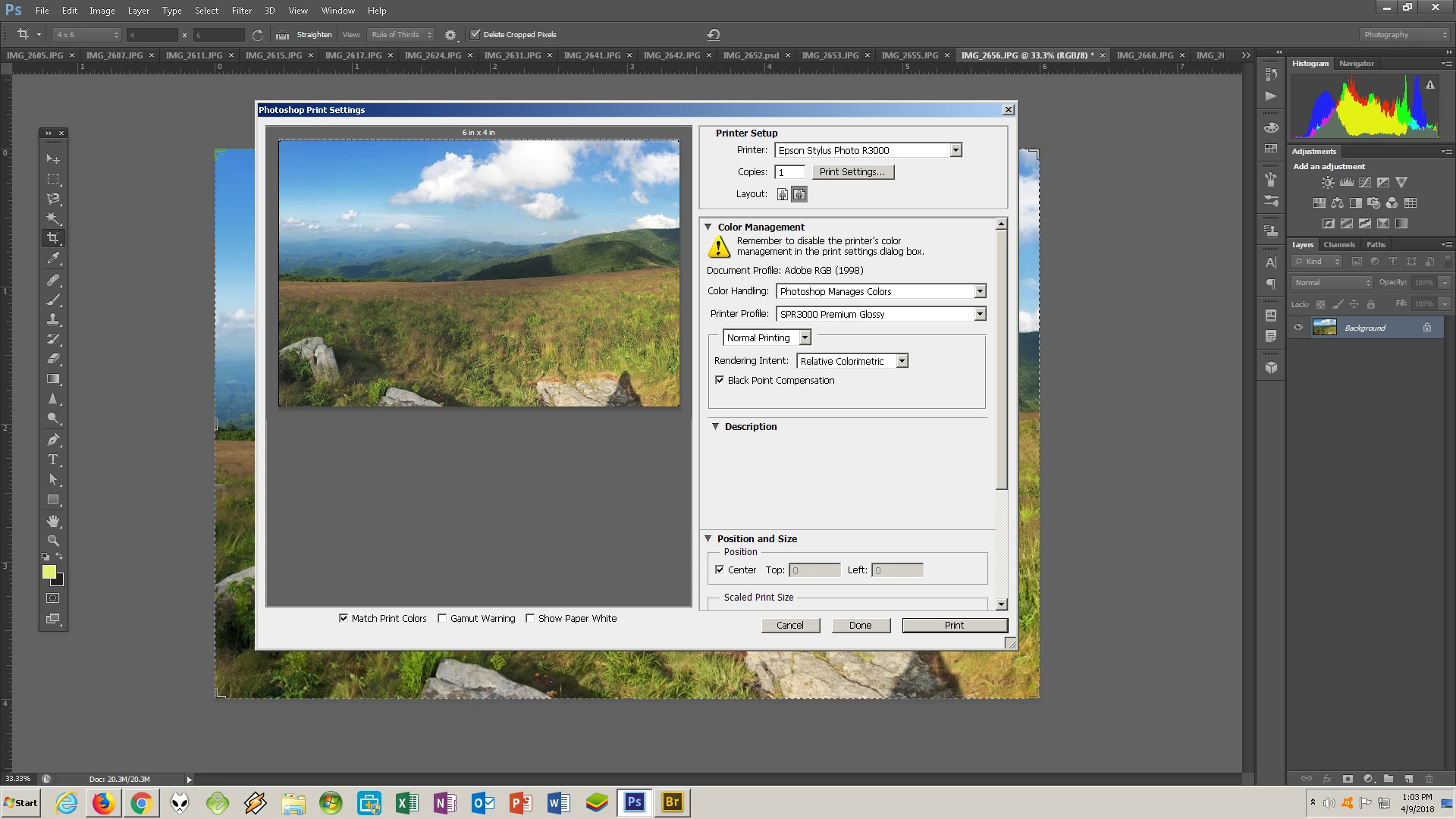
Photoshop Print Settings:
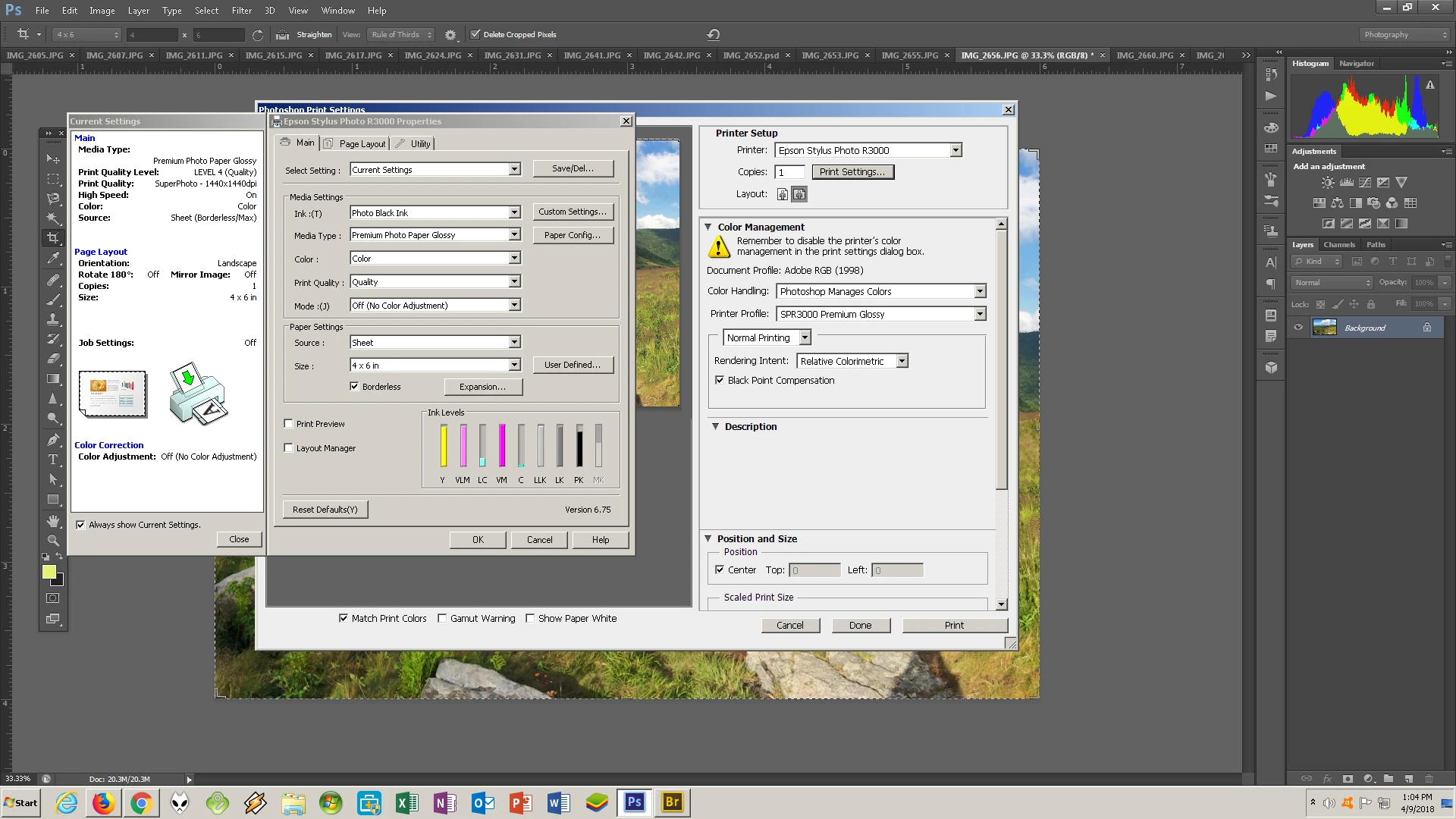
Print settings:
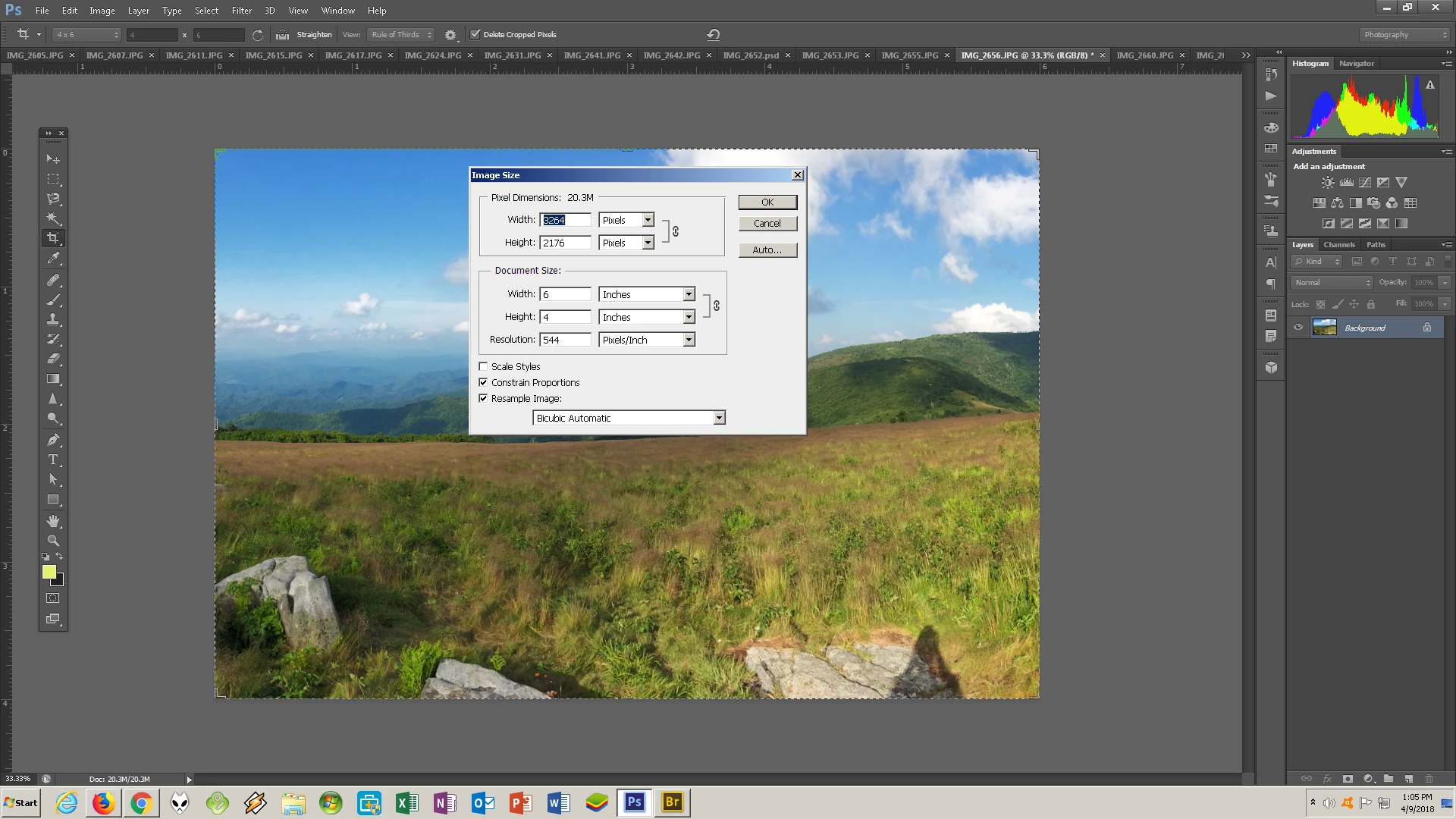
Also the image is resized before I did any of this:
    This topic has been closed for replies.
    Correct answer D Fosse

    How is your monitor calibrated?

    Make sure you are viewing the print in appropriate/optimal light - then adjust your monitor white point so that it visually matches paper white.

    This is an absolute reference - you cannot change the color and brightness of paper, but you can adjust the monitor accordingly. This is all affected by your whole working environment, ambient light, print viewing light, application interface and so on. So it's a strictly visual process. Just get monitor white to match paper white, nevermind the numbers.

    Next look at monitor black point. The black point is underrated. It has a profound impact on your whole perception of contrast and "punch". Monitor manufacturers boast of contrast ranges exceeding 1000:1, even 2000:1. As if that was a good thing. It really isn't, because a print on high-grade glossy paper will at best reach a contrast range of 300:1 - but normally less.

    That means you will be disappointed when you see the final print. Get the monitor to show a realistic black point, then you can work from that.

    2 replies

    Randy Hufford
    Community Expert
    Community Expert
    April 9, 2018

    Another aspect to consider: Looks like you are starting with a cymk image. Which is way less color gamut than a adobe RGB. Can you go back to original file? Once a image has been converted to a CMYK image, the color data has been thrown away. Even if you convert back to RGB the color information was already thrown away. Also printing in perceptual is usually always better for photos.

    mel18Author
    Participating Frequently
    April 9, 2018

    The original file is a jpg image

    D Fosse
    Community Expert
    D FosseCommunity ExpertCorrect answer
    Community Expert
    April 9, 2018

    How is your monitor calibrated?

    Make sure you are viewing the print in appropriate/optimal light - then adjust your monitor white point so that it visually matches paper white.

    This is an absolute reference - you cannot change the color and brightness of paper, but you can adjust the monitor accordingly. This is all affected by your whole working environment, ambient light, print viewing light, application interface and so on. So it's a strictly visual process. Just get monitor white to match paper white, nevermind the numbers.

    Next look at monitor black point. The black point is underrated. It has a profound impact on your whole perception of contrast and "punch". Monitor manufacturers boast of contrast ranges exceeding 1000:1, even 2000:1. As if that was a good thing. It really isn't, because a print on high-grade glossy paper will at best reach a contrast range of 300:1 - but normally less.

    That means you will be disappointed when you see the final print. Get the monitor to show a realistic black point, then you can work from that.

    mel18Author
    Participating Frequently
    April 9, 2018

    Sorry to sound dumb but how do I change white point and black point. I used huey pro by xrite for the calibration. I'm not sure how to do what you're describing.

    As a side note I printed on epson watercolor paper and it came out beautifully. It looks like the monitor. But the photo prints look different as I described above. I don't know if this new info would change anything.

    D Fosse
    Community Expert
    Community Expert
    April 9, 2018

    If there's no setting for this in the calibration software, just do it with the monitor's OSD controls. There's no particular value you need to get at - whatever looks right is right. Just try to "see" paper white on screen. Once it looks right, run the calibration again. The profile made by the calibrator needs to describe the current, actual response of the monitor.

    Simply put: if the print is too dark, your monitor is too bright. Assuming it works as it should, of course, and the profiles are good. I'm not saying there's nothing wrong with your print output. I'm not familiar with that printer (although all your settings look good from what I can see).