
February 24, 2018
Answered

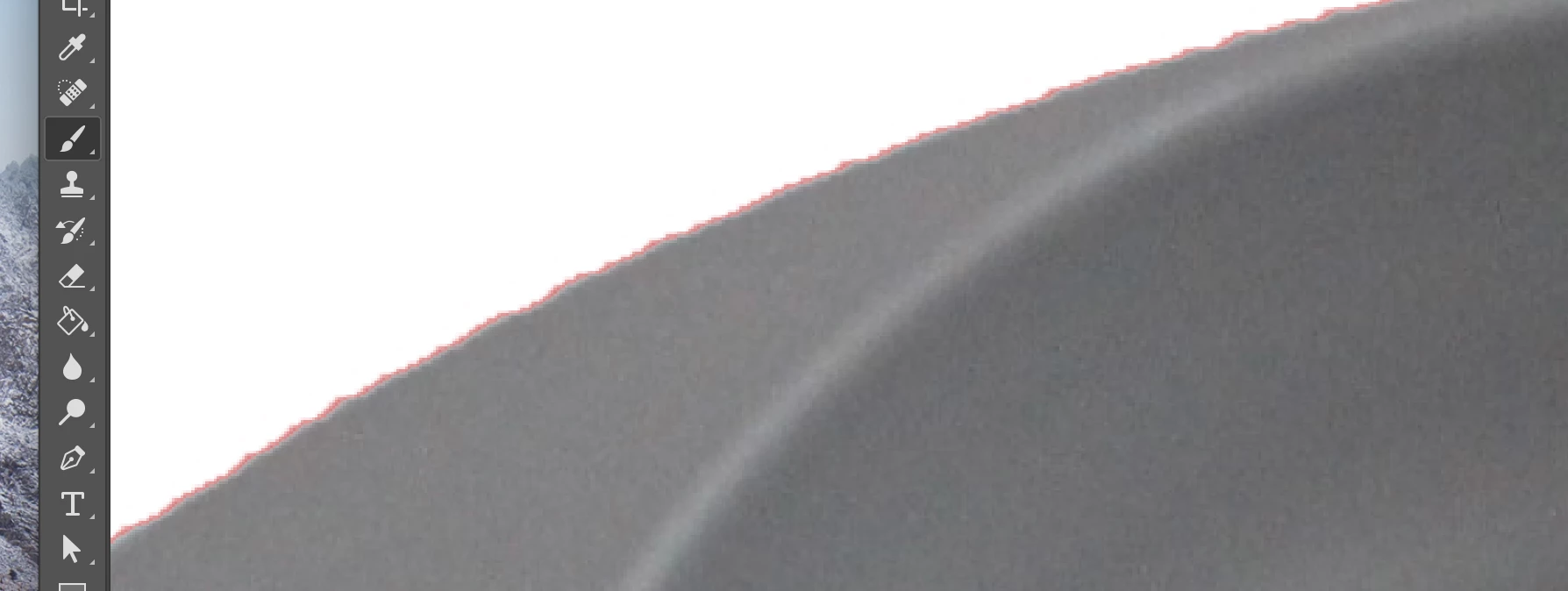
Quick selection tool leaves red line around selected area when done

  • February 24, 2018
  • 2 replies
  • 2102 views

I'm using the quick selection tool, and at a glance it appears to have selected the appropriate area.  Once I'm done adjusting the white background and I discard the selection tool, there is a red line around my photo and it looks sloppy.  Is PhotoShop a professional tool to edit photos?  What am I doing wrong here?  Please see attached picture here.
    This topic has been closed for replies.
    Correct answer JJMack

    Did you refine the selection its name is quick selection not perfect selection.

    2 replies

    davescm
    Community Expert
    Community Expert
    February 24, 2018

    A couple of answers depending on your subject.

    1. For smooth hard edges I would make a path with the pen tool and convert the path to a selection. It will give a better selection on that edge than the quick select tool.

    2. With any selection, but particularly those with a softer /anti-aliased edge, the edge pixels can be contaminated with colour from the previous background. This is easily resolved. Add a layer above the masked layer and set its blending mode to colour. Then Alt click between the layers in the layer panel so that the new layer is clipped to the layer below. The clipping means it will only affect pixels that are solid on the layer below.
    Now take a small soft edge brush and pick up the colour from the edge of the masked image by Alt clicking (you may need to change this as you work around the image) then brush around the edge of the selection. The red contamination will change to the image colour.

    Dave

    JJMack
    Community Expert
    JJMackCommunity ExpertCorrect answer
    Community Expert
    February 24, 2018

    Did you refine the selection its name is quick selection not perfect selection.

    JJMack
    February 24, 2018

    I don't think I did.  How do I refine the selection once it's made?