Try doing it this way. With this sort of thing organizing the layers is important. Select your first 8 layers from the top downwards by holding command and clicking each layer and you'll get multiple layers selected. Now press command G on the keyboard and it will put all those layers in a group. That group will contain the lower rectangle with all it's text.
Now do the same thing with layers 9,10,11,12 which will give you a group containing all the components of the wave effect. The layers should look like below-obviously you provide the labelling.
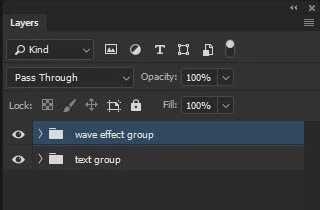
I don't have your source file with all the elements so can only provide a simplified view here but the principle holds true with what you have.
Open the 'wave effect ' group and make your elliptical selection as you did before. It doesn't matter which layer you make the selection on , this is just for placement.
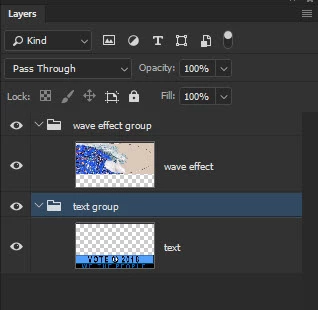
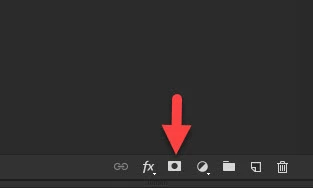
Now click on the Wave Effect group which effectively puts an elliptical selection around everything in the group. Make a layer mask on the group by clicking the marked icon.
The layer panel will look like this
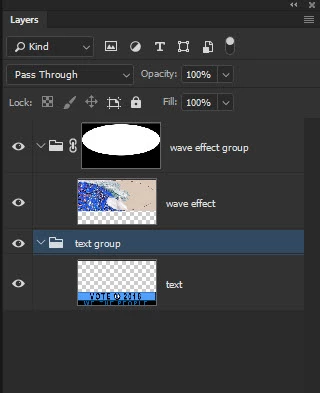
and the image will look like below with transparency surrounding the wave. No need to invert anything.
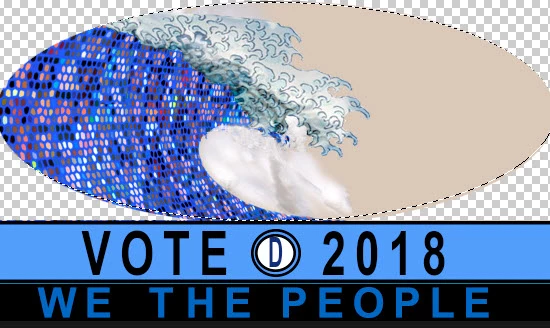
To put in a background simply create a new layer below the wave effect group-not in it-and fill with whatever color or effect you need.

 AdChoices