Participant
January 7, 2017
Answered

how do I remove a background? [2017]

  • January 7, 2017
  • 4 replies
  • 5457 views

I have a signature jpeg.  The paper color background is a dark gray.  I want to remove the background entirely so that I can save the signature and paste it into documents.  How do I do that?

This topic has been closed for replies.
Correct answer Barb Binder

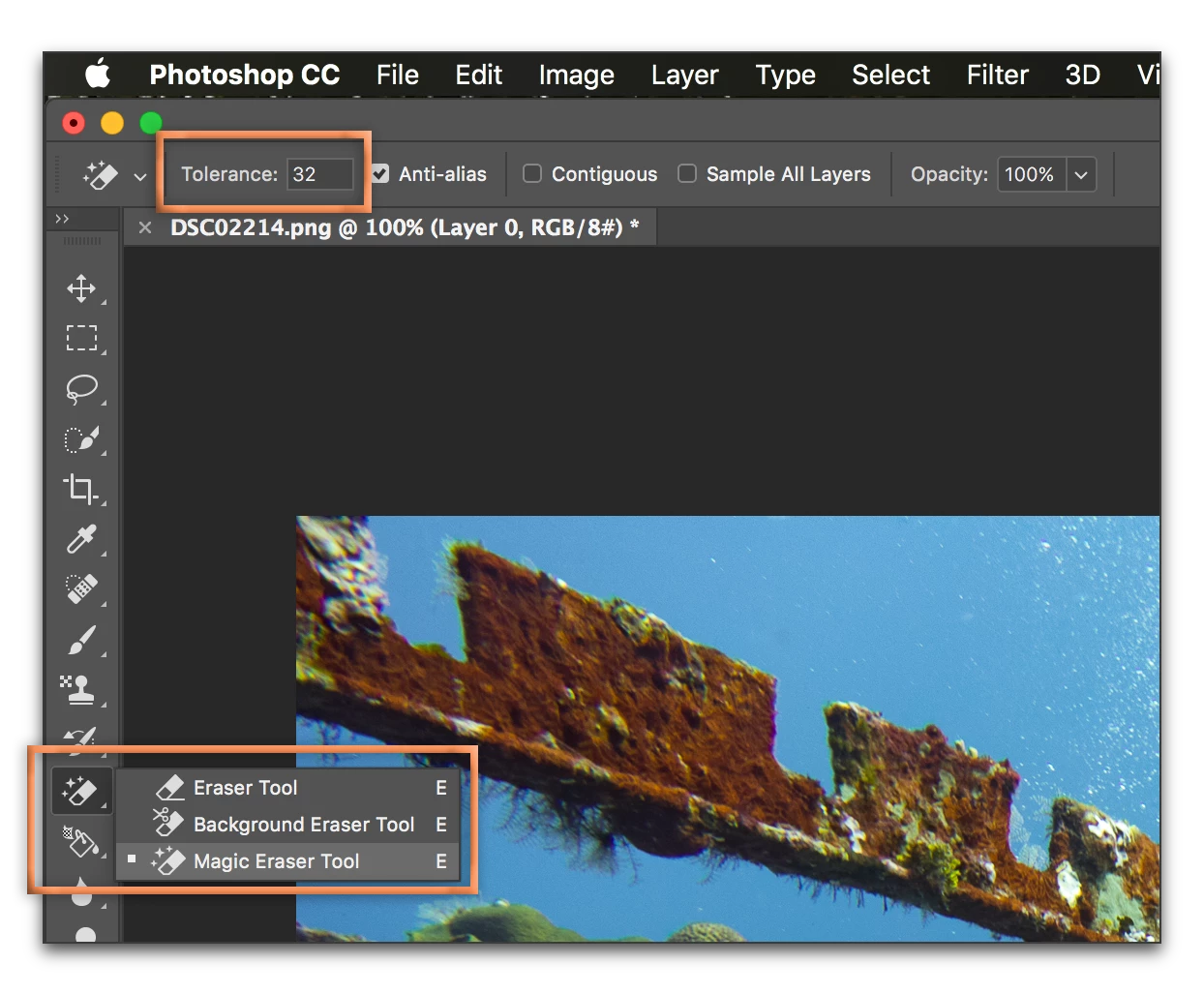
A quick and easy (but not particularly precise) technique is to click on the background with the Magic Eraser. Like the Magic Wand, it's a color-based tool (but it deletes rather than selects the color you click on). Like the Magic Wand, it has Tolerance controls on the Options bar. If you don't like the initial result, choose Edit > Undo, change the tolerance and try again. Low numbers are less tolerant of a color change, higher numbers are more tolerant.

You might find this easier if you sign a piece of white paper (higher contrast), rescan and then remove the white background.
4 replies

Participant
January 7, 2017

Thank you everyone.  I just got the Adobe Suite and this was my first time using Photoshop and my first time to post a question on this forum.  Pretty cool!  I was surprised to get the help I needed in a pretty short period of time!  And, your advice worked and taught me a few new things! Thanks.

Silkrooster
Legend
January 7, 2017

Because jpg doesn't support transparency, when you open a jpg file, you need to convert the background layer to a normal layer by dragging the padlock to the trashcan.

josephlavine
Community Expert
Community Expert
January 7, 2017

Have you tried using the Magic Wand Tool to select the signature?  Once selected, copy the selection to a new layer (command j) and then go to Layer > Duplicate Layer and choose New for the destination. This will give you a new document of just the signature.

Barb Binder
Community Expert
Barb BinderCommunity ExpertCorrect answer
Community Expert
January 7, 2017

A quick and easy (but not particularly precise) technique is to click on the background with the Magic Eraser. Like the Magic Wand, it's a color-based tool (but it deletes rather than selects the color you click on). Like the Magic Wand, it has Tolerance controls on the Options bar. If you don't like the initial result, choose Edit > Undo, change the tolerance and try again. Low numbers are less tolerant of a color change, higher numbers are more tolerant.

You might find this easier if you sign a piece of white paper (higher contrast), rescan and then remove the white background.

~Barb at Rocky Mountain Training