
"Save for Web" now always shows "GIF" instead of PNG or JPG
I'm having the same problem as this older thread from 2014: Save For Web always saves as a GIF but, since that one is still unanswered, I thought I would try my luck in getting help.
I am working in PS CS6, ACR 9.1.1. (not sure if the latter matters, but bear with me).
Up until I updated my Adobe Camera Raw to a new version (last week or so), I used to be able to "Save for Web" and see the file type and the savings in the lower left hand corner according to the changes I would make in the settings. Since I updated ACR, it only shows as a "GIF" in the bottom left, and nothing I do updates either the preview image or the outputted file size savings. However, when I save it (e.g. for JPG at "Medium") and view the file info on my computer (not in PS), it has saved correctly (e.g. as a JPG with a much smaller file size).
The thing is, I need to see what the settings do to individual photos, as some can handle more degradation (e.g. looks okay when saving at "Medium" rather than "Very High"); others have to be saved at a higher quality. Or, sometimes, I need to see how big the savings are between the different qualities and make a decision based on that. I can't do either of these things anymore, because the lower left-hand corner always reads the same; e.g. "GIF, 8.7mb". Even if I switch to a JPG or PNG or etc, it stays the same. So does the preview image. I'm including the same screenshot as the guy from 2014:
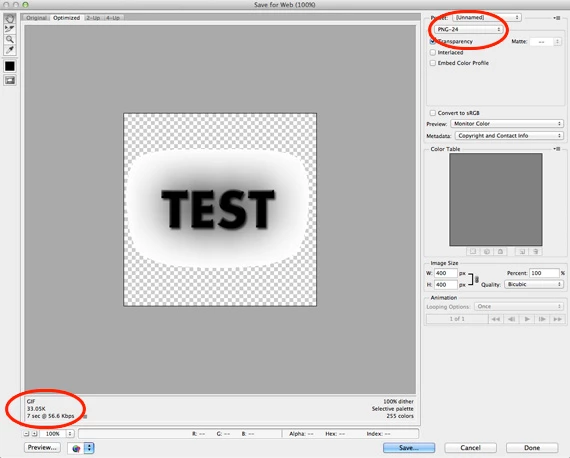
I tried removing my preferences file (Adobe Photoshop CS6 Prefs.psp) which was suggested in the other post I mentioned at the top. That didn't solve anything.
I'm not sure how updating Adobe Camera Raw would have messed with "Save for Web" but that's the only thing that changed with my program.
Any ideas?
 AdChoices