bartonlew
Legend
June 12, 2018
Answered

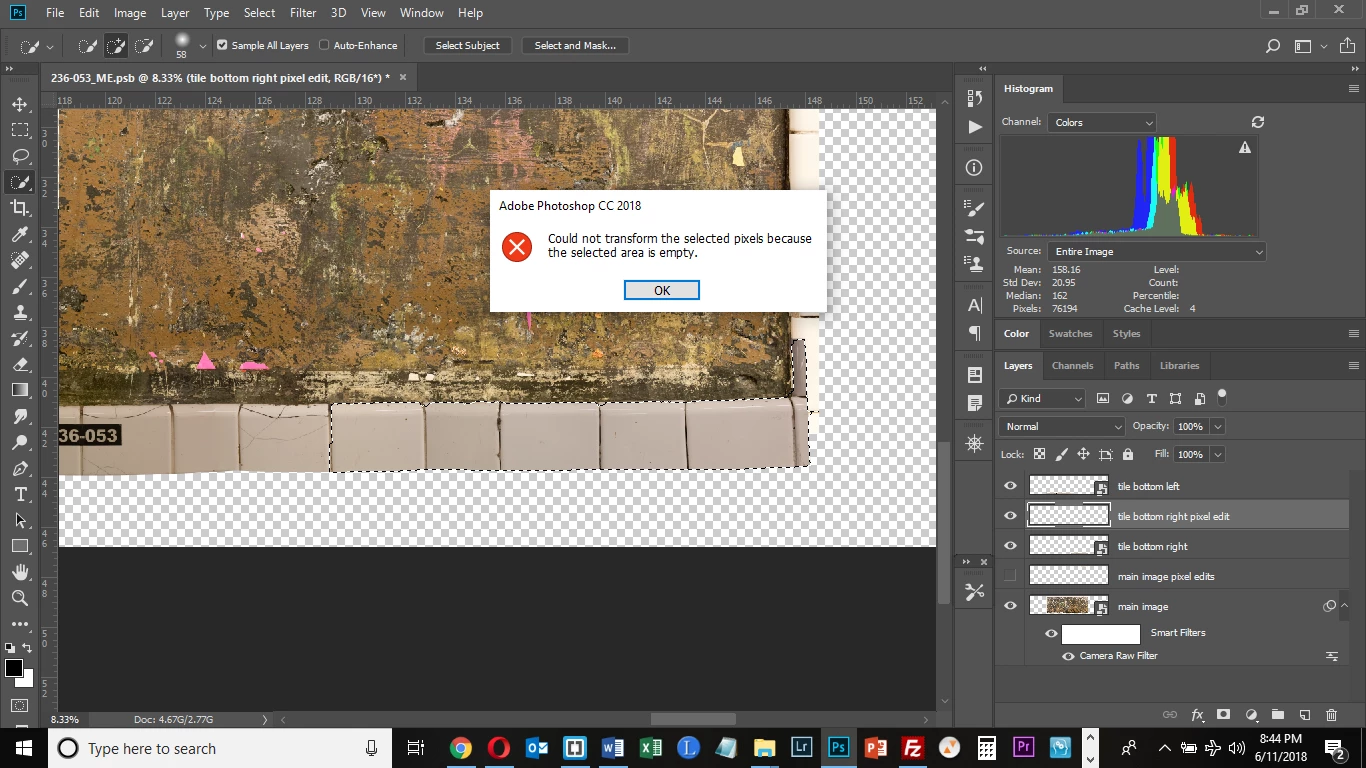
"can't transform pixels because the selected area is empty"

  • June 12, 2018
  • 4 replies
  • 80223 views

I get this message when trying to select Edit>Transform>Skew.  I am on the layer above my Smart Object Layer and have selected an area which can be seen in the marching ants below in the tile border.  I Googled this message and it says it can happen when you are in a blank Layer.  But it's not blank.  Does anyone know what could be happening?

Correct answer Bojan Živković11378569

I know you can't transform a selection in a Smart Object Layer, that's why I created a new Layer above it and tried to do it there.  This worked with the Clone-Stamp tool.  Why does that not work here?


If I can understand you correctly then you have pixels on Smart Object layer which cannot be transformed. To be able to transform pixels you have created a blank new layer above it and you are trying to transform blank layer right? It won't work because there aren't actual pixels. Transforming pixels and cloning from some source are two different things. When transforming something there must be actual content on the selected layer to transform while when cloning or copying you must have something to copy to any layer which can be and a blank layer which is targeted/selected.

In case that you have copied pixels from Smart Object layer to a new layer using Clone Stamp then select that layer, Ctrl + click on that layer thumbnail to ensure that you have selected actual content and then use transform command.


4 replies

Participant
October 17, 2024

It happen the same to me, and I solved in a easy way.

Save and restart PS.

Participant
March 11, 2022

i suggest you to export layers to file then import it again


JJMack
Community Expert
Community Expert
June 12, 2018

Set sample all layers or current and below in the clone stamp tool option bar

JJMack
bartonlew
bartonlewAuthor
Legend
June 12, 2018

I don't want the Clone-Stamp tool.  I was referencing that as a tool that I had successfully used previously by creating a new layer above the Smart Object and doing the edit in that layer.  The tool I am trying to get to work is Edit>Transform>Skew and what I am trying to do is skew a selection in a Smart Object downwards.  My assumption was that I needed to do this in a new layer created above the Smart Object but that seems not to be the case.  I went into the Smart Object Layer; hit Ctrl T; and then selected Edit>Transform>Skew.  I was able to to grab the middle square on the grid and drag the right side of the tile border downwards.  So it appears there are certain effects you can create on the Smart Object layer (this one) and others you can't (the Clone/Stamp).  I don't understand the rationale behind the difference but perhaps will someday.  Thanks.

JJMack
Community Expert
Community Expert
June 12, 2018

The thumbnail of the targeted layer looks like the layer is Empty.  Are you sure there are Pixels in the selected area in that layer? Or is the message Correct.

JJMack
bartonlew
bartonlewAuthor
Legend
June 12, 2018

Thank you for your reply.  I have pasted an image of the Layer in question with all other Layers turned off.  As can be seen, the tile border is at the bottom right corner.

Semaphoric
Community Expert
Community Expert
June 12, 2018

But the layer you have selected is the one above (which is hidden here).