Participant
February 27, 2019
Question

Adobe Acrobat 2015 Updater Fails - Error 1309

  • February 27, 2019
  • 15 replies
  • 10505 views

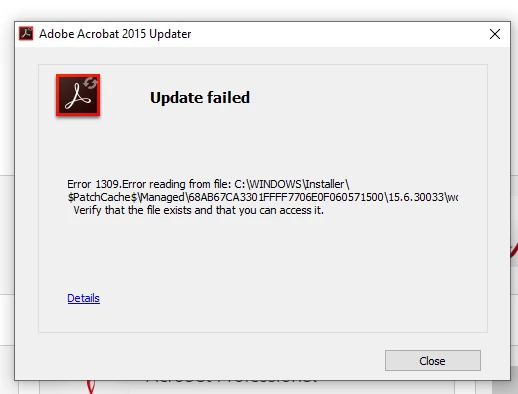
The following error message appears every time I try to run the update.  The folder referenced does not exist so there is no way to "verify the file exists and you can access it"  O have uninstalled and reinstalled 3 times and get the same results.  It appears the update file being sent by Adobe is corrupt.  Suggestions???
This topic has been closed for replies.

15 replies

cg40
Inspiring
March 12, 2019

I had the same issue with Adobe Acrobat 2017 a while back and created a thread about it: Error 1309 when updating Adobe Acrobat 2017 on new Windows 10 PCs.

I was able to resolve this from either uninstalling Microsoft update "2019-02 Cumulative Update for Windows 10 Version 1809 for x64-based Systems (KB4487044)" or by deleting the specified file it mentions in the error message: "C:\Windows\Installer\$PatchCache$\Managed\68AB67CA3301FFFF7706E01180573600\17.8.30051\wcc hromenativemessaginghost". You will have to show "Hidden items" in the View tab of Windows Explorer to see this path and files.

Participating Frequently
March 13, 2019

The problem is finally resolved with the release of Microsoft Windows 10 cumulative update (Mar 2019, KB4489868).

After applying the patch and restarted the PC, I am now able to install the latest Adobe patch without errors.

BNA_rickAuthor
Participant
March 13, 2019

With most recent Microsoft Windows update, KB4489899, the Acrobat update now works.

Rick Bailey, CONSERV BUSINESS SERVICES

AkanchhaS8194121
Legend
March 8, 2019

Hi All,

If you are still experiencing the same error 1309 while updating the Acrobat. You may follow the steps given below-

  • Navigate to the folder and rename C:\WINDOWS\Installer\$PatchCache$\Managed\[number]\xx.x.xxxxx

        to C:\WINDOWS\Installer\$PatchCache$\Managed\[numberXXXX]\xx.x.xxxxx_bkup

  • Once renamed, reboot the computer.
  • Try updating the application now.

Let us know the result. We would be looking forward for the update.

Thanks,

Akanchha

Participant
March 11, 2019

Hi Akanchha,

This worked.  I renamed the 15.6.30033 folder to 15.6.30033.bak then rebooted. I ran Acrobat as Administrator and it installed the update without error.  However although Acrobat reports it is now version 2015.006.30280 it continues to report that an update to that same version is still available.

Unfortunately we have 100 endpoints and so this is not a manageable fix for us. Looking forward to Microsoft releasing a patch following KB4487029.

AkanchhaS8194121
Legend
March 12, 2019

Hey Sarahb,

Thanks for taking out time and sharing your findings. Good to hear that it worked for now.

Thanks,

Akanchha

Participating Frequently
March 6, 2019

As referring to Microsoft's web site, this is an issue with Feb 2019 Windows 10 cumulative updates

(https://support.microsoft.com/en-us/help/4487029)

It may also affect other msi or msp installation.

So wait for updates from Microsoft instead of Adobe.

Participating Frequently
March 4, 2019

Re-installed Windows 10, 2019-Feb cumulative updates again.

So far, Adobe Standard works fine without crashing...

Participating Frequently
March 4, 2019

Tried uninstalling the latest Windows cumulative update.

Using winver, checked demoting from Windows 10 build 17134.590 to 17134.523.

Now, it is successful to update Adobe Standard to v19.010.20098.

Ultimate solution may need Adobe to release another update that can be deployed to Windows 10 latest build.

Participating Frequently
March 4, 2019

This workaround is not working!

Adobe Standard crashed a short while after opening it.

subhadrav27505742
Adobe Employee
Adobe Employee
March 4, 2019

Please try Acrobat repair from Control Panel.

Steps:

Go to Control Panel\Programs\Programs and Features

Select Acrobat

Click "Change". Click "Next".

Select "Repair" and proceed with default selection.

Participating Frequently
March 4, 2019

Environment - Windows 10 professional (build 1803, with cumulative Feb 2019 updates installed).

Downloading Adobe update (AcrobatDCUpd1901020098.msp) from the web site.

When run it under administrator, the same error message returned relating to the file (wcchromenativemessaginghost), but unlike the check for update..., the msp package allows for choosing "ignore" the error message instead of aborting it. After then, it also prompts for updating the files (c:\config.msi\PT82E3.tmp, c:\config.msi\PT831A.tmp, c:\config.msi\PT83E9.tmp, c:\config.msi\PTA969.TMP, c:\config.msi\PTA96A.tmp). By pressing "Ignore", the installation proceeds to the end. When opening Adobe Standard and checks for updates, it shows the latest version - 19.010.20098.

Participant
March 1, 2019

If you built your adobe packages with "acrobat customization wizard dc"  you can copy the patch to same directory as your setup.ini file and edit your setup.ini to match the new patch.

now when I uninstall and reinstall, its fully patched.

[Startup]

RequireOS=Windows 7

RequireMSI=3.1

RequireIE=7.0.0000.0

Require64BitVCRT=1

CmdLine=/smur /sall /rs

[Product]

PATCH=Acrobat2015Upd1500630482.msp

msi=AcroPro.msi

vcrtMsi=vc_runtimeMinimum_x64.msi

vcrtDir=VCRT_x64

vcrtCommandLine=VSEXTUI=1

Languages=2052;1028;1029;1030;1043;1033;1035;1036;1031;1038;1040;1041;1042;1044;1045;1046;1049;1051;1060;1034;1053;1055;1058;1025;1037;6156

2052=Chinese Simplified

1028=Chinese Traditional

1029=Czech

1030=Danish

1043=Dutch (Netherlands)

1033=English (United States)

1035=Finnish

1036=French (France)

1031=German (Germany)

1038=Hungarian

1040=Italian (Italy)

1041=Japanese

1042=Korean

1044=Norwegian (Bokmal)

1045=Polish

1046=Portuguese (Brazil)

1049=Russian

1051=Slovak

1060=Slovenian

1034=Spanish (Traditional Sort)

1053=Swedish

1055=Turkish

1058=Ukrainian

1025=English with Arabic support

1037=English with Hebrew support

6156=French (Morocco)

CmdLine=TRANSFORMS="AcroPro.mst"

[Windows 7]

PlatformID=2

MajorVersion=6

MinorVersion=1

[MSI Updater]

Path=WindowsInstaller-KB893803-v2-x86.exe

tummosoft
Participant
March 2, 2019

I have the same problem... Thanks your answer!

subhadrav27505742
Adobe Employee
Adobe Employee
March 1, 2019

One workaround is to rename the file which installer is trying to access and cannot. once renamed, try to apply the update again.

Participating Frequently
March 1, 2019

You can't rename that which does not exist in the first place.

tommytrut
Participant
February 28, 2019

Not exactly a great solution, but I worked around the issue by uninstalling Acrobat, rebooting, installing Acrobat again and then applying the update.

Like others I had the issue after applying February MS Updates so I guess the MS update breaks something in the update cache library (checksum maybe?).

Participating Frequently
February 28, 2019

Interesting.  That (re-installing Acrobat) didn't work in my testing.  Are you sure you got all patches?  In my experience, the fresh install would download an interim/pre-requisite update that was a year or two old (this is Acrobat 2015 perpetual license), and that installed fine.  But the latest (and all updates going back several months that I downloaded and tried manually) would then fail to install afterwards.

tommytrut
Participant
March 1, 2019

I'm pretty sure I've got the latest patches as I download it manually and install it from an elevated command prompt (msiexec /p <path2patch\AcrobatDCUpd1901020098.msp /qb). Having reinstalled Acrobat this completed successfully and "Programs and features" reports the version to be 19.010.20098.

Did you reboot after uninstalling?