
Participant
January 30, 2018
Question

Adobe Acrobat 2017 has stopped working error when scanning

  • January 30, 2018
  • 1 reply
  • 1552 views

Just upgraded to Adobe Acrobat Standard 2017, and encountered a challenge with the new interface.

The new Tools menu has a clean interface - too bad it doesn't work.  The workflow we attempted was to "Create PDF" from a scanner via the Tools menu.
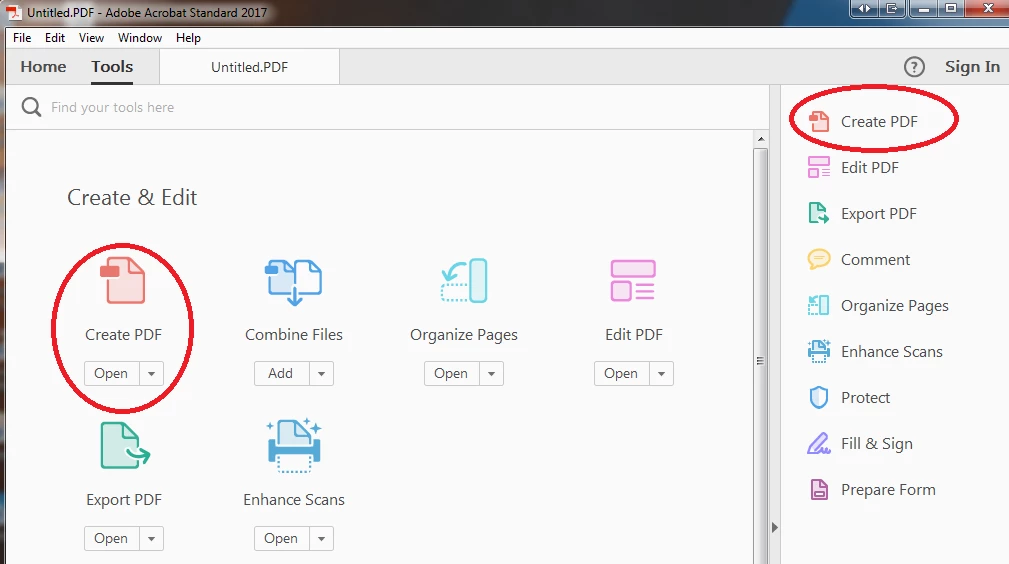
From here, we selected the "Scanner" option. The scan itself then proceeds as expected, and the files appear in Acrobat. So far, so good....

However, as soon we try to save (by clicking the floppy disk icon), the dreaded error occurs: Adobe Acrobat 2017 has stopped working
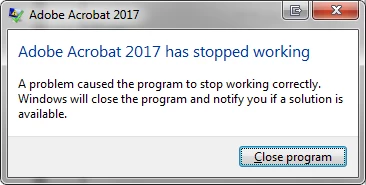
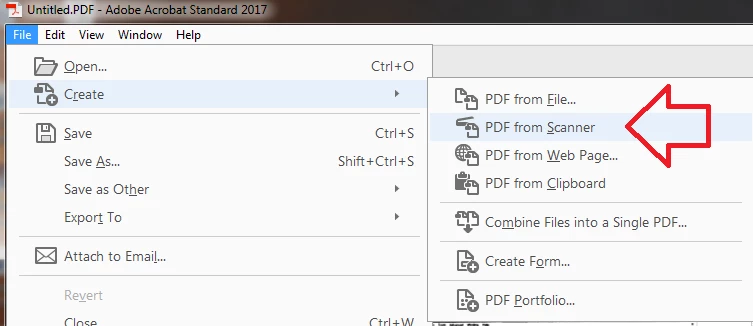
Here's my favorite part - this error is entirely dependent on how the scan job is initiated!  Prior to this new interface, our workflow was to generate a PDF from Scanner by going to File -> Create -> PDF from Scanner.  We have found that this workflow *does not* result in Acrobat crashing. The scanner settings and driver are exactly the same using both methods - it is only when using the Tools menu to create a PDF from the scanner that Acrobat crashes.

Going forward, we will continue to access scanner functionality via the File -> Create -> PDF from Scanner, which works great.

Hopefully this information will help someone out there (and hopefully the Tools interface workflow can get fixed at some point.)
This topic has been closed for replies.

1 reply

AnandSri
Community Manager
Community Manager
April 30, 2018

Hello Kevina,

Sorry for the delayed response and inconvenience caused. As per the description above, Acrobat is crashing while scanning a document, Is that correct?

Please refer and try the suggestions from the following Adobe article Troubleshooting tips for scanner issues when using Acrobat

If you still are experiencing Acrobat crashing issue while scanning a document via a scanner using Acrobat DC or Acrobat 2017 Classic, please help us Acrobat crash logs. To collect crash logs, please follow the steps:

  1. Create a folder “C:\temp”
  2. Download and extract https://files.acrobat.com/a/preview/cee7dfa9-736e-4c53-8917-1dcf73cb7a48 to C:\temp.
  3. Make sure no Acrobat instances are already running -- check via Task Manager.
  4. Launch Acrobat
  5. Launch CMD prompt and type "cd c:\temp"
  6. On the Command Prompt type: "procdump -e -ma Acrobat.exe c:\temp\01.dmp". Procdump will now wait for the crash to happen.
  7. Perform the actions in Acrobat that cause it to crash.
  8. Procdump will have created c:\temp\01.dmp. Share the file.
  9. You may upload the logs to Adobe Send and share the link with us via email (Forum Private message *): https://forums.adobe.com/docs/DOC-7161

Also, help us with below information.

  1. Operating system name and version.
  2. Scanner make and model.
  3. Driver version installed for Scanner?
  4. Have you tried checking this issue with a new user account? If not, try it.
  5. The current version of Acrobat installed: Identify the product and its version for Acrobat and Reader DC
  6. Your Adobe ID.

Share these details via private message only How Do I Send Private Message

Let us know how it goes and share your findings.

Regards,

Anand Sri.