
Participant
November 22, 2017
Answered

Adobe Acrobat Pro DC 2016 question regarding "OCR Text Recognition"

  • November 22, 2017
  • 3 replies
  • 1931 views

[Moderator moved from Adobe Creative Cloud to Acrobat -  Creating PDFs.]

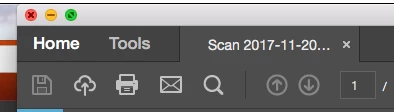
I am working on a PDF doc and have been told the first step is to click on the "Document Tab" and then click "OCR Text Recognition" and then "Recognize Text Using OCR". I cannot find a "Document Tab" on my toolbar or in "Tools". Can anyone help with this?
This topic has been closed for replies.
Correct answer Pariah Burke
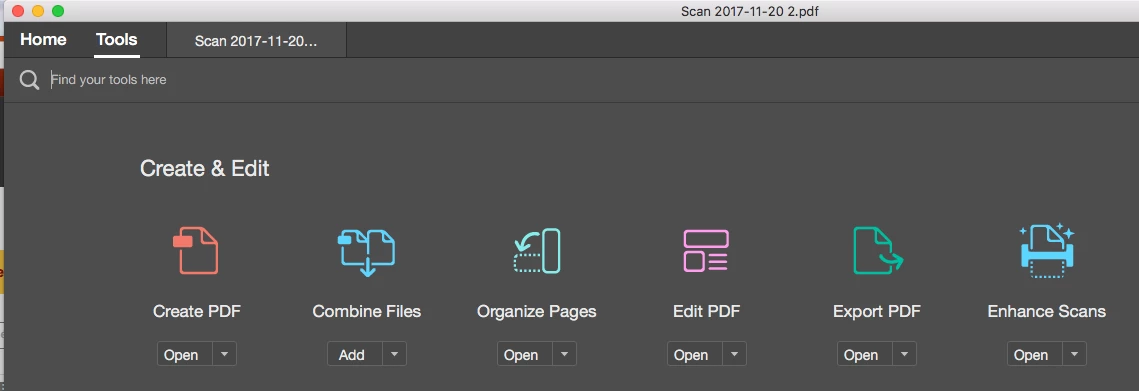
  1. Go to Tools along the top.


  2. Select Enhance Scans.
  3. The Toolbar will now be in Enhance Scans mode. Click Recognize Text > In This File.

3 replies

Pariah Burke
Community Expert
Pariah BurkeCommunity ExpertCorrect answer
Community Expert
November 26, 2017
  1. Go to Tools along the top.


  2. Select Enhance Scans.
  3. The Toolbar will now be in Enhance Scans mode. Click Recognize Text > In This File.
Participant
November 26, 2017

I do not agree that this question has been answered. The answer appears to be "Click Tools>edit" this does not answer my question.

Inspiring
November 30, 2017

You can now open multiple documents in a single instance of the Acrobat software. Each document displays in it's own tab next to the Home and Tools tabs.  To switch between documents, you simply click on that document's tab.  Hence the name "Document Tab."

So the instruction to click on the document tab is meant to make sure you have the correct document selected before you begin. 

The previous examples above don't have multiple document tabs, so your actions will apply to the single open document.  But if you have multiple document tabs displayed (i.e., multiple open documents), you want to make sure you start from the document to be converted not a different document.

kglad
Community Expert
Community Expert
November 22, 2017

click tools>edit pdf
