
a11ycarolyn
Participant
May 8, 2017
Answered

Alternate text disappears in Acrobat DC

  • May 8, 2017
  • 1 reply
  • 9329 views

Hi,

I am trying to remediate an inaccessible PDF. It had 36 images with no alt text, so I went in and added alt text, then saved the document (I've actually done this twice now). If I close the document, when I open it back up the alt text is gone! I haven't even checked to see if other accessibility issues I remediated are still there.

Thanks in advance for any help!
This topic has been closed for replies.
Correct answer Dave__M

OK - so alt text isn't sticking when using the action.  Maybe try to add some manually, saving, simply to see if it's the action that's not behaving well, or the file itself.

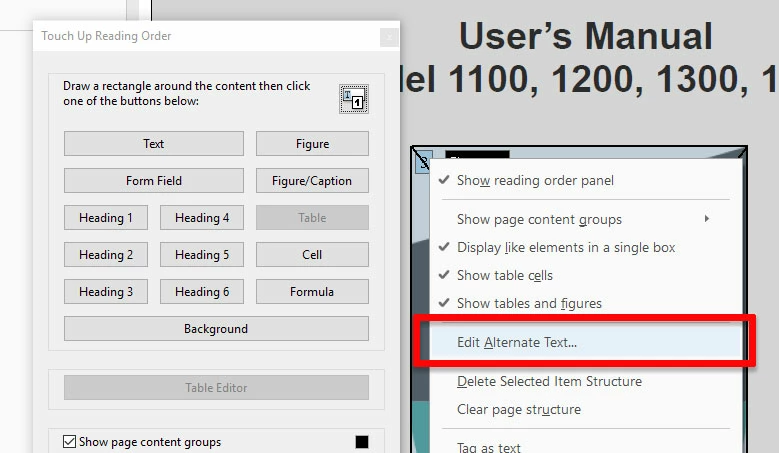
Call up your Accessibility Tools, and choose the Reading order tool.  Find a figure in your doc, and click on it's small reading order number in the upper left corner.  Now that it's selected, right click and choose Edit Alternate Text.  Add the alt text for just this one image.  Save, inspect, and close the file... then re-open.  If the alt text 'stuck' I'd then try using the Set Alternate Text tool in the Accessibility tools to assign alt text to the rest of the images.  Inspect - save - close - reopen & inspect.

I would be interested to know how this turns out.  Also, is this issue with just this file, or do others behave the same way?

My best,

Dave

1 reply

Dave__M
Community Expert
Community Expert
May 9, 2017

That certainly is unusual.  The very first thing I would try is to first do a Save As... and give the document a different file name.  Let us know if this changes the behavior.

My best,

Dave

a11ycarolyn
Participant
May 9, 2017

No, "Save as..." did not change the behavior. I was using a Mac, so I switched to a PC to see if that made a difference, but it didn't. Maybe I am doing something wrong? I am using the Action Wizard > Make Accessible to add the alt text. Then if I open it up and use the Action Wizard again, the alt text is gone.

Dave__M
Community Expert
Dave__MCommunity ExpertCorrect answer
Community Expert
May 9, 2017

OK - so alt text isn't sticking when using the action.  Maybe try to add some manually, saving, simply to see if it's the action that's not behaving well, or the file itself.

Call up your Accessibility Tools, and choose the Reading order tool.  Find a figure in your doc, and click on it's small reading order number in the upper left corner.  Now that it's selected, right click and choose Edit Alternate Text.  Add the alt text for just this one image.  Save, inspect, and close the file... then re-open.  If the alt text 'stuck' I'd then try using the Set Alternate Text tool in the Accessibility tools to assign alt text to the rest of the images.  Inspect - save - close - reopen & inspect.

I would be interested to know how this turns out.  Also, is this issue with just this file, or do others behave the same way?

My best,

Dave