
Participating Frequently
January 2, 2020
Question

Any way to universally change margins/gutters in Acrobat?

  • January 2, 2020
  • 4 replies
  • 5953 views

I have been tasked to do an updated version of a book with a new preface. The core of the book (700-some pages!!) is to remain the same. The original publisher is defunct so all I have is a PDF copy of the formatted manuscript. Now that I am adding 50 additional pages, the spine of the book is a bit wider and therefore the layout for each page has shifted very slightly.


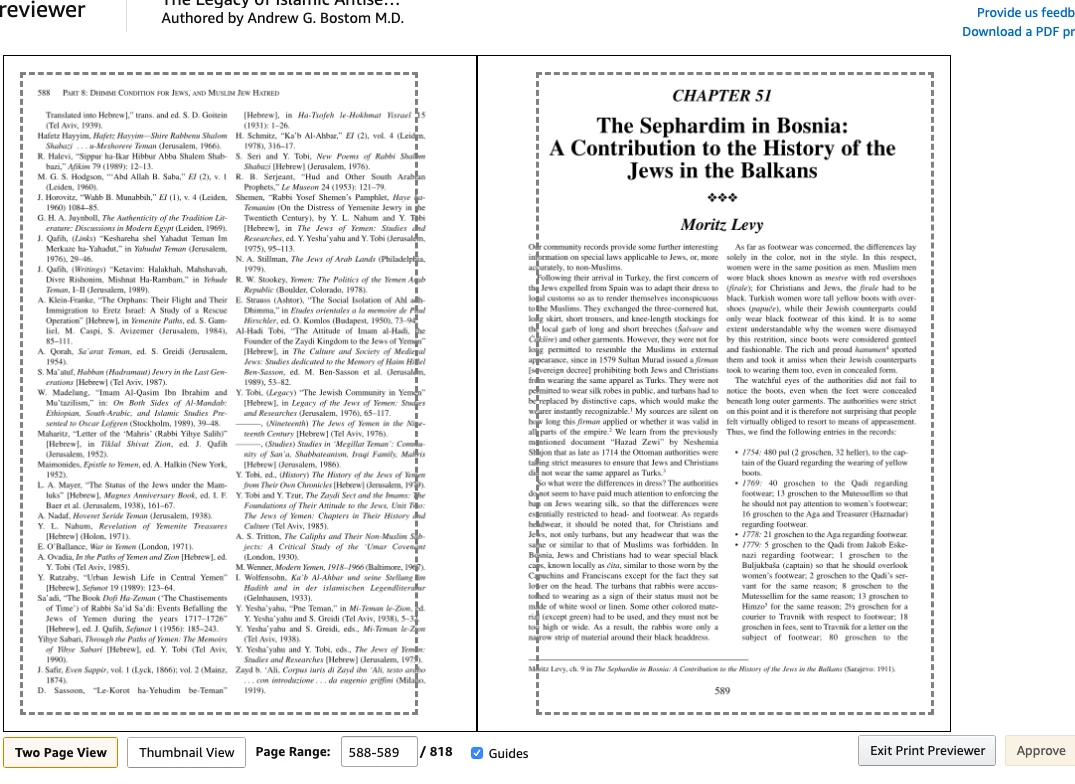
I've read several threads here saying you cannot change margins and have the words wrap etc as you would in a word processor. That's NOT what I need to do. I just need to simply shift the WHOLE text section of the page over very slightly to adapt it to the new page shape created by the slightly larger spine. See below.


The only way I can think to do this off the top of my head is to manually move each text box to either side. Considering this part of the book is 733 pages, that would be an incredibly labor-intensive task, so obviously I'm trying to avoid that. Any ideas?


Thanks!


This topic has been closed for replies.

4 replies

Participant
October 9, 2023

Good day, I would love to be able to assist you but to be honest, to date  there is no tool that will  increase your mirrored  margins, to my knowledge. 700 pages equates to 350 double sided print production. What you need to do is export the doc to MS word then copy and paste each chapter seperately into the MS app notepad++  This process will convert the text to a workable word file. Then you copy and paste that text back into an unformatted narrow equal sided unformatted blank document, each chapter  at a time. just keep going with this process until  the entire document, chapter by chapter has been through the cleaning app...no need to worry about page breaks, as long as you retain the chapter numbers. Once completed, you have to save your document, then and work on word spacing but it is doable. You need to dedicate a day or two to this task, but once completed you have a workable word document. Sometimes you need to recopy the whole file back into the app to get it to a tidy document, and tou can chang eth font style in word if you wish. PDF is a snap-shot and of font that are like the bricks in a building, so think about just being able to slide a few rows od brich around it create a window.🤣🤣🤣 MS word is like wet cement, and you can move and slide it according to page size. Notebook ++ is a free MS app. Good luck 

Abambo
Community Expert
Community Expert
October 9, 2023

This is bad advice for a 3 years old thread. Word is absolutely not the right tool to do desktop publishing. I'm locking this.

ABAMBO | Hard- and Software Engineer | Photographer
SavitAuthor
Participating Frequently
January 2, 2020

Yes, I'm there. Thank you both for pointing it out and it gets me closer to a solution, but of course cropping a page involves removing part of the page and then it is unfit for publishing. Is there any way to add back some white space and "mount" the cropped text into the correct position?

Thom Parker
Community Expert
Community Expert
January 2, 2020

Yes, you can be more precise with a script. As an example, you can get a free "Resize Pages" tool here:

https://www.pdfscripting.com/public/Free_Acrobat_Automation_Tools.cfm


I don't know if this will work for you, but it shows what can be done with a script. So you could write something specific for what you want to do. 

Thom Parker - Software Developer at PDFScriptingUse the Acrobat JavaScript Reference early and often
Thom Parker
Community Expert
Community Expert
January 2, 2020

If you have Acrobat Professional, then look at the "Crop Pages" tool, which is in the "Edit PDF" toolset. 

Thom Parker - Software Developer at PDFScriptingUse the Acrobat JavaScript Reference early and often
Bernd Alheit
Community Expert
Community Expert
January 2, 2020

You can use the crop tool.

SavitAuthor
Participating Frequently
January 2, 2020

Elaborate please. I need to maintain a 7x10 "canvas" or it'll totally screw up the layout. If I crop won't I screw up the relative size of the page?

SavitAuthor
Participating Frequently
January 2, 2020

I should have said for those who are not familiar: the screenshot is from Amazon's preview tool when you submit the book, not from Adobe Acrobat.