

TwanVeugelers1975
Participant
May 30, 2024
Question

Automatically combine files to PDF based on the filename

  • May 30, 2024
  • 4 replies
  • 2342 views

We have a document folder with a few million files, these files are all png images. Every image is named with a number underscore number . png like 123456.png or 654321.png / 654321_1.png / 654321_2.png / 654321_3.png. Now I want to somehow automatically create a pdf from all files with the same name, where  _1 _2 etc should be combined. Is this possible in Acrobat Pro DC?
This a small example of these files:
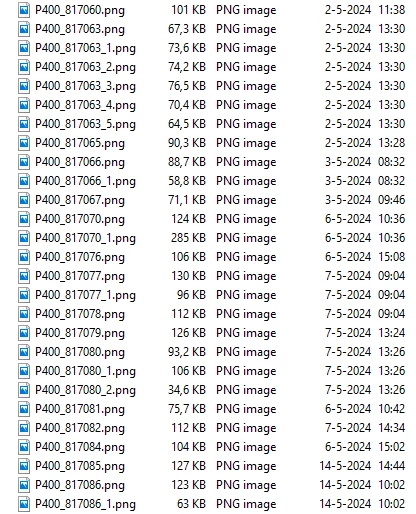
In this case I would in the end result to have the following files:
P400_817060.pdf  1 page

P400_817063.pdf  6 pages

P400_817065.pdf  1 page

P400_817066.pdf  2 pages

etc etc


Is this somehow possible to automate with a script or something like that?

I'm not very familiair with the intricate details and possibilties in Acrobat Pro!


This topic has been closed for replies.

4 replies

PDF Automation Station
Community Expert
Community Expert
May 31, 2024

Now that I've learned something new today from Thom Parker's post you can skip points 1 through 4 in my original post and simply replace them with an Action that only contains a save command.  This will convert all the .png files to PDFs.  Then proceed to step 5.    Searching "Action Wizard" on this site will get you started.  But like Try67 said, Acrobat might not be suited for such a high volume of files.  I suggest processing 100 files and timing it, then do the math to see how long it's going to take to process them all.  Then keep testing, while increasing the number of files by 100 until Acrobat invevitably crashes. This will give you an idea of how many files can be processed in a session.  I have had to do this for projects with thousands of files, but never anywhere close to millions.

try67
Community Expert
Community Expert
May 30, 2024

For that quantity of files I would strongly recommend you use a stand-alone (preferably command-line) application, and not Acrobat. It's not suited for batch processing such a high volume of files.

Thom Parker
Community Expert
Community Expert
May 30, 2024

Actually, this could easily be done with an Acrobat Action (batch process). Actions operate on all files in a folder. The action will automatically convert the png files to PDF, after which they can be saved and then a script can sort the file name, log it, and insert it into the appropiate combined PDF .


Thom Parker - Software Developer at PDFScriptingUse the Acrobat JavaScript Reference early and often
PDF Automation Station
Community Expert
Community Expert
May 31, 2024

I didn't realize Acrobat would automatically convert other file types when opened in an Action.  It didn't work for me at first because I had the Action Wizard setting in preferences to a security policy.  On PDFs without security I would just cancel the password prompt at the beginning of the Action and everything work out.  Not so with .png files.  Thank you for your years of expertise and teaching.

PDF Automation Station
Community Expert
Community Expert
May 30, 2024

This will work, with a couple of caveats:

a)  The PDF pages will all be the same size, with the .png images scaled to fit on the page.

b)  You will have to break up this process, limiting the number of files process at one time, or Acrobat will crash.


1)  Create a blank PDF page with a button field that covers the entire page, and set the button and set the button layout to "Icon Only".

2) Create a .bat file that creates a text file list of all files in the folder (instructions in the link of the next point).

3)  Create your own "Action" (not the Action Wizard as it only operates on .pdf files). https://pdfautomationstation.substack.com/p/how-to-create-your-own-action-batch

4)  The script you write for this will import the .png file into the button field, flatten the pdf, save the pdf with same name as the .png file but with .pdf extension, close the file, reopen the template and repeat for the next file in the list.  You will end up with one PDF file for every png file.

5)  Create an Action (Action Wizard) that executes a JavaScript that:  Checks the file name of the PDF for the number of underscores.  If the file name contains more than one underscore, don't do anything.  If the file name name contains only one underscore, insert pages from the other files with anticipated file names.  You will have to run a loop of anticipated file names to the maximum possible number of pages and us a try/catch so errors will be ignored when file names of pages to insert are not present.