
Participant
May 18, 2022
Answered

Bates Numbering is too small on images (e.g., jpg or tif) converted to PDF

  • May 18, 2022
  • 3 replies
  • 6276 views

For example, if I have a set of documents consisting of 50 pages. Forty pages were either scanned or converted to PDF through Word. The other ten are photos that were converted to PDF from their native digital format (jpg or tiff). When Bates numbering is applied, the size appears to be normal on the first 40 pages, but the size of the Bates Number is microscopic on the PDFs converted from a native digital format. What is causing this issue and what is the best way to address? Thanks.
Correct answer Brad @ Roaring Mouse

I suspect the images that were imported directly created much larger pages than your other 40, so the Bates numbering appears smaller by comparison, but are in fact the same font size.

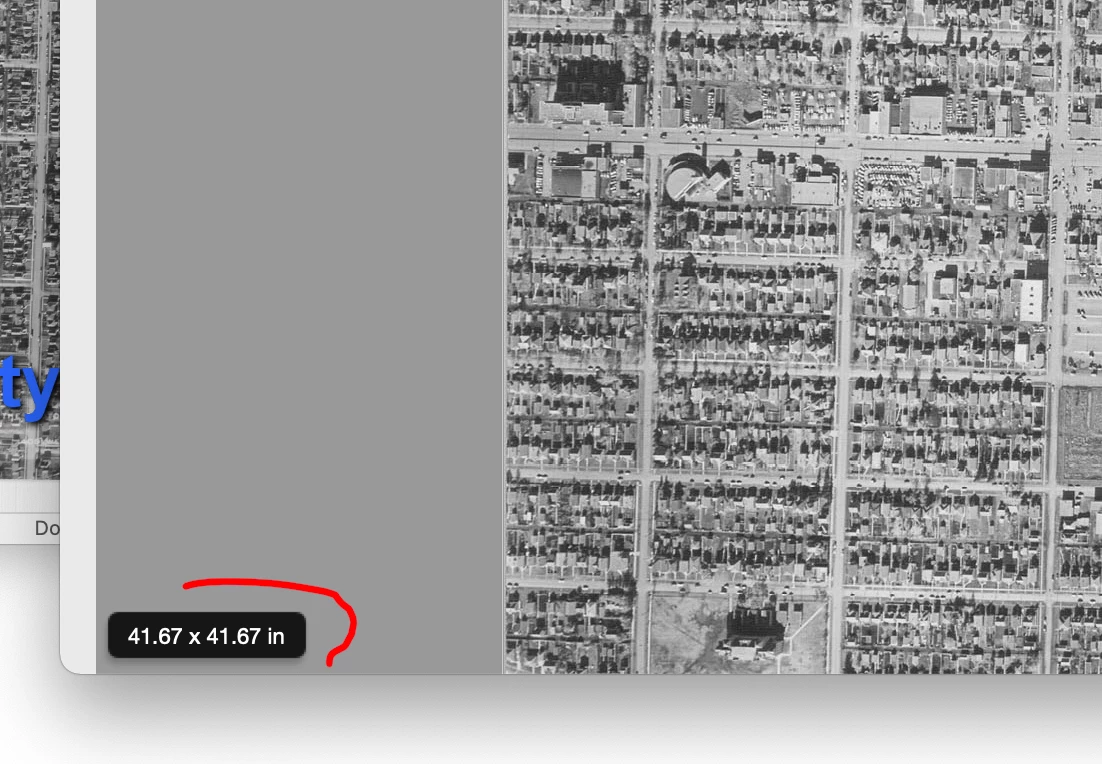
On one of the image pages, what is the size of the page? (hover down to the bottom left corner).

e.g. a 3000 x 3000 pixel image saved as 300 ppi will direct import as a 10"x 10" page, but if the resolution was 150 ppi, it would create a 20"x 20" page. At 72 ppi it would create a page 41.67" x 41.67" (as per my example)

3 replies

Participant
November 29, 2024

The solution is to hyper-enlarge the Bates font, which will appear normal. 

Participant
December 4, 2024

So you're telling me all we have do to fix this issue is make the font larger...
Well Tonya, I tried your solution, and once again - you were right on the money. We sure are lucky to have experts like you in the community. How long have your worked at Adobe? Or are you just out here for the love of the game? 

Brad @ Roaring Mouse
Community Expert
Brad @ Roaring MouseCommunity ExpertCorrect answer
Community Expert
May 18, 2022

I suspect the images that were imported directly created much larger pages than your other 40, so the Bates numbering appears smaller by comparison, but are in fact the same font size.

On one of the image pages, what is the size of the page? (hover down to the bottom left corner).

e.g. a 3000 x 3000 pixel image saved as 300 ppi will direct import as a 10"x 10" page, but if the resolution was 150 ppi, it would create a 20"x 20" page. At 72 ppi it would create a page 41.67" x 41.67" (as per my example)

Participant
May 19, 2022

You nailed it. Hovering in the bottom left corner reveals "30.06 x 39.44 in". I received these documents from my client. It appears that they took a picture of a document with their phone and converted it to PDF. I did not receive the original photo. I just received the PDF. Once I receive it in this format, what options do I have? 

Brad @ Roaring Mouse
Community Expert
Community Expert
May 19, 2022

Actually, if you have Acrobat Pro DC then you can easily do it now using the Preflight tool.


Nice! I haven't had a need to do this so I never noticed they added that fixup. Mine only has "Scale Pages to A4", so the OP will have to edit the fixup to change from A4 to Letter (or whatever) dimensions.


Amal.
Community Manager
Community Manager
May 18, 2022

Hi there


Hope you are doing well and sorry to hear that. We need some more information for a better understanding:


- Would you mind sharing the version of the Adobe Acrobat DC and the OS you are using?  Please make sure you have the recent version 22.1.20117 (Win), 20112 (Mac) installed. Go to help > Check for updates and reboot the computer once.


- What is the workflow/steps you are doing to create the PDF and add the bates number to it?  Also, please share the screenshot of the issue or a small video recording for a better understanding.


We are here for help, just need more information.


Regards

Amal

Participant
May 19, 2022

Thanks for the response. Windows 10 Pro (Version 21H1) (OS Build 19043.1706). I am running Adobe Acrobat Pro DC Version 2022.001.20117. Someone else responded and correctly diagnosed my problem. Not sure if there is a solution.